Data Manager API offline conversions should not mix WordPress local time, CRM local time, spreadsheet time, and API time without normalization. Every uploaded row needs a declared timestamp source and timezone handling rule.
Use this for WordPress form leads, call tracking, CRM qualification events, booked appointments, closed-won opportunities, and disqualified lead adjustments sent to Google Ads or GMP destinations.
Quick answer
Data Manager API Offline Conversion Timezone Normalization should be handled with a narrow evidence-first workflow: inventory fields, choose event source, normalize timezone, then verify the result before making broader changes.
What to check first
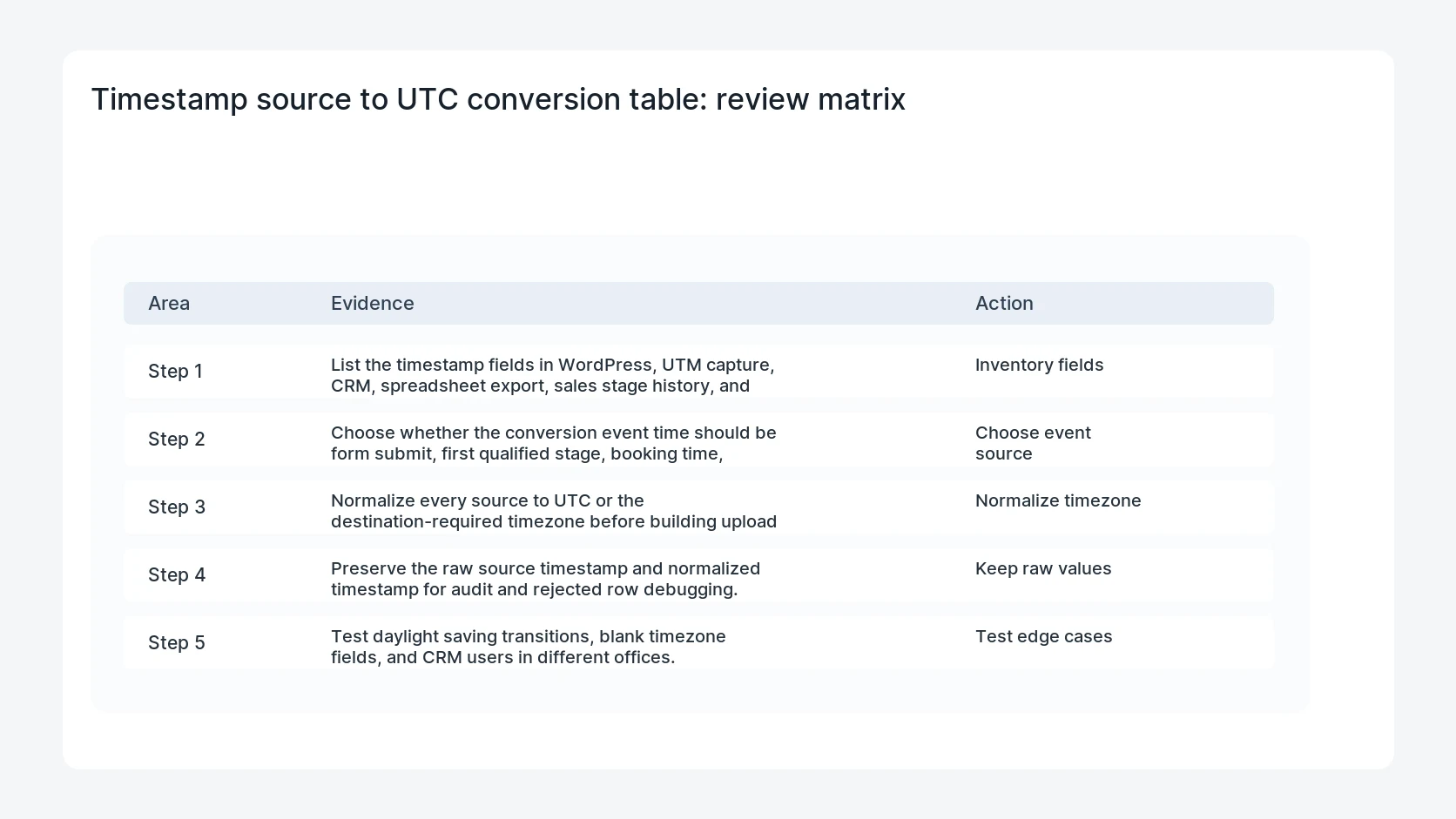
- List the timestamp fields in WordPress, UTM capture, CRM, spreadsheet export, sales stage history, and upload logs.
- Choose whether the conversion event time should be form submit, first qualified stage, booking time, sale time, or disqualification time.
- Normalize every source to UTC or the destination-required timezone before building upload rows.
- Preserve the raw source timestamp and normalized timestamp for audit and rejected row debugging.
- Test daylight saving transitions, blank timezone fields, and CRM users in different offices.
Diagnostic table
Use this table to keep the work practical. It connects the symptom to evidence and a verification step.
| Action | Evidence to collect | How to verify |
|---|
| Inventory fields | List the timestamp fields in WordPress, UTM capture, CRM, spreadsheet export, sales stage history, and upload logs. | Every upload row has a timestamp source and timezone rule. |
| Choose event source | Choose whether the conversion event time should be form submit, first qualified stage, booking time, sale time, or disqualification time. | Raw and normalized times are both available for rejected row review. |
| Normalize timezone | Normalize every source to UTC or the destination-required timezone before building upload rows. | DST and multi-office records produce expected normalized times. |
| Keep raw values | Preserve the raw source timestamp and normalized timestamp for audit and rejected row debugging. | Accepted conversion counts reconcile to CRM stage counts for the same date window. |
Why this usually happens
- WordPress stores one time, the CRM displays another, and the spreadsheet removes the timezone offset.
- Sales reps update a lead stage days after the original click and overwrite the original form time.
- An upload queue runs in UTC while the marketing account expects local account time.
- Daylight saving changes create one-hour shifts that only appear during certain weeks.
- Rejected rows are retried after editing timestamps manually, hiding the source issue.
Field notes
- Store `raw_timestamp`, `raw_timezone`, `normalized_timestamp`, and `timestamp_source` during rollout. It saves hours when Google rejects a row.
- For lead quality bidding, the conversion event time and the business decision time may be different fields.
Useful command or data shape
Adapt paths, IDs, and privacy handling to the site before running commands or storing data on production.
timestamp_normalization:
  lead_id: GF-9088
  source: crm_stage_change
  raw_timestamp: 07/05/2026 08:44 AM
  raw_timezone: America/Chicago
  normalized_utc: 2026-07-05T13:44:00Z
  upload_destination: Data Manager API
  audit_fields: [raw_timestamp, raw_timezone, normalized_utc, source]
Safe fix order
Do the work in a sequence that makes each result easy to prove. Stop if a step produces new evidence that changes the incident scope.
- Inventory fields
- Choose event source
- Normalize timezone
- Keep raw values
- Test edge cases
What to tell the client or owner
Tell the marketing owner which timestamp drives bidding, which timestamp is only operational, and how rejected rows will be debugged.
Production verification checklist
- Every upload row has a timestamp source and timezone rule.
- Raw and normalized times are both available for rejected row review.
- DST and multi-office records produce expected normalized times.
- Accepted conversion counts reconcile to CRM stage counts for the same date window.
Mistakes to avoid
- Do not judge the fix by one browser or the homepage only.
- Do not delete evidence before recording usernames, file paths, timestamps, and response headers.
- Do not add a cache, security, or tracking plugin while the original problem is still unclear.
- Do not leave test users, temporary debug logs, or broad API keys active after verification.
When HandL WP should help
Bring in help when this affects leads, checkout, search visibility, malware risk, paid media reporting, or a client production site. HandL WP can trace the issue through WordPress, hosting, cache, tracking, and Search Console, then verify the workflow after the technical fix.
If this is active on a production site, fix Google Ads offline conversion timing.
Related HandL WP guides
Use these related guides when the same issue touches tracking, security, checkout, or crawler visibility.
Helpful references