Elementor Forms often submit through AJAX, while Google Consent Mode and cookie banners change which tags can fire and which identifiers can be stored. A one-browser test can miss denied, granted, delayed, and missing consent states.
Use this for WordPress lead sites using Elementor Forms, GTM, Google Ads conversions, GA4, cookie banners, enhanced conversions, hidden fields, thank-you pages, webhooks, or CRM uploads.
Quick answer
Elementor Form Consent Debug and Cookie Banner Testing should be handled with a narrow evidence-first workflow: test consent states, confirm trigger, capture hidden fields, then verify the result before making broader changes.
What to check first
- Test the form with consent denied, consent granted, consent changed after load, and no banner interaction.
- Confirm the Elementor submit success event, redirect, webhook, or AJAX response is the real trigger for the conversion tag.
- Check whether hidden fields capture landing page, click IDs, form ID, consent state, and lead ID at submit time.
- Make sure enhanced conversion fields are normalized and handled only when privacy rules allow them.
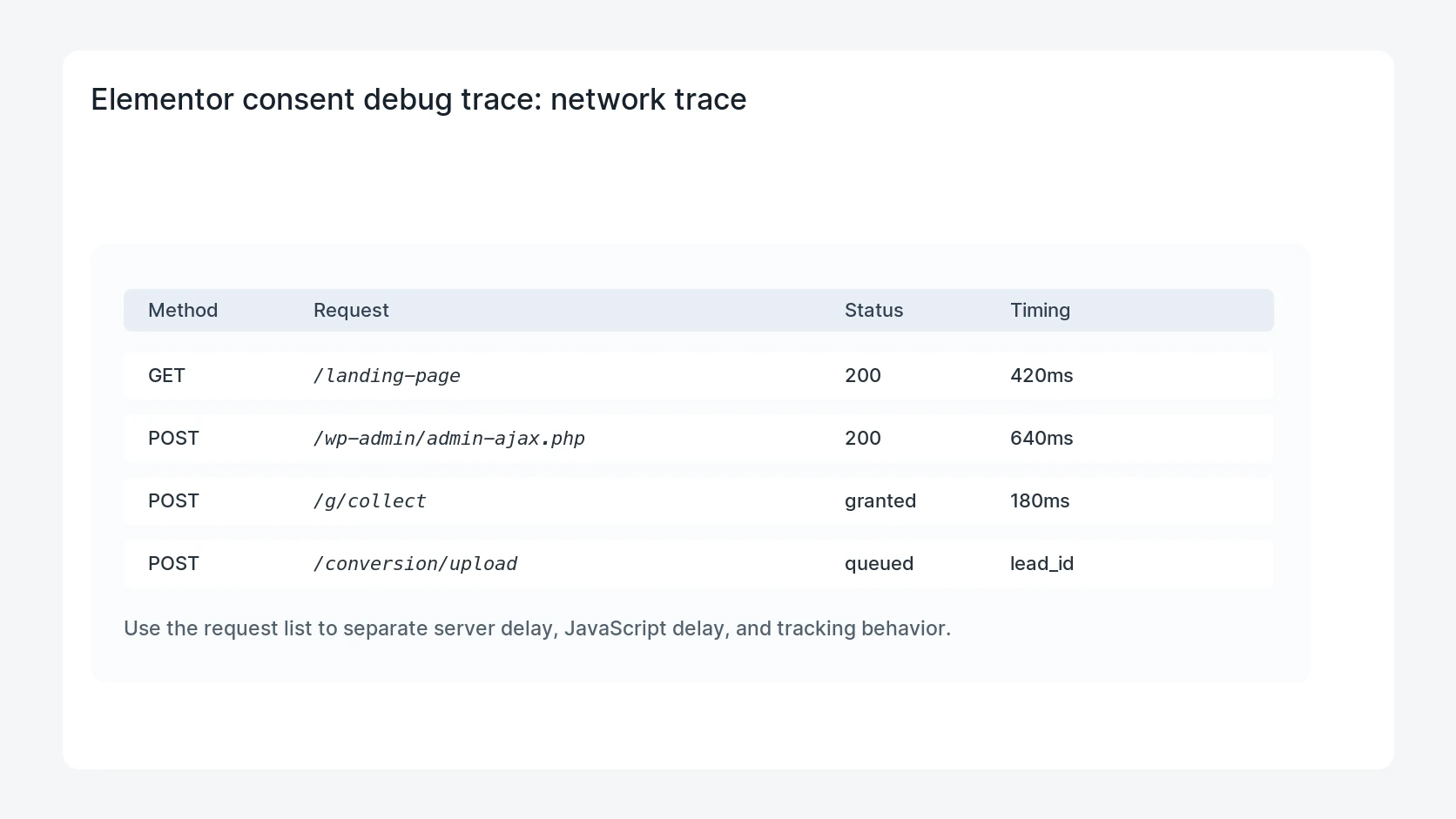
- Compare GTM preview, browser network requests, WordPress form entry, CRM record, and Google Ads diagnostics.
Diagnostic table
Use this table to keep the work practical. It connects the symptom to evidence and a verification step.
| Action | Evidence to collect | How to verify |
|---|
| Test consent states | Test the form with consent denied, consent granted, consent changed after load, and no banner interaction. | The conversion fires once for a valid submit when consent allows it. |
| Confirm trigger | Confirm the Elementor submit success event, redirect, webhook, or AJAX response is the real trigger for the conversion tag. | Denied consent does not send restricted advertising identifiers. |
| Capture hidden fields | Check whether hidden fields capture landing page, click IDs, form ID, consent state, and lead ID at submit time. | The WordPress entry, CRM record, and upload event share a stable lead ID. |
| Handle privacy rules | Make sure enhanced conversion fields are normalized and handled only when privacy rules allow them. | Google Ads diagnostics show accepted test events after the workflow is live. |
Useful command or data shape
Adapt paths, IDs, and privacy handling to the site before running commands or storing data on production.
dataLayer.push({
  event: 'elementor_form_submit',
  form_id: 'quote_request',
  consent_state: 'granted',
  lead_id: 'elm-20260627-1042',
  gclid_present: true
});
Safe fix order
Do the work in a sequence that makes each result easy to prove. Stop if a step produces new evidence that changes the incident scope.
- Test consent states
- Confirm trigger
- Capture hidden fields
- Handle privacy rules
- Compare diagnostics
Production verification checklist
- The conversion fires once for a valid submit when consent allows it.
- Denied consent does not send restricted advertising identifiers.
- The WordPress entry, CRM record, and upload event share a stable lead ID.
- Google Ads diagnostics show accepted test events after the workflow is live.
Mistakes to avoid
- Do not judge the fix by one browser or the homepage only.
- Do not delete evidence before recording usernames, file paths, timestamps, and response headers.
- Do not add a cache, security, or tracking plugin while the original problem is still unclear.
- Do not leave test users, temporary debug logs, or broad API keys active after verification.
When HandL WP should help
Bring in help when this affects leads, checkout, search visibility, malware risk, paid media reporting, or a client production site. HandL WP can trace the issue through WordPress, hosting, cache, tracking, and Search Console, then verify the workflow after the technical fix.
If this is active on a production site, fix Elementor consent and conversion tracking.
Helpful references