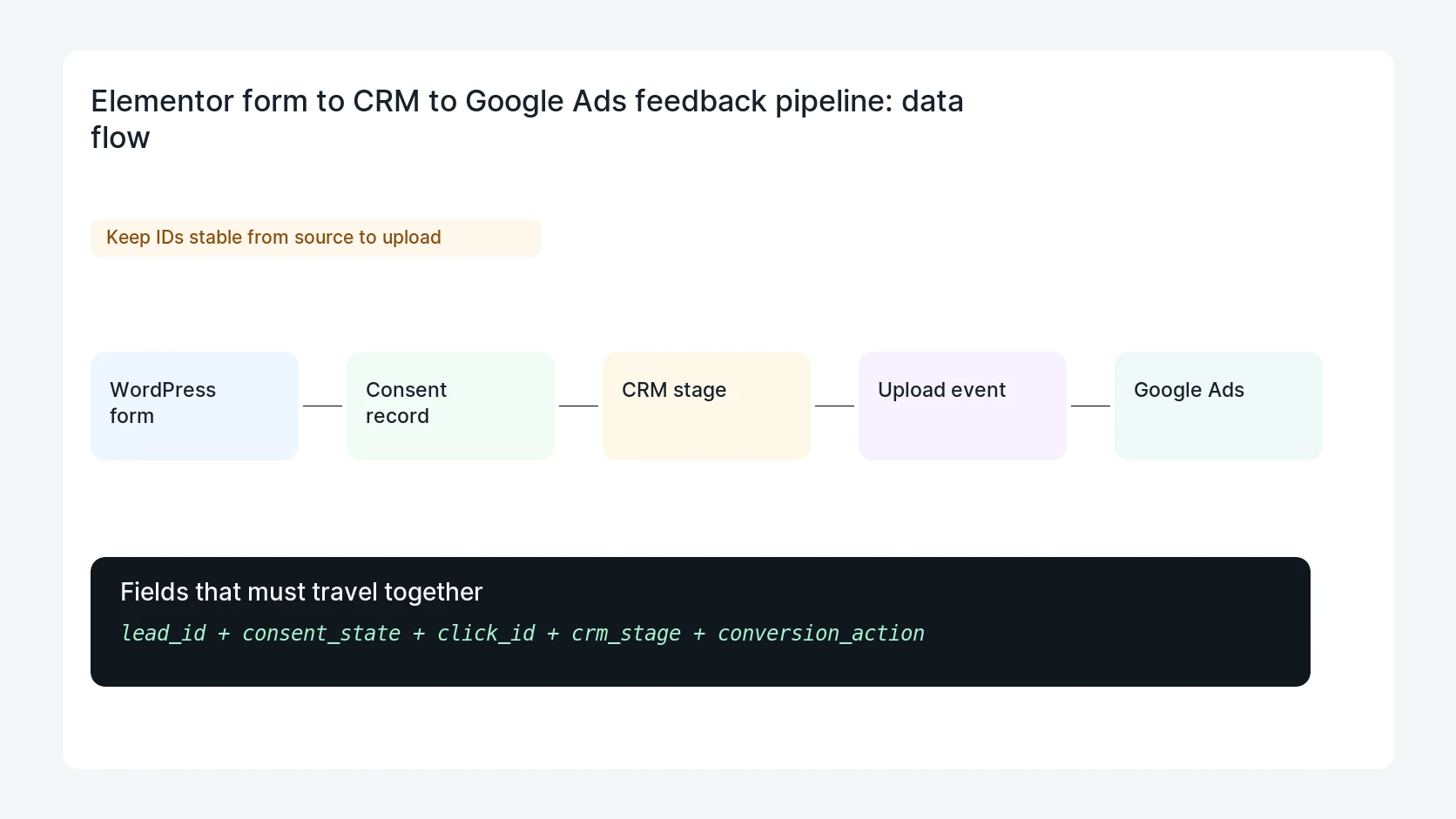
Elementor forms often send a basic Google Ads conversion on submit, but the ad platform never learns whether the lead became qualified, booked, sold, or disqualified. A feedback loop connects form IDs, click IDs, CRM stages, and conversion adjustments.
Use this for service businesses, agencies, clinics, contractors, consultants, and B2B teams that receive Elementor form leads and care more about lead quality than raw form count.
Quick answer
Elementor Form Google Ads Lead Quality Feedback Loop should be handled with a narrow evidence-first workflow: capture ids, join crm lead, define stages, then verify the result before making broader changes.
What to check first
- Capture form ID, entry ID, page URL, UTM fields, click IDs, consent state, and submitted email or phone where policy allows.
- Send the lead to a CRM with a stable lead ID that can be joined back to the Elementor submission.
- Define which stages count as qualified lead, booked appointment, sale, returned lead, or disqualified lead.
- Upload offline conversions or adjustments only after the CRM stage is trusted and identifiers are normalized.
- Compare Google Ads conversion counts with Elementor entries, CRM stages, and disqualified reasons each week.
Diagnostic table
Use this table to keep the work practical. It connects the symptom to evidence and a verification step.
| Action | Evidence to collect | How to verify |
|---|
| Capture IDs | Capture form ID, entry ID, page URL, UTM fields, click IDs, consent state, and submitted email or phone where policy allows. | Every test Elementor lead has a form entry ID, CRM lead ID, click ID status, and consent state. |
| Join CRM lead | Send the lead to a CRM with a stable lead ID that can be joined back to the Elementor submission. | Qualified and disqualified stages are mapped to clear Google Ads actions or adjustments. |
| Define stages | Define which stages count as qualified lead, booked appointment, sale, returned lead, or disqualified lead. | Upload logs show accepted rows, rejected rows, and skipped rows with reasons. |
| Upload outcomes | Upload offline conversions or adjustments only after the CRM stage is trusted and identifiers are normalized. | Weekly counts reconcile from Elementor entries to CRM outcomes to Google Ads uploads. |
Why this usually happens
- The form submit tag is easy to install, but it treats spam, bad fits, and customers equally.
- Click IDs are lost between the landing page, form action, email notification, and CRM import.
- Sales teams update CRM stages without sending the outcome back to advertising systems.
- Disqualified leads are ignored, so bidding keeps finding more of the same low-quality submissions.
Field notes
- Start with one high-spend campaign and one Elementor form. Prove the join before rolling it out across the site.
- Do not upload raw personal data unless consent, hashing, policy, and account configuration have been reviewed.
Useful command or data shape
Adapt paths, IDs, and privacy handling to the site before running commands or storing data on production.
lead_quality_feedback:
  elementor_form_id: contact-sales
  entry_id: EL-22018
  gclid: CjwKCA...
  crm_lead_id: CRM-77120
  stage: qualified
  value: 250
  upload_action: qualified_lead
  adjustment_rule: retract_if_disqualified_within_30_days
Safe fix order
Do the work in a sequence that makes each result easy to prove. Stop if a step produces new evidence that changes the incident scope.
- Capture IDs
- Join CRM lead
- Define stages
- Upload outcomes
- Reconcile weekly
What to tell the client or owner
Tell the marketing team which form submit conversions should remain primary, which offline outcomes should guide bidding, and which low-quality leads should be adjusted or suppressed.
Production verification checklist
- Every test Elementor lead has a form entry ID, CRM lead ID, click ID status, and consent state.
- Qualified and disqualified stages are mapped to clear Google Ads actions or adjustments.
- Upload logs show accepted rows, rejected rows, and skipped rows with reasons.
- Weekly counts reconcile from Elementor entries to CRM outcomes to Google Ads uploads.
Mistakes to avoid
- Do not judge the fix by one browser or the homepage only.
- Do not delete evidence before recording usernames, file paths, timestamps, and response headers.
- Do not add a cache, security, or tracking plugin while the original problem is still unclear.
- Do not leave test users, temporary debug logs, or broad API keys active after verification.
When HandL WP should help
Bring in help when this affects leads, checkout, search visibility, malware risk, paid media reporting, or a client production site. HandL WP can trace the issue through WordPress, hosting, cache, tracking, and Search Console, then verify the workflow after the technical fix.
If this is active on a production site, build a Google Ads lead quality feedback loop.
Related HandL WP guides
Use these related guides when the same issue touches tracking, security, checkout, or crawler visibility.
Helpful references