GA4 events not firing on WordPress forms usually means the analytics layer is not connected to the actual successful submission. The form may save entries and send emails while GA4 sees nothing.
The goal is to send a clean event when a real lead happens, then verify it in GA4 DebugView and reports.
Quick diagnostic map
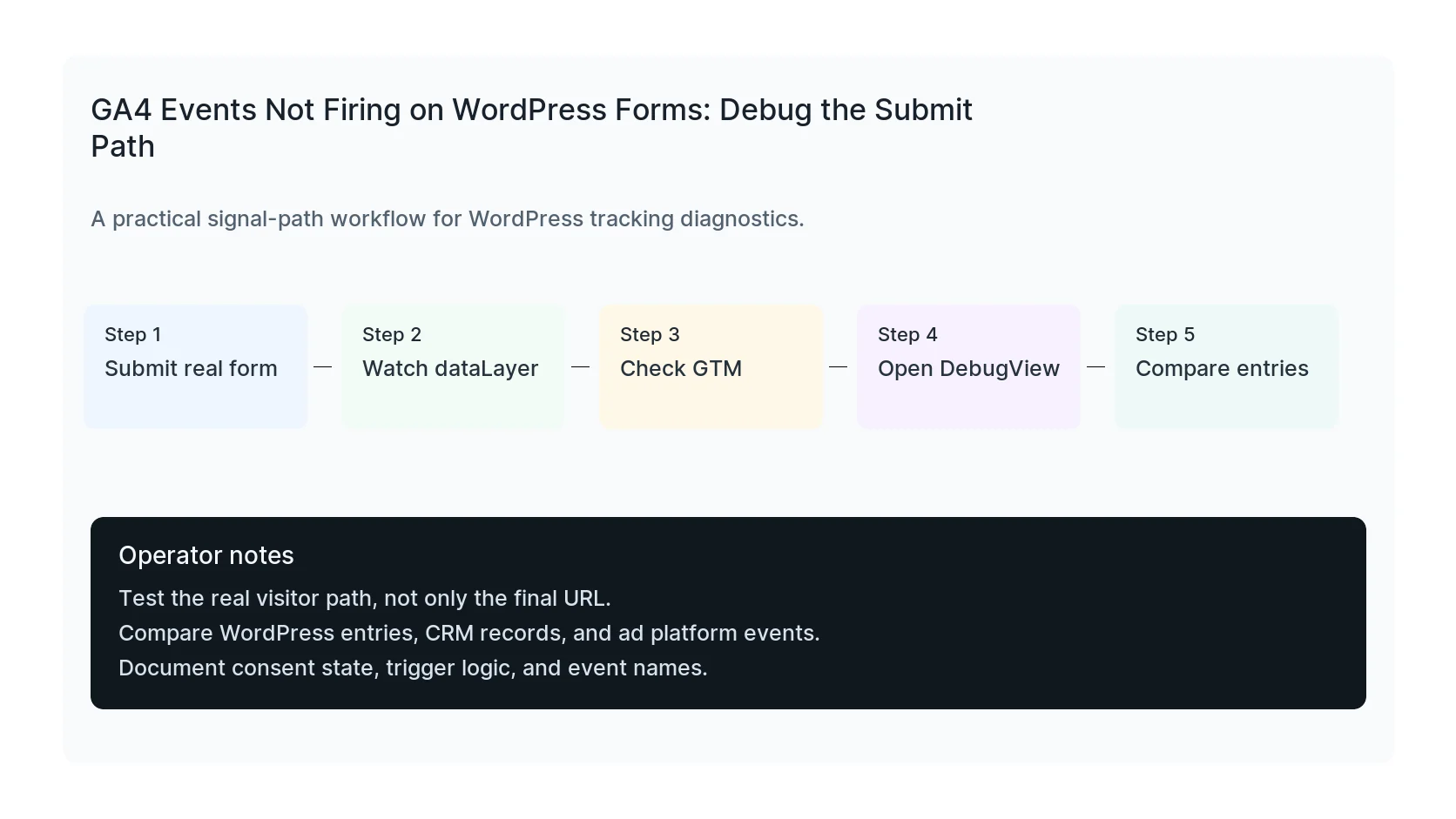
Use this map before changing tags or plugins. It keeps the investigation tied to the actual signal path instead of guessing inside dashboards.
| Signal | Meaning | First check |
|---|
| Visitor submits | Start of the signal path | Submit real form |
| Validation passes | Middle layer that often breaks | Watch dataLayer |
| Success event fires | Conversion moment to verify | Check GTM |
| GA4 receives event | Reporting destination | Compare entries |
Use the right event name
For lead generation, GA4 supports recommended events such as generate_lead. You can also use custom events, but recommended events are easier to understand later when reporting grows.
Whatever you choose, document the event name and keep it consistent.
Handle AJAX forms correctly
Many WordPress forms do not reload the page after submission. A pageview-based trigger will miss those submissions. Use a dataLayer push, form plugin event, or success callback instead.
Inspect the event timeline in GTM Preview while submitting the form.
Check consent and debug view
If analytics_storage is denied, GA4 behavior changes. If DebugView is not enabled or the event is filtered, you may think nothing fired.
Test with known consent states and confirm the event request in the browser network tab.
Debug checklist
- GTM container loads once.
- Success event appears after valid submission.
- GA4 event tag fires once.
- DebugView shows the event.
- WordPress entry or CRM record exists.
Reporting cleanup
- Mark important events as key events if appropriate.
- Use consistent parameters.
- Exclude test submissions.
- Compare GA4 counts to CRM counts.
- Document the difference between leads and form attempts.
Useful test commands
Use browser tools and command-line checks together. Browser tools show client-side events. Server and API checks show what survives after WordPress handles the submission.
DebugView -> generate_lead
When to get help
If the tracking path is tied to paid spend, lead routing, healthcare privacy, or CRM reporting, do not leave it half-tested. HandL WP can trace the path across WordPress, forms, GTM, pixels, server-side events, and CRM fields. If this is active on a production site, get WordPress analytics tracking help.
Helpful official references
If form events leave the browser but disappear from reports, review property filtering as a separate checkpoint: Test a GA4 Internal Traffic Filter Before Making It Active.