If GCLID is not captured in WordPress forms, Google Ads attribution can break even when the conversion tag fires. The lead exists, but the click identity needed for offline imports, CRM reporting, or enhanced attribution is missing.
This usually happens because redirects strip the query string, hidden fields are not populated, cookies are blocked, or the CRM field mapping drops the value.
Quick diagnostic map
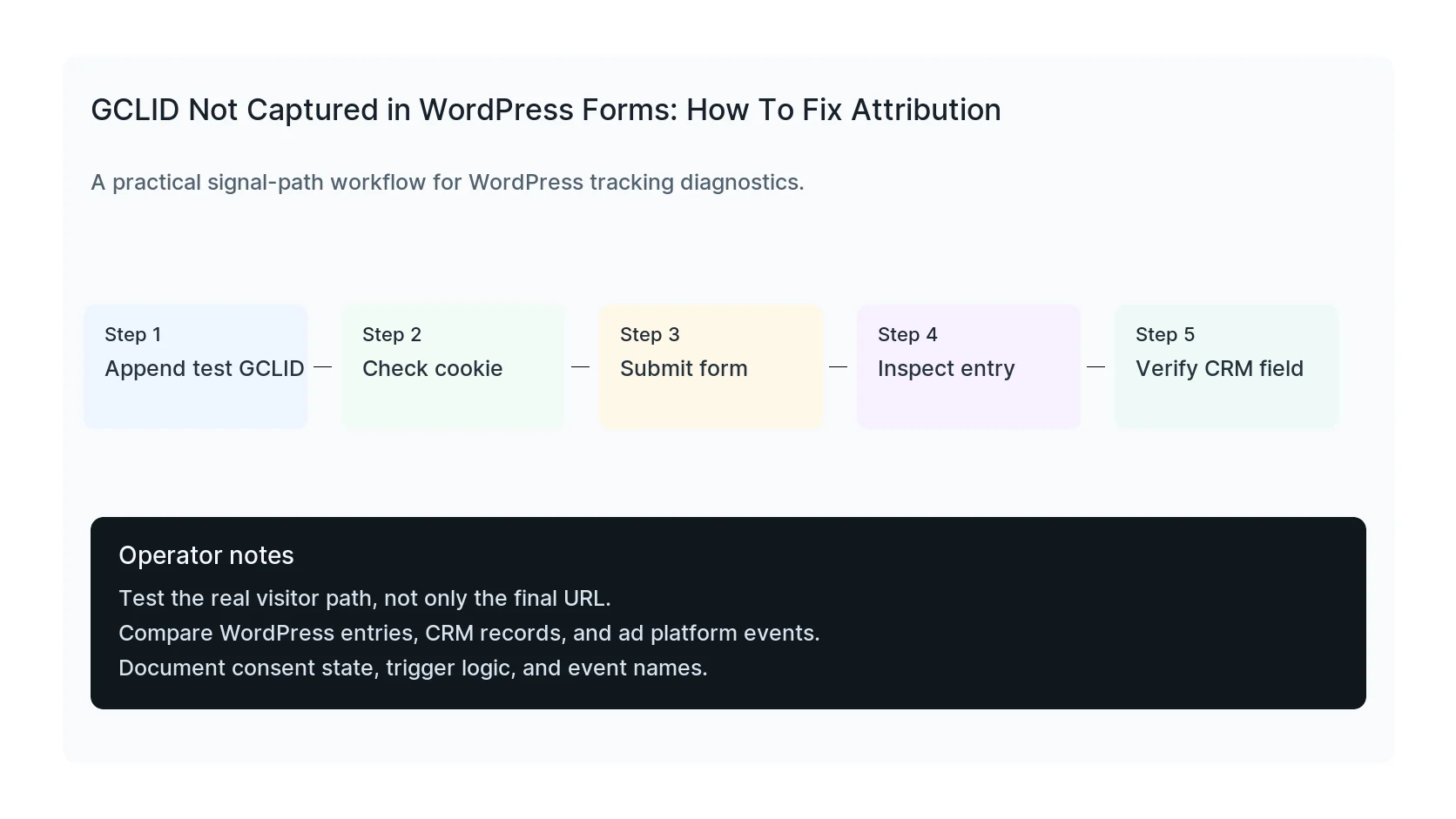
Use this map before changing tags or plugins. It keeps the investigation tied to the actual signal path instead of guessing inside dashboards.
| Signal | Meaning | First check |
|---|
| GCLID in URL | Start of the signal path | Append test GCLID |
| Stored in cookie | Middle layer that often breaks | Check cookie |
| Copied to hidden field | Conversion moment to verify | Submit form |
| Sent to CRM | Reporting destination | Verify CRM field |
Start with a test URL
Add a fake GCLID to the landing page URL and follow the same path a Google Ads visitor takes. Do not skip redirects, modals, or multi-step forms.
If the GCLID disappears after the first redirect, fix the redirect before touching the form.
Check hidden fields and timing
Many WordPress forms depend on hidden fields populated by JavaScript. If the script runs before the form exists, or the form is loaded later in a popup, the field may stay empty.
Inspect the form DOM before submitting and confirm the hidden field contains the test value.
Verify the CRM mapping
A WordPress entry with GCLID is not enough if the CRM ignores the field. Check the webhook, Zapier step, native add-on, or API payload. Name the field consistently across WordPress and the CRM.
Also confirm that later automation does not overwrite the first click value with an empty value.
Common fixes
- Preserve query strings through redirects.
- Store first-touch and latest-touch values separately.
- Populate hidden fields after modal forms render.
- Map GCLID to a real CRM field.
- Test with consent states that match your banner.
What to test after fixing it
- Landing page with GCLID.
- Second page before form.
- Form entry details.
- Email notification if it includes tracking fields.
- CRM record and offline conversion import file.
Useful test commands
Use browser tools and command-line checks together. Browser tools show client-side events. Server and API checks show what survives after WordPress handles the submission.
document.cookie.includes('gclid')
When to get help
If the tracking path is tied to paid spend, lead routing, healthcare privacy, or CRM reporting, do not leave it half-tested. HandL WP can trace the path across WordPress, forms, GTM, pixels, server-side events, and CRM fields. If this is active on a production site, audit your Google Ads attribution path.
Helpful official references
If the click ID is already gone before the form loads, trace the redirect chain first: GCLID Disappears in a WordPress Redirect: Find the Exact Hop.
Do not treat a Google advertising cookie as proof that the form stored the actual click identifier: Does the _gcl_au Cookie Prove GCLID Tracking Works? No.