The Data Manager API moves offline and enhanced conversion uploads into a more structured event pipeline. The hard part for WordPress is still the same: capture clean first-party data at the form and preserve it through the CRM.
Use this for service businesses that depend on Google Ads leads from WordPress forms, bookings, quote forms, or consultation requests.
Quick answer
Start with evidence, not a plugin setting. The first useful checks are: Capture click IDs and landing page data when the visitor submits the form. Store consent state, timestamp, source, and privacy context with the lead. Normalize user data before hashing or upload. Keep every change small enough to reverse.
Fast diagnosis map
Use this map before changing production. It helps separate a real platform issue from a cached page, stale setting, or missing handoff.
| Signal | What it means | Useful next check |
|---|
| GCLID missing | Check access, users, or ownership first | Capture IDs on form submit |
| Consent not stored | Look for a configuration, plugin, or data mismatch | Store consent record |
| CRM stage not mapped | Inspect the layer most likely to be hidden from the normal UI | Normalize and hash data |
| Upload diagnostics failing | Prove whether the problem is still active | Map CRM stages |
What to check first
- Capture click IDs and landing page data when the visitor submits the form.
- Store consent state, timestamp, source, and privacy context with the lead.
- Normalize user data before hashing or upload.
- Map CRM milestones to the right Google Ads conversion actions.
- Keep a retry log so failed uploads are not silently lost.
Run a focused check
These commands or fields give you a useful starting point. Adapt paths, IDs, and privacy handling to the site before running anything on production.
lead_id: 98421
gclid: CjwK...
email_sha256: 9b2d...
phone_sha256: 7ac1...
consent: granted
conversion_action: qualified_lead
crm_stage: sales_accepted
Safe fix order
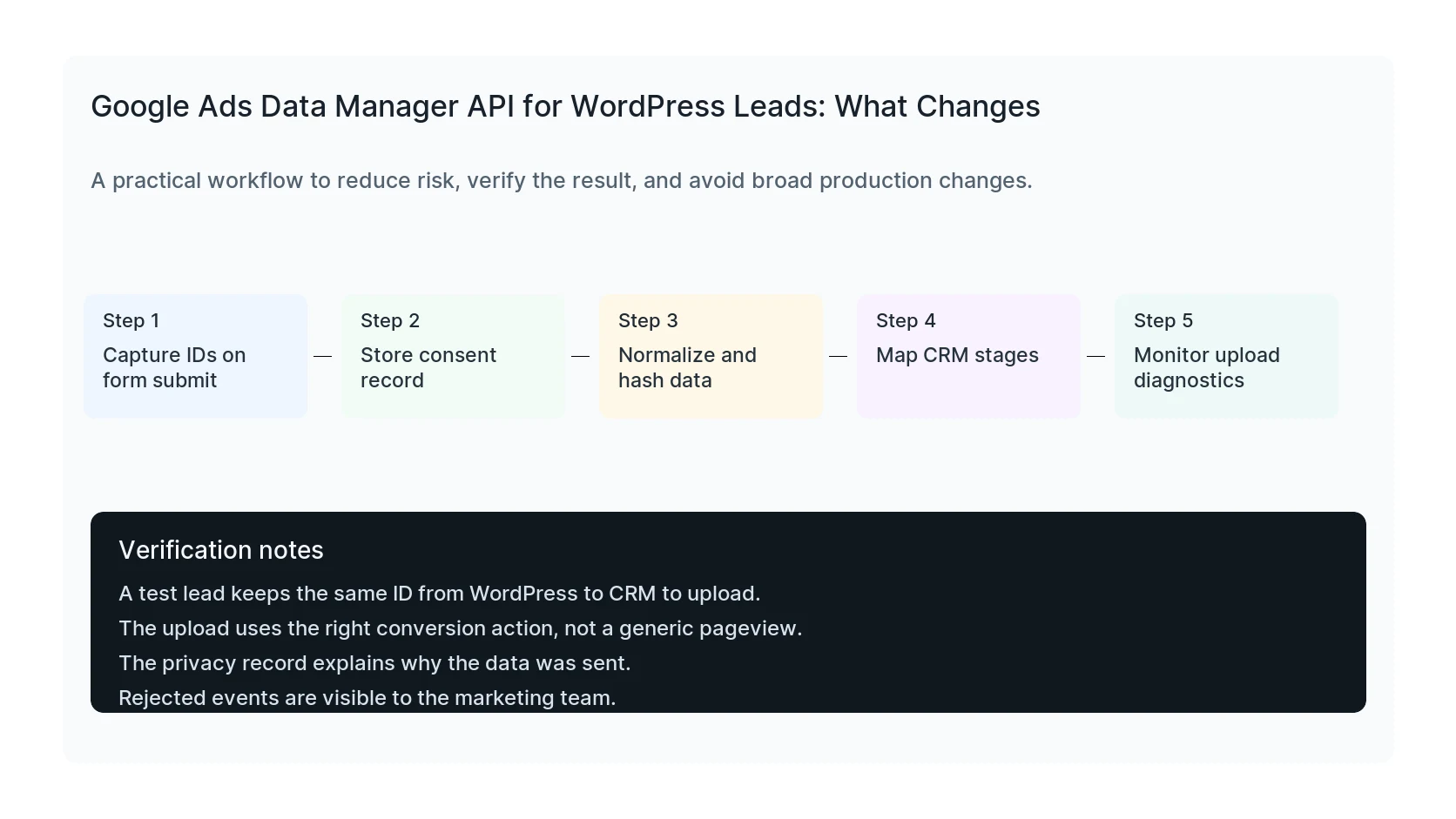
Do the work in this order so each result can be verified. If a step fails, stop and capture the evidence before making a broader change.
- Capture IDs on form submit
- Store consent record
- Normalize and hash data
- Map CRM stages
- Monitor upload diagnostics
Verification checklist
The fix is not done when the warning disappears. Confirm the result from the visitor side, admin side, and reporting side.
- A test lead keeps the same ID from WordPress to CRM to upload.
- The upload uses the right conversion action, not a generic pageview.
- The privacy record explains why the data was sent.
- Rejected events are visible to the marketing team.
Mistakes to avoid
- Do not judge the result by the homepage only.
- Do not clear every cache layer until you know which layer affects the symptom.
- Do not delete evidence before copying filenames, timestamps, versions, and affected URLs.
- Do not make privacy or crawler decisions without writing down the business reason.
- Do not leave temporary debug settings, test accounts, or broad permissions in place.
When HandL WP should help
Bring in help when the issue affects leads, checkout, ads, malware risk, search visibility, or a client production site. HandL WP can trace the problem through WordPress, hosting, tracking, cache, and Search Console, then verify the business workflow after the technical fix.
If this is active on a production site, fix Google Ads conversion tracking for WordPress.
Helpful references