Google Ads Data Manager upload planning should start at the WordPress form. If consent state, timestamp, click IDs, and CRM status are not captured with the lead, upload quality and privacy review both get harder.
Use this for lead generation sites using Gravity Forms, WPForms, Contact Form 7, Elementor Forms, HubSpot, Salesforce, Zoho, HighLevel, or custom CRMs.
Quick answer
Google Ads Data Manager Consent Mapping for WordPress Forms should be handled with a narrow evidence-first workflow: capture consent fields, preserve click ids, normalize user data, then verify the result before making broader changes.
What to check first
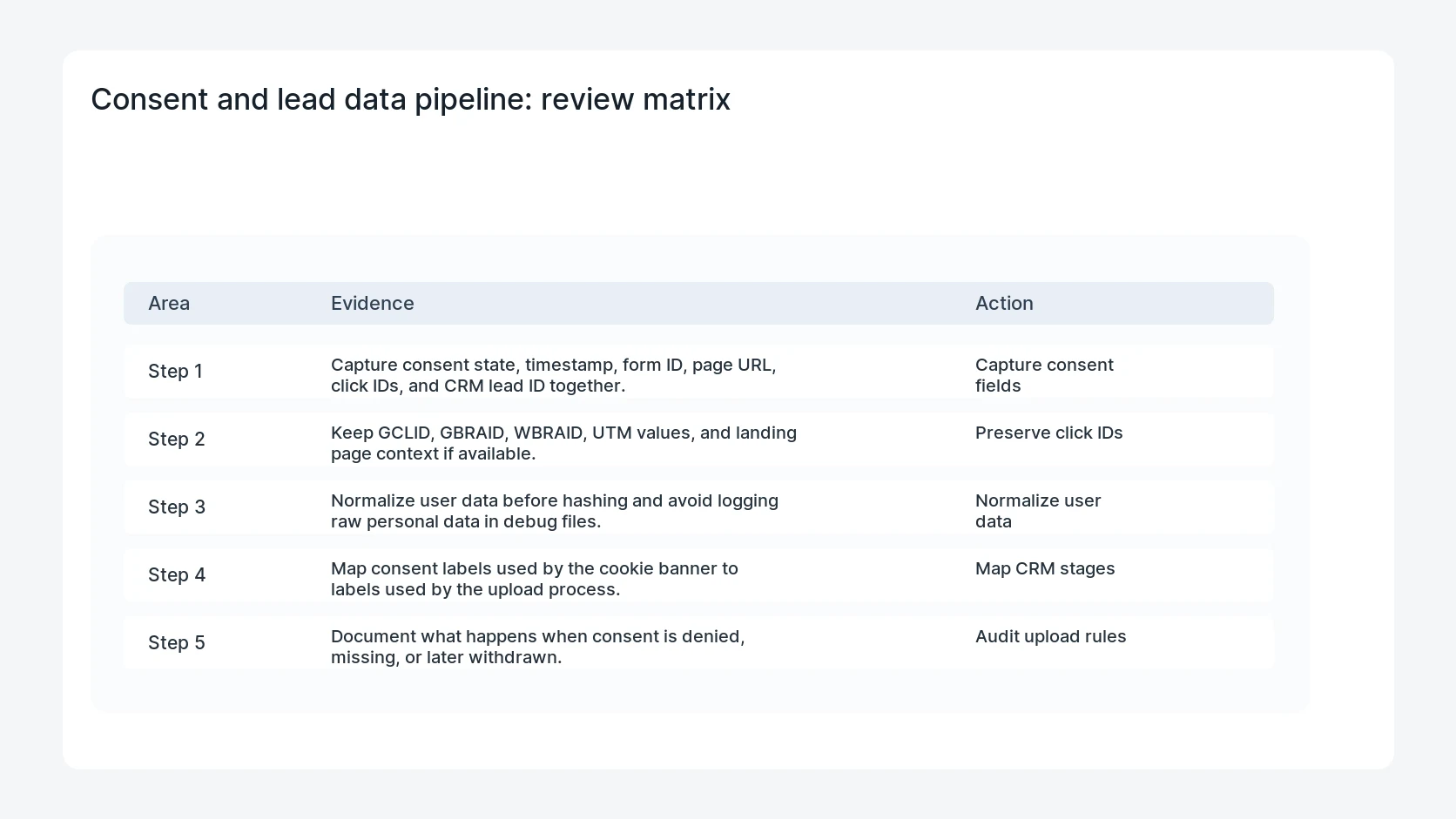
- Capture consent state, timestamp, form ID, page URL, click IDs, and CRM lead ID together.
- Keep GCLID, GBRAID, WBRAID, UTM values, and landing page context if available.
- Normalize user data before hashing and avoid logging raw personal data in debug files.
- Map consent labels used by the cookie banner to labels used by the upload process.
- Document what happens when consent is denied, missing, or later withdrawn.
Diagnostic table
Use this table to keep the work practical. It connects the symptom to evidence and a verification step.
| Action | Evidence to collect | How to verify |
|---|
| Capture consent fields | Capture consent state, timestamp, form ID, page URL, click IDs, and CRM lead ID together. | A test lead keeps consent data from WordPress to CRM to upload. |
| Preserve click IDs | Keep GCLID, GBRAID, WBRAID, UTM values, and landing page context if available. | The upload process can explain why each event was eligible. |
| Normalize user data | Normalize user data before hashing and avoid logging raw personal data in debug files. | Denied or missing consent is handled intentionally. |
| Map CRM stages | Map consent labels used by the cookie banner to labels used by the upload process. | Debug logs do not expose raw email or phone values. |
Useful command or data shape
Adapt paths, IDs, and privacy handling to the site before running commands or storing data on production.
lead_id: 14592
form_id: quote_request
consent_state: granted
consent_time: 2026-06-20T13:00:00Z
gclid: CjwK...
crm_stage: qualified_lead
upload_allowed: true
Safe fix order
Do the work in a sequence that makes each result easy to prove. Stop if a step produces new evidence that changes the incident scope.
- Capture consent fields
- Preserve click IDs
- Normalize user data
- Map CRM stages
- Audit upload rules
Production verification checklist
- A test lead keeps consent data from WordPress to CRM to upload.
- The upload process can explain why each event was eligible.
- Denied or missing consent is handled intentionally.
- Debug logs do not expose raw email or phone values.
Mistakes to avoid
- Do not judge the fix by one browser or the homepage only.
- Do not delete evidence before recording usernames, file paths, timestamps, and response headers.
- Do not add a cache, security, or tracking plugin while the original problem is still unclear.
- Do not leave test users, temporary debug logs, or broad API keys active after verification.
When HandL WP should help
Bring in help when this affects leads, checkout, search visibility, malware risk, paid media reporting, or a client production site. HandL WP can trace the issue through WordPress, hosting, cache, tracking, and Search Console, then verify the workflow after the technical fix.
If this is active on a production site, set up compliant WordPress lead tracking.
Helpful references