Google Tag Manager can make WordPress tracking cleaner, but it also gives you more places to misconfigure form events. The container can load correctly while the event never appears, the trigger never matches, or the tag is blocked by consent.
A good debug session follows the event from WordPress to dataLayer to trigger to tag request.
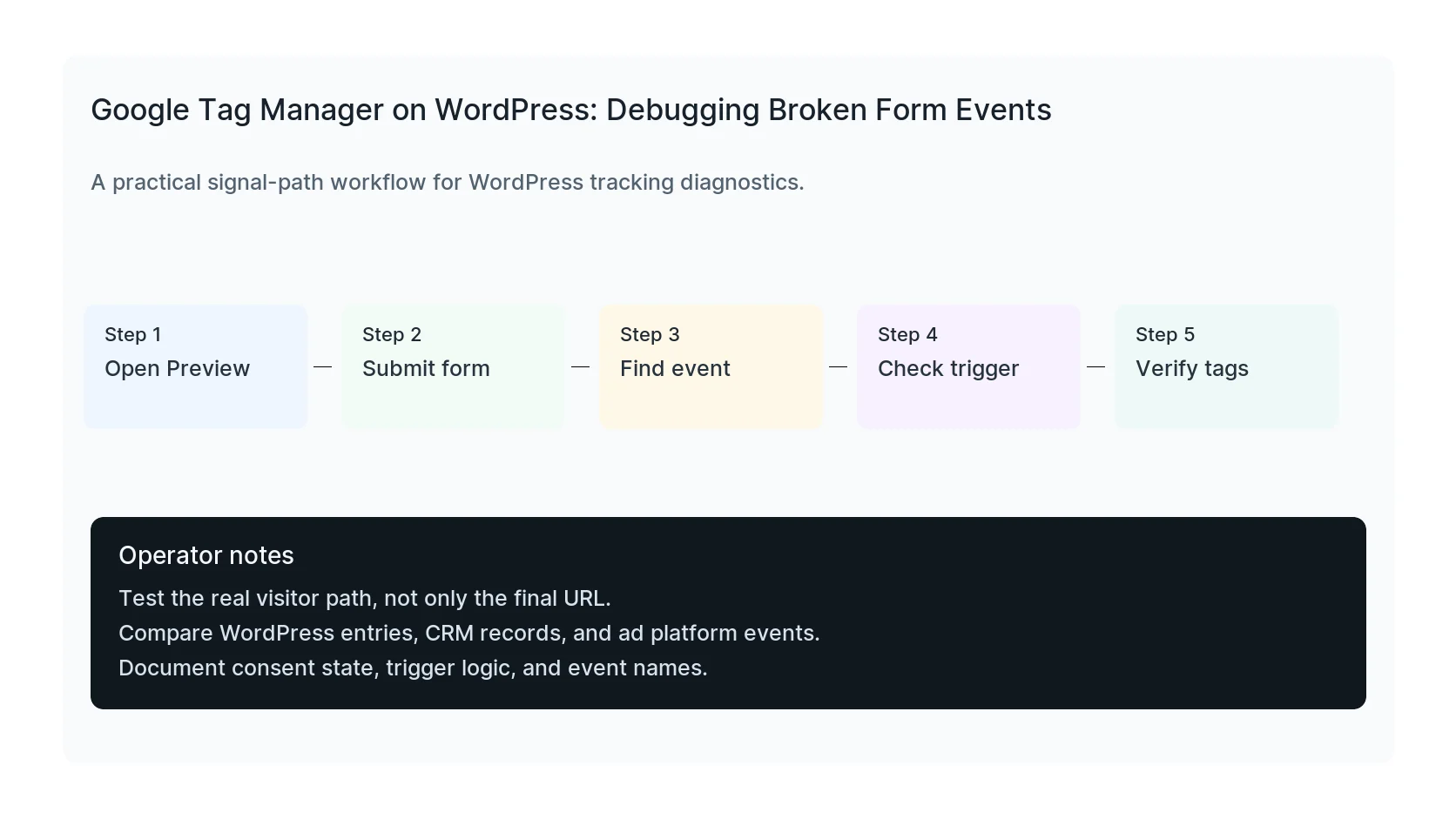
Quick diagnostic map
Use this map before changing tags or plugins. It keeps the investigation tied to the actual signal path instead of guessing inside dashboards.
| Signal | Meaning | First check |
|---|
| Container loads | Start of the signal path | Open Preview |
| dataLayer event | Middle layer that often breaks | Submit form |
| Trigger matches | Conversion moment to verify | Find event |
| Tag fires | Reporting destination | Verify tags |
Confirm the container is the right one
Many WordPress sites have old GTM snippets, plugin-injected containers, theme snippets, and staging IDs mixed together. Before editing triggers, confirm the container ID in the browser matches the container you are editing.
Remove duplicate containers once you understand which one is live.
Find the actual form success event
In Preview mode, submit the form and look for an event after validation succeeds. If no event appears, GTM cannot trigger reliably unless you add a dataLayer push or use another detectable signal.
Do not assume the built-in form submit trigger works for every WordPress plugin.
Check consent and exceptions
A trigger can match while a tag still does not fire due to consent settings, blocking triggers, tag sequencing, or missing variables. Inspect the tag details in Preview to see why it did or did not fire.
This is especially important for Google Ads and GA4 tags.
GTM debug checklist
- Correct container ID.
- One container on the page unless intentional.
- Form success event appears.
- Trigger matches the event.
- Variables resolve correctly.
- Consent allows the tag or explains why it is blocked.
WordPress form signals to consider
- Thank-you page URL.
- AJAX success callback.
- Plugin-specific JavaScript event.
- dataLayer push from custom code.
- Server-side confirmation for high-value events.
Useful test commands
Use browser tools and command-line checks together. Browser tools show client-side events. Server and API checks show what survives after WordPress handles the submission.
window.dataLayer
When to get help
If the tracking path is tied to paid spend, lead routing, healthcare privacy, or CRM reporting, do not leave it half-tested. HandL WP can trace the path across WordPress, forms, GTM, pixels, server-side events, and CRM fields. If this is active on a production site, debug WordPress form tracking.
For a related task: GTM Says Tag Fired, but GA4 Gets Nothing: Check WordPress CSP. A fired tag is not proof that the browser sent its request. Compare Tag Assistant, the document policy, and the blocked resource before changing the container.
For a related task: GTM Custom JavaScript Variable Is Undefined Under WordPress CSP. A nonce on the container does not solve every variable-execution issue. Check the error and replace unnecessary custom code with a simpler supported variable.
Helpful official references
Verify the submitted value before debugging form events
When a form event carries an empty or unexpected campaign value, run the WPForms prefill and conditional logic test. If the value is correct for the current page but disagrees with the CRM record, use the UTM prefill versus persistent attribution guide to identify the owning system and permitted overwrite behavior.
If the tag fires but the GA4 debugging screen remains empty, follow the destination and consent checks: GA4 DebugView Is Empty but Tag Assistant Says the Tag Fired.