Patchstack's vulnerability database is useful for checking WordPress plugin, theme, and core security issues, but a database row does not automatically mean one production site is compromised. The runbook must connect the advisory to installed code, exposure, logs, and remediation.
Use this when a client forwards a Patchstack alert, a security plugin flags a vulnerable component, or a maintenance team needs to decide between update, remove, virtual patch, firewall rule, or incident response.
Quick answer
Patchstack Vulnerability Database Runbook for WordPress should be handled with a narrow evidence-first workflow: confirm component, read advisory, check exposure, then verify the result before making broader changes.
What to check first
- Confirm the exact plugin slug, version, path, and whether the component is active on the site.
- Read the affected version range, vulnerability type, required privileges, and patched version.
- Check whether the vulnerable feature, shortcode, endpoint, upload path, or admin screen is actually reachable.
- Review access logs for the affected route or indicator before and after remediation.
- Choose update, removal, firewall rule, virtual patch, or full compromise review based on evidence.
Diagnostic table
Use this table to keep the work practical. It connects the symptom to evidence and a verification step.
| Action | Evidence to collect | How to verify |
|---|
| Confirm component | Confirm the exact plugin slug, version, path, and whether the component is active on the site. | The site no longer runs an affected active version. |
| Read advisory | Read the affected version range, vulnerability type, required privileges, and patched version. | Logs were checked for likely exploitation paths when risk was material. |
| Check exposure | Check whether the vulnerable feature, shortcode, endpoint, upload path, or admin screen is actually reachable. | Temporary firewall or virtual patch rules have a removal date after update. |
| Review logs | Review access logs for the affected route or indicator before and after remediation. | The client has a short summary of what was affected and what was fixed. |
Useful command or data shape
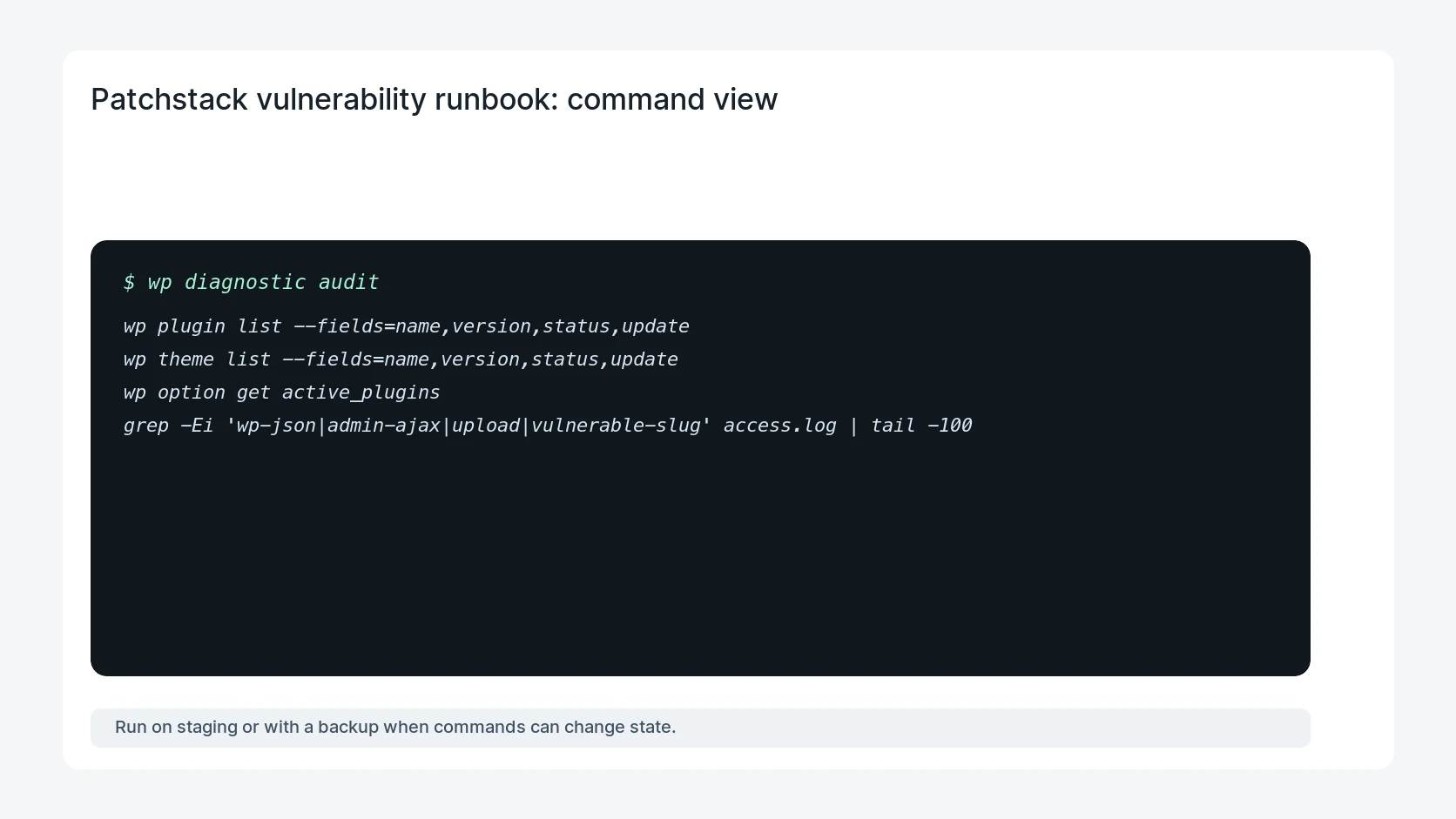
Adapt paths, IDs, and privacy handling to the site before running commands or storing data on production.
wp plugin list --fields=name,version,status,update
wp theme list --fields=name,version,status,update
wp option get active_plugins
grep -Ei 'wp-json|admin-ajax|upload|vulnerable-slug' access.log | tail -100
Safe fix order
Do the work in a sequence that makes each result easy to prove. Stop if a step produces new evidence that changes the incident scope.
- Confirm component
- Read advisory
- Check exposure
- Review logs
- Remediate
Production verification checklist
- The site no longer runs an affected active version.
- Logs were checked for likely exploitation paths when risk was material.
- Temporary firewall or virtual patch rules have a removal date after update.
- The client has a short summary of what was affected and what was fixed.
Mistakes to avoid
- Do not judge the fix by one browser or the homepage only.
- Do not delete evidence before recording usernames, file paths, timestamps, and response headers.
- Do not add a cache, security, or tracking plugin while the original problem is still unclear.
- Do not leave test users, temporary debug logs, or broad API keys active after verification.
When HandL WP should help
Bring in help when this affects leads, checkout, search visibility, malware risk, paid media reporting, or a client production site. HandL WP can trace the issue through WordPress, hosting, cache, tracking, and Search Console, then verify the workflow after the technical fix.
If this is active on a production site, respond to WordPress vulnerability alerts.
Helpful references