Generative AI performance reports can show impressions where normal click behavior changes. The useful work is mapping each query to the page that should answer it, then improving the answer, assets, and next step.
Use this for WordPress service pages, blog posts, documentation, and comparison content that gets impressions from AI search features but does not yet turn that visibility into useful visits or leads.
Quick answer
Search Console Generative AI Query Export Review for WordPress should be handled with a narrow evidence-first workflow: export query data, map canonical pages, improve answer block, then verify the result before making broader changes.
What to check first
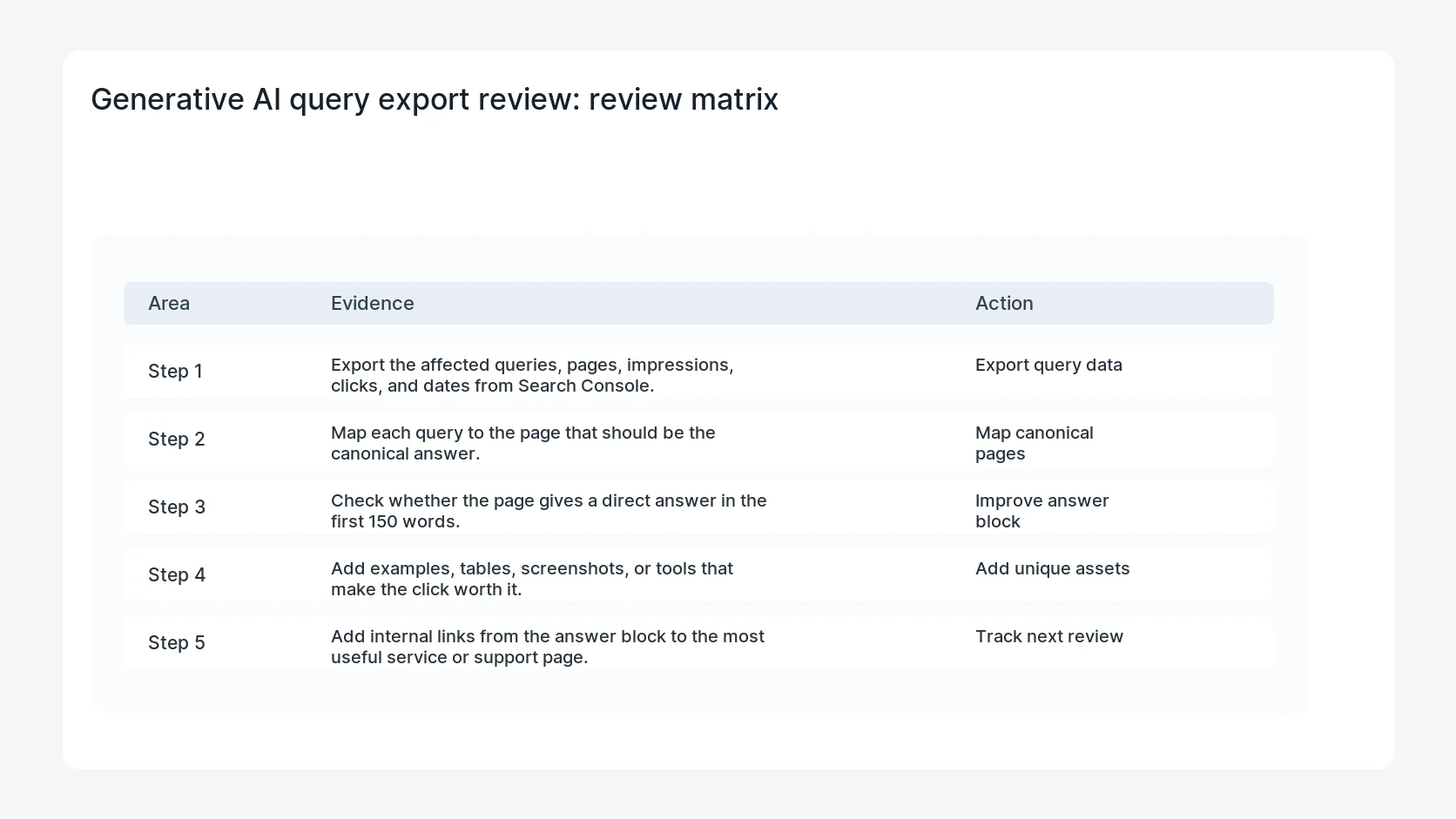
- Export the affected queries, pages, impressions, clicks, and dates from Search Console.
- Map each query to the page that should be the canonical answer.
- Check whether the page gives a direct answer in the first 150 words.
- Add examples, tables, screenshots, or tools that make the click worth it.
- Add internal links from the answer block to the most useful service or support page.
Diagnostic table
Use this table to keep the work practical. It connects the symptom to evidence and a verification step.
| Action | Evidence to collect | How to verify |
|---|
| Export query data | Export the affected queries, pages, impressions, clicks, and dates from Search Console. | Every high-impression query has one preferred page. |
| Map canonical pages | Map each query to the page that should be the canonical answer. | The page answer is specific enough to stand alone in a snippet. |
| Improve answer block | Check whether the page gives a direct answer in the first 150 words. | The post includes a useful visual, table, checklist, or example. |
| Add unique assets | Add examples, tables, screenshots, or tools that make the click worth it. | The page has a contextual internal link to the next useful step. |
Useful command or data shape
Adapt paths, IDs, and privacy handling to the site before running commands or storing data on production.
query_review:
  query: wordpress malware cleanup
  landing_page: /blog/wordpress-malware-removal-checklist
  ai_impressions: rising
  clicks: flat
  missing_asset: cleanup decision tree
  next_step_link: /fix/wordpress-malware-removal
Safe fix order
Do the work in a sequence that makes each result easy to prove. Stop if a step produces new evidence that changes the incident scope.
- Export query data
- Map canonical pages
- Improve answer block
- Add unique assets
- Track next review
Production verification checklist
- Every high-impression query has one preferred page.
- The page answer is specific enough to stand alone in a snippet.
- The post includes a useful visual, table, checklist, or example.
- The page has a contextual internal link to the next useful step.
Mistakes to avoid
- Do not judge the fix by one browser or the homepage only.
- Do not delete evidence before recording usernames, file paths, timestamps, and response headers.
- Do not add a cache, security, or tracking plugin while the original problem is still unclear.
- Do not leave test users, temporary debug logs, or broad API keys active after verification.
When HandL WP should help
Bring in help when this affects leads, checkout, search visibility, malware risk, paid media reporting, or a client production site. HandL WP can trace the issue through WordPress, hosting, cache, tracking, and Search Console, then verify the workflow after the technical fix.
If this is active on a production site, review WordPress AI search visibility.
Separate AI methodology notes from traffic changes
Apply the Search Console AI Overviews logging methodology audit so the August 15 clarification is not mistaken for a report launch, and use the Google core update traffic-drop workbook to diagnose query-page cohorts before changing content.
Helpful references