WooCommerce 10.9 includes product filtering work that can expose slow catalog queries on stores with many products, attributes, variations, or custom taxonomies. The fix is not always a cache plugin. Sometimes the lookup tables, filters, or theme queries need attention.
Use this when category pages, product filters, or shop search slow down after a WooCommerce update or when layered navigation feels inconsistent.
Quick answer
WooCommerce 10.9 Product Filter Query Performance Checklist should be handled with a narrow evidence-first workflow: reproduce filter, refresh lookup tables, compare cache layers, then verify the result before making broader changes.
What to check first
- Record the exact filter combination that causes the slow response.
- Check product attribute counts, variation volume, and custom taxonomy filters.
- Confirm product lookup tables are current before tuning cache.
- Compare uncached, object-cached, and CDN-cached response times.
- Look for theme or plugin code that adds extra meta queries to product archives.
Diagnostic table
Use this table to keep the work practical. It connects the symptom to evidence and a verification step.
| Action | Evidence to collect | How to verify |
|---|
| Reproduce filter | Record the exact filter combination that causes the slow response. | The slow filter path has a before and after response time. |
| Refresh lookup tables | Check product attribute counts, variation volume, and custom taxonomy filters. | Product counts remain accurate after lookup table refresh. |
| Compare cache layers | Confirm product lookup tables are current before tuning cache. | Cache does not hide stale product visibility or stock state. |
| Find extra meta queries | Compare uncached, object-cached, and CDN-cached response times. | No plugin adds expensive meta queries on every catalog request. |
Useful command or data shape
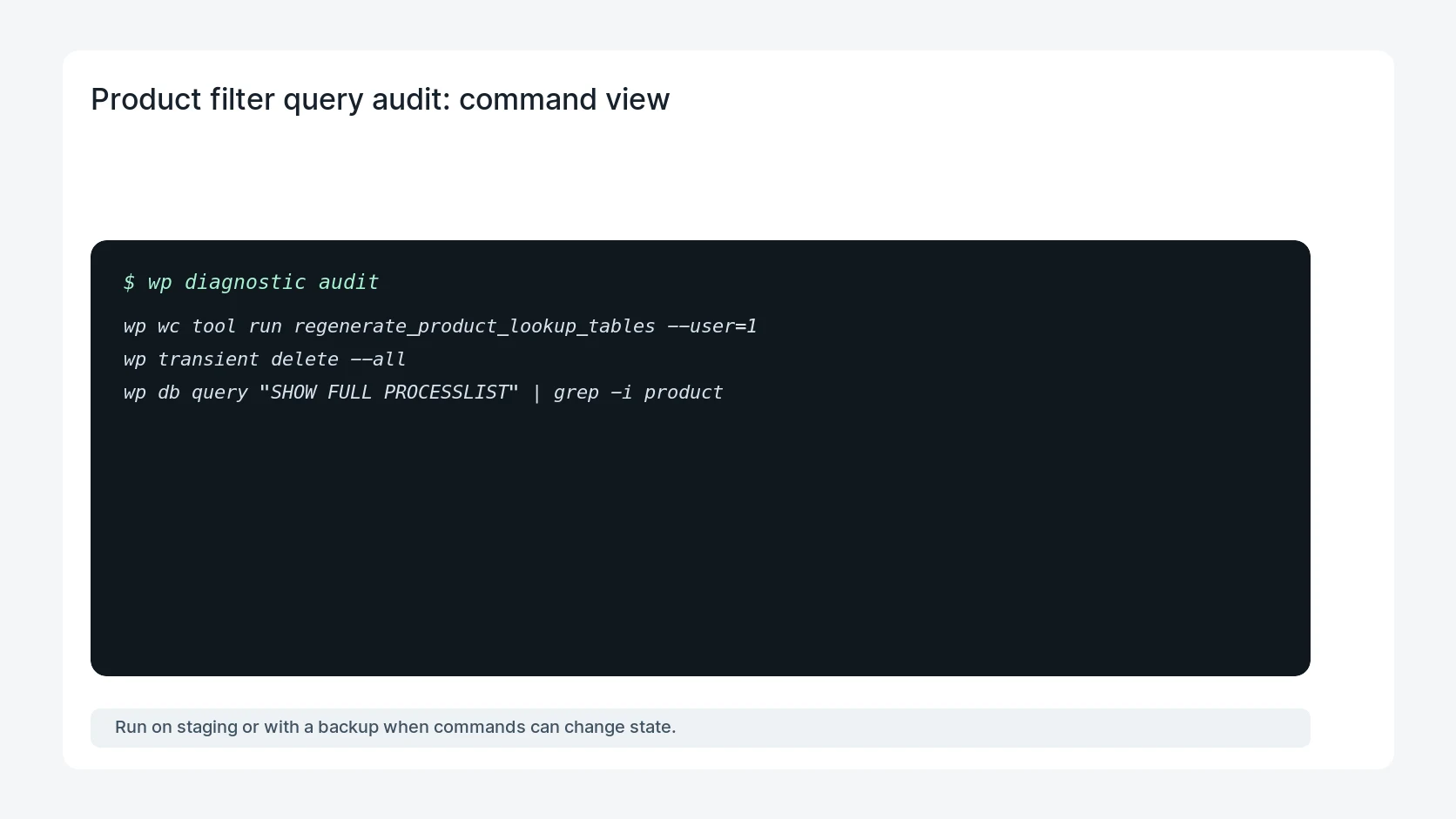
Adapt paths, IDs, and privacy handling to the site before running commands or storing data on production.
wp wc tool run regenerate_product_lookup_tables --user=1
wp transient delete --all
wp db query "SHOW FULL PROCESSLIST" | grep -i product
Safe fix order
Do the work in a sequence that makes each result easy to prove. Stop if a step produces new evidence that changes the incident scope.
- Reproduce filter
- Refresh lookup tables
- Compare cache layers
- Find extra meta queries
- Retest shop pages
Production verification checklist
- The slow filter path has a before and after response time.
- Product counts remain accurate after lookup table refresh.
- Cache does not hide stale product visibility or stock state.
- No plugin adds expensive meta queries on every catalog request.
Mistakes to avoid
- Do not judge the fix by one browser or the homepage only.
- Do not delete evidence before recording usernames, file paths, timestamps, and response headers.
- Do not add a cache, security, or tracking plugin while the original problem is still unclear.
- Do not leave test users, temporary debug logs, or broad API keys active after verification.
When HandL WP should help
Bring in help when this affects leads, checkout, search visibility, malware risk, paid media reporting, or a client production site. HandL WP can trace the issue through WordPress, hosting, cache, tracking, and Search Console, then verify the workflow after the technical fix.
If this is active on a production site, speed up WooCommerce filters.
Helpful references