If you searched for "woocommerce checkout blocks tracking not working", you probably do not need a generic WordPress article. You need a practical order of operations that protects the site, the business process, and the evidence you may need later.
This guide is written for WooCommerce stores that moved from shortcode checkout to Checkout Blocks. It focuses on what to check first, what to avoid, and how to prove the issue is fixed before you move on.
Quick answer
| Check | What it tells you |
|---|
| Common cause | Old checkout hooks or thank-you snippets may not match the block checkout lifecycle. |
| Most useful signal | The order ID should appear once in the data layer, GA4 purchase, Ads transaction ID, and Meta event ID strategy. |
| Test path | Use a real test order or staging payment flow, not only page preview. |
First confirm which checkout your store is using
WooCommerce stores can use the older shortcode checkout, the newer Checkout Block, custom funnel builders, or a mix created by page builder templates. Tracking advice changes depending on the checkout architecture.
Before changing tags, confirm the page type, payment method behavior, order received URL, and whether the order is processed through the Store API flow used by blocks.
Debug the event lifecycle, not only the thank-you page
The Checkout Block exposes status changes around processing, after-processing, and completion. A tag that assumes the old PHP hook or a static thank-you template may miss the actual conversion moment.
Watch the data layer, browser network requests, WooCommerce order creation, and redirect URL together. If the order exists but no purchase event fires, the break is in the front-end event path or tag trigger. If the event fires without an order ID, the problem is mapping.
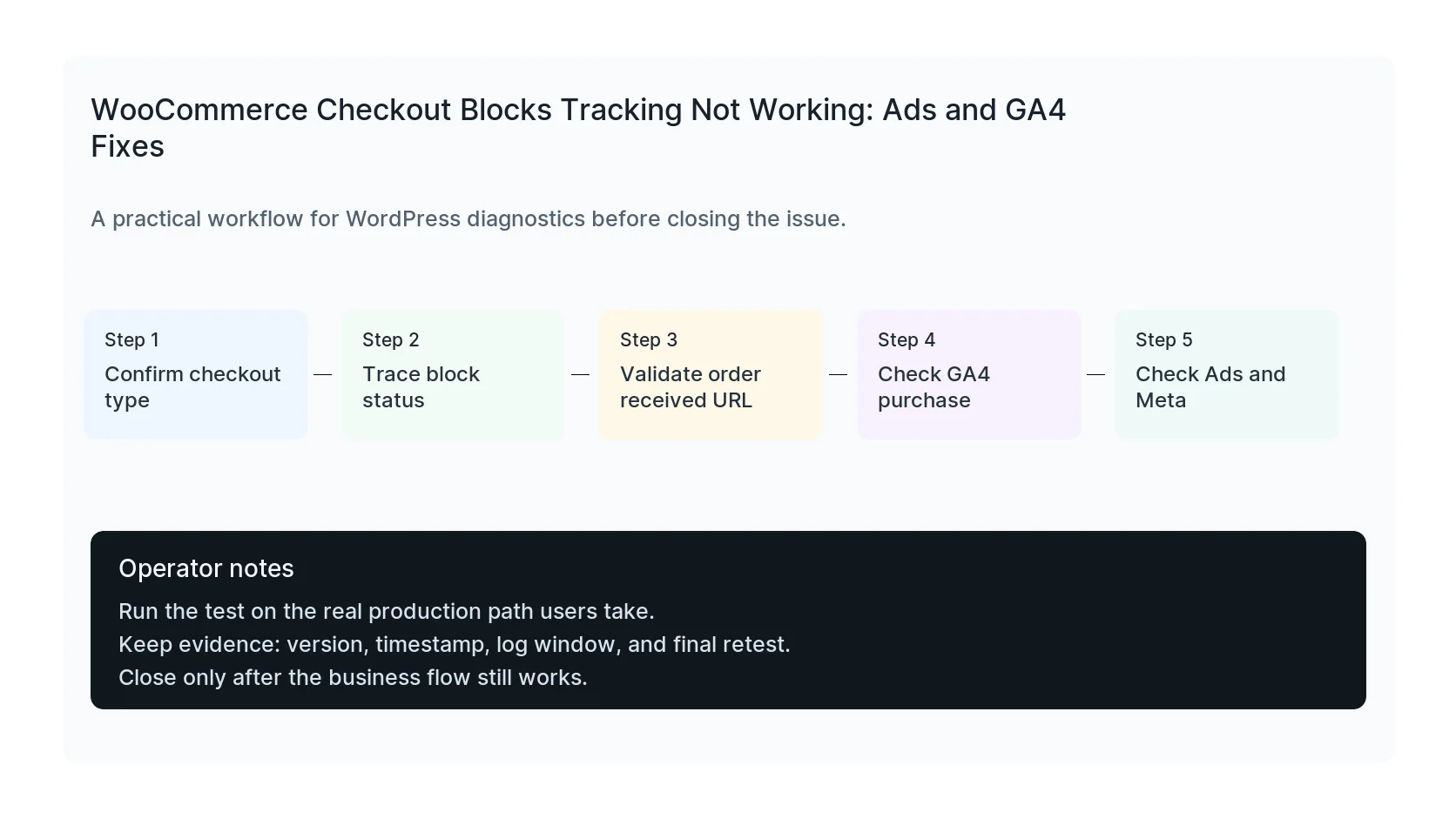
Keep purchase events deduplicated
GA4 purchase events, Google Ads conversion tags, and Meta purchase events all need stable transaction identifiers. Without them, you can get missing conversions, duplicate conversions, or platform reports that disagree with WooCommerce orders.
For Google Ads, use transaction ID when possible. For Meta, keep the browser and server event identity aligned if you run both Pixel and CAPI.
Retest after every checkout plugin change
Payment plugins, checkout field plugins, subscription plugins, and funnel builders can all change the checkout state. After any update, run a test order and check the data layer, GA4 DebugView, Google Tag Assistant, Meta Test Events, and the WooCommerce order note timeline.
A good test ends when the order, analytics event, ad conversion, and CRM record all tell the same story.
Checklist to run before you close the issue
- Confirm shortcode checkout or Checkout Block.
- Watch data layer events during a test order.
- Verify order received URL and order ID availability.
- Check GA4 purchase parameters.
- Check Google Ads transaction ID.
- Check Meta Pixel and CAPI deduplication if used.
Useful command or test
Use this as a starting point, then adapt it to the hosting stack, plugin names, and access level you actually have.
Array.from(document.querySelectorAll('[class*=wc-block-checkout], form.checkout')).map(el => el.className)
When to get help
If this affects production traffic, paid ads, checkout, membership access, healthcare privacy, lead routing, or search visibility, do not leave the fix half-tested. HandL WP can trace the issue across WordPress, server logs, plugins, forms, tracking, and Search Console. If you want a senior engineer to check it, fix WooCommerce checkout tracking.
Sources and further reading
Keep checkout drafts out of downstream reporting
Use the checkout-draft REST query change test to document what status=any returns after an update. For CRMs, ERPs, email tools, and analytics destinations, apply the checkout-draft downstream suppression pattern at the earliest trusted status boundary.