When WooCommerce checkout is not working, every minute can mean lost revenue. The cause might be a payment gateway, JavaScript conflict, shipping rule, tax setting, cache layer, plugin update, or webhook problem.
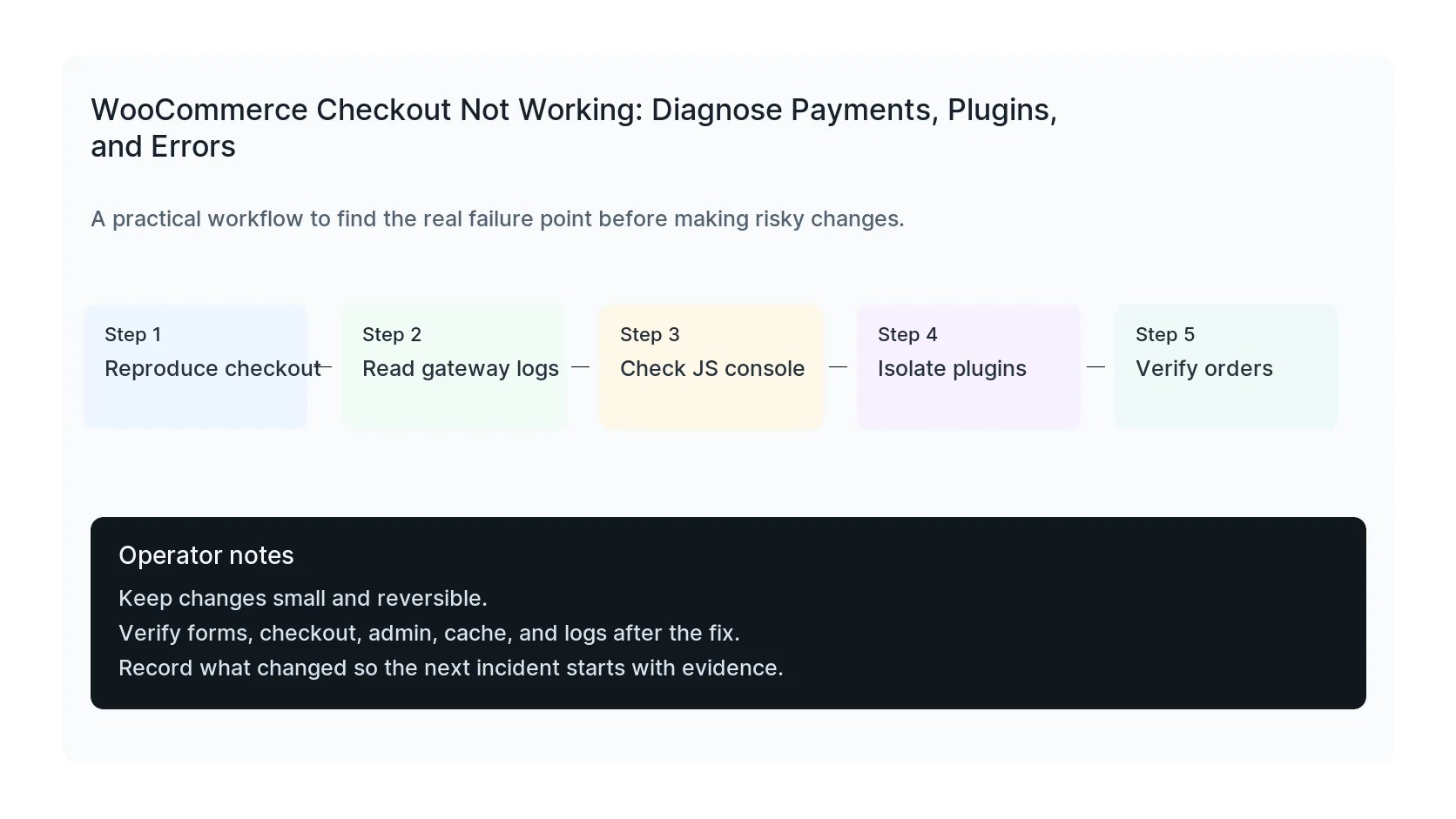
Do not test only by refreshing the checkout page. Reproduce the failure from cart to order confirmation and inspect the exact step where the flow breaks.
Quick triage map
Use this table before changing the site. It keeps the first response focused on evidence instead of guesses.
| Signal | What it usually means | First useful check |
|---|
| Cart | Recent change or active failure | Read gateway logs |
| Customer details | Code, plugin, theme, or service layer | Check JS console |
| Shipping and tax | Business workflow at risk | Verify orders |
| Payment gateway | Evidence needed before cleanup | Record timestamp, logs, and exact symptom |
Reproduce the checkout failure
Use a private browser window and a normal customer flow. Add a real product to the cart, enter a realistic address, choose shipping, and attempt payment with a test method if the gateway supports it.
Write down the exact message the customer sees. A blank spinner, payment decline, shipping error, and missing order confirmation point to different systems.
- Does the order get created?
- Is the order failed, pending, or missing?
- Does the payment provider show an attempt?
- Does the browser console show JavaScript errors?
- Does the issue happen for all products or only one?
Check payment gateway logs
Payment gateways usually log the useful error. A card decline is different from an API authentication failure. A webhook failure is different from checkout JavaScript failing before payment starts.
Check the WooCommerce status logs and the payment provider dashboard.
WooCommerce > Status > Logs
WooCommerce > Orders > Failed orders
Payment provider dashboard > Events or Logs
Look for JavaScript conflicts
Checkout depends heavily on JavaScript. Optimization plugins, consent tools, theme scripts, payment buttons, address autocomplete, and fraud tools can break checkout without creating a PHP fatal error.
Open the browser console during checkout and look for red errors. Then test with caching and script optimization disabled for checkout URLs.
Exclude checkout from cache
Cart, checkout, and my-account pages should not be served as static cached pages. If a cache or CDN stores checkout fragments incorrectly, customers can see stale totals, broken nonces, or endless spinners.
Confirm cache exclusions at the plugin, host, and CDN layer.
- /cart
- /checkout
- /my-account
- wc-ajax requests
- Payment return and webhook URLs
Check shipping, tax, and address rules
Some checkout failures are not payment issues at all. A missing shipping zone, broken tax service, unsupported country, or required field customization can block order creation before payment starts.
Test with a simple product, a known valid address, and a default shipping method to isolate the rule.
Verify after the fix
A fixed checkout should create an order, charge or authorize payment, send emails, reduce stock if configured, trigger fulfillment, and fire conversion tracking.
HandL WP troubleshoots WooCommerce checkout failures across WordPress, gateway logs, plugin conflicts, caching, and tracking.
If this is active on a production site, fix WooCommerce checkout.
Mistakes to avoid
Most WordPress emergencies get worse when too many changes happen at once. Keep the recovery path narrow so you can prove what fixed the problem.
- Do not update more plugins while troubleshooting the current failure.
- Do not delete folders before copying or backing them up.
- Do not judge the fix by the homepage only.
- Do not leave debug logging, disabled security rules, or temporary passwords in place.
- Do not skip the business workflow that originally made the issue urgent.
Production verification checklist
Before calling the issue fixed, verify the site from the visitor side and the admin side. A technical fix that breaks forms, checkout, or tracking is not finished.
- Retest the original symptom: orders not completing.
- Open the site in a private browser window.
- Check wp-admin or the affected admin screen.
- Test the lead, checkout, booking, or contact path if the site depends on it.
- Review the error log after the fix, not only before it.
- Clear only the cache layers that affect the fixed pages.
- Write down the files, plugins, settings, or credentials changed.
Helpful official references
For a checkout that offers pickup twice, inspect the two pickup implementations: WooCommerce Shows Local Pickup Twice: Check the Two Pickup Systems.