A WooCommerce email log is useful only when someone can translate the mailer response into an action. Authentication failures, recipient rejections, throttling, domain policy failures, and queue delays require different fixes.
Use this for WooCommerce stores that log email attempts but still cannot explain why order, refund, failed order, or customer emails are missing.
Quick answer
WooCommerce Email Log SMTP Response Code Map should be handled with a narrow evidence-first workflow: separate template from smtp, classify response code, check domain policy, then verify the result before making broader changes.
What to check first
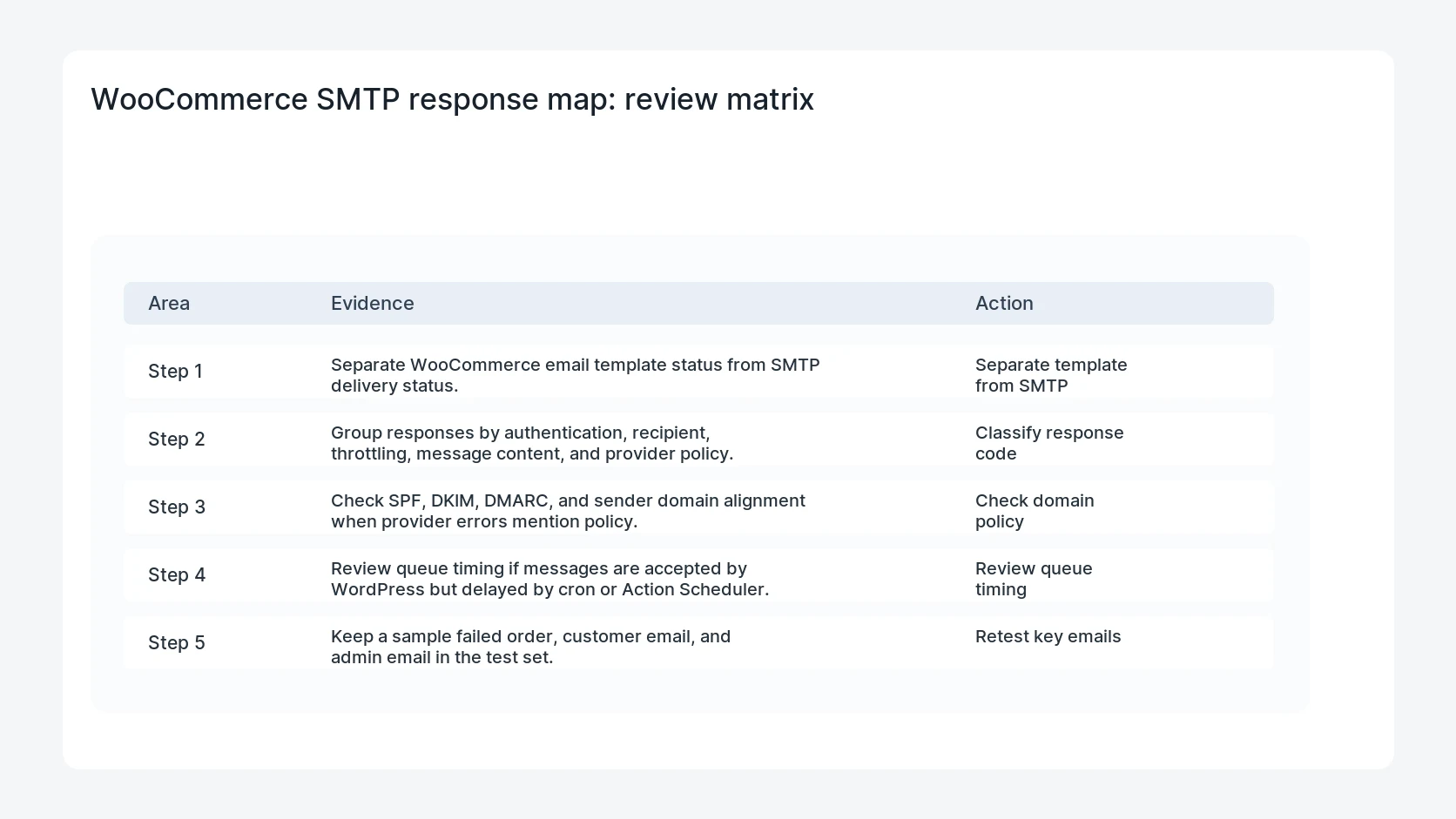
- Separate WooCommerce email template status from SMTP delivery status.
- Group responses by authentication, recipient, throttling, message content, and provider policy.
- Check SPF, DKIM, DMARC, and sender domain alignment when provider errors mention policy.
- Review queue timing if messages are accepted by WordPress but delayed by cron or Action Scheduler.
- Keep a sample failed order, customer email, and admin email in the test set.
Diagnostic table
Use this table to keep the work practical. It connects the symptom to evidence and a verification step.
| Action | Evidence to collect | How to verify |
|---|
| Separate template from SMTP | Separate WooCommerce email template status from SMTP delivery status. | Each failed log row has a response code and likely cause. |
| Classify response code | Group responses by authentication, recipient, throttling, message content, and provider policy. | Provider policy errors are checked against sender authentication. |
| Check domain policy | Check SPF, DKIM, DMARC, and sender domain alignment when provider errors mention policy. | Temporary failures retry instead of disappearing silently. |
| Review queue timing | Review queue timing if messages are accepted by WordPress but delayed by cron or Action Scheduler. | WooCommerce email templates are not blamed for SMTP rejections. |
Useful command or data shape
Adapt paths, IDs, and privacy handling to the site before running commands or storing data on production.
smtp_response_map:
  235: authentication accepted
  421: temporary provider limit
  450: mailbox unavailable or greylisted
  550: rejected recipient or policy
  554: transaction failed or content rejected
Safe fix order
Do the work in a sequence that makes each result easy to prove. Stop if a step produces new evidence that changes the incident scope.
- Separate template from SMTP
- Classify response code
- Check domain policy
- Review queue timing
- Retest key emails
Production verification checklist
- Each failed log row has a response code and likely cause.
- Provider policy errors are checked against sender authentication.
- Temporary failures retry instead of disappearing silently.
- WooCommerce email templates are not blamed for SMTP rejections.
Mistakes to avoid
- Do not judge the fix by one browser or the homepage only.
- Do not delete evidence before recording usernames, file paths, timestamps, and response headers.
- Do not add a cache, security, or tracking plugin while the original problem is still unclear.
- Do not leave test users, temporary debug logs, or broad API keys active after verification.
When HandL WP should help
Bring in help when this affects leads, checkout, search visibility, malware risk, paid media reporting, or a client production site. HandL WP can trace the issue through WordPress, hosting, cache, tracking, and Search Console, then verify the workflow after the technical fix.
If this is active on a production site, debug WooCommerce email logs.
Related HandL WP guides
Use these related guides when the same issue touches tracking, security, checkout, or crawler visibility.
Helpful references