The WordPress 7.1 roadmap describes a dedicated Identity area in the Site Editor for logo, favicon, site title, and tagline. That reduces friction for editors, but it also makes it easier to change public brand signals without checking search, schema, social previews, and cache.
Use this for business sites, ecommerce stores, agencies, and local service brands before changing logos, favicons, site titles, taglines, or brand assets in the WordPress Site Editor.
Quick answer
WordPress 7.1 Site Identity Logo and Favicon SEO Audit should be handled with a narrow evidence-first workflow: snapshot identity, check favicon, compare outputs, then verify the result before making broader changes.
What to check first
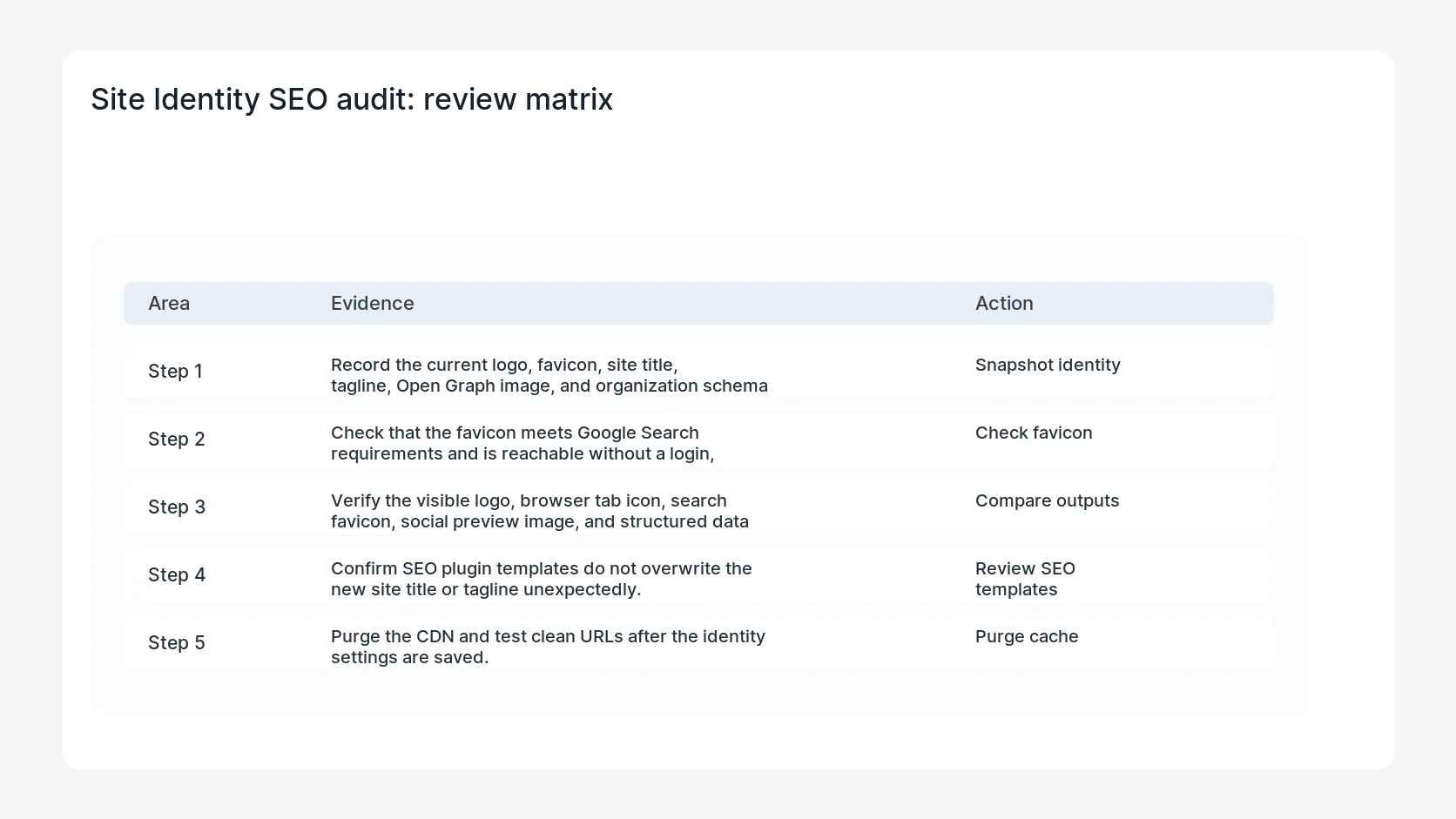
- Record the current logo, favicon, site title, tagline, Open Graph image, and organization schema before changing anything.
- Check that the favicon meets Google Search requirements and is reachable without a login, redirect loop, or blocked robots rule.
- Verify the visible logo, browser tab icon, search favicon, social preview image, and structured data logo are not mixed between old and new assets.
- Confirm SEO plugin templates do not overwrite the new site title or tagline unexpectedly.
- Purge the CDN and test clean URLs after the identity settings are saved.
Diagnostic table
Use this table to keep the work practical. It connects the symptom to evidence and a verification step.
| Action | Evidence to collect | How to verify |
|---|
| Snapshot identity | Record the current logo, favicon, site title, tagline, Open Graph image, and organization schema before changing anything. | The favicon, logo, site title, and tagline match across the frontend, editor, and crawler HTML. |
| Check favicon | Check that the favicon meets Google Search requirements and is reachable without a login, redirect loop, or blocked robots rule. | The favicon file returns 200 and is not blocked by robots.txt. |
| Compare outputs | Verify the visible logo, browser tab icon, search favicon, social preview image, and structured data logo are not mixed between old and new assets. | Structured data and Open Graph image values are intentional. |
| Review SEO templates | Confirm SEO plugin templates do not overwrite the new site title or tagline unexpectedly. | Search Console inspection can fetch the clean public page after cache purge. |
Useful command or data shape
Adapt paths, IDs, and privacy handling to the site before running commands or storing data on production.
curl -sS https://example.com/ | grep -Ei 'rel="icon"|og:image|schema.org|site_name|title'
curl -sSI https://example.com/favicon.ico
curl -sS https://example.com/robots.txt | grep -i favicon || true
wp option get blogname
wp option get blogdescription
Safe fix order
Do the work in a sequence that makes each result easy to prove. Stop if a step produces new evidence that changes the incident scope.
- Snapshot identity
- Check favicon
- Compare outputs
- Review SEO templates
- Purge cache
Production verification checklist
- The favicon, logo, site title, and tagline match across the frontend, editor, and crawler HTML.
- The favicon file returns 200 and is not blocked by robots.txt.
- Structured data and Open Graph image values are intentional.
- Search Console inspection can fetch the clean public page after cache purge.
Mistakes to avoid
- Do not judge the fix by one browser or the homepage only.
- Do not delete evidence before recording usernames, file paths, timestamps, and response headers.
- Do not add a cache, security, or tracking plugin while the original problem is still unclear.
- Do not leave test users, temporary debug logs, or broad API keys active after verification.
When HandL WP should help
Bring in help when this affects leads, checkout, search visibility, malware risk, paid media reporting, or a client production site. HandL WP can trace the issue through WordPress, hosting, cache, tracking, and Search Console, then verify the workflow after the technical fix.
If this is active on a production site, audit WordPress identity and SEO signals.
Helpful references