Getting locked out of WordPress admin does not always mean the password is wrong. A security plugin may be blocking your IP, cookies may be failing, a redirect rule may be broken, or the administrator role may have changed.
The safe recovery path depends on the lockout type. Password resets are simple. Security plugin blocks and database edits need more care.
Quick triage map
Use this table before changing the site. It keeps the first response focused on evidence instead of guesses.
| Signal | What it usually means | First useful check |
|---|
| Lost password | Recent change or active failure | Reset safely |
| Security plugin block | Code, plugin, theme, or service layer | Bypass bad plugin |
| Redirect loop | Business workflow at risk | Restore normal access |
| Role changed | Evidence needed before cleanup | Record timestamp, logs, and exact symptom |
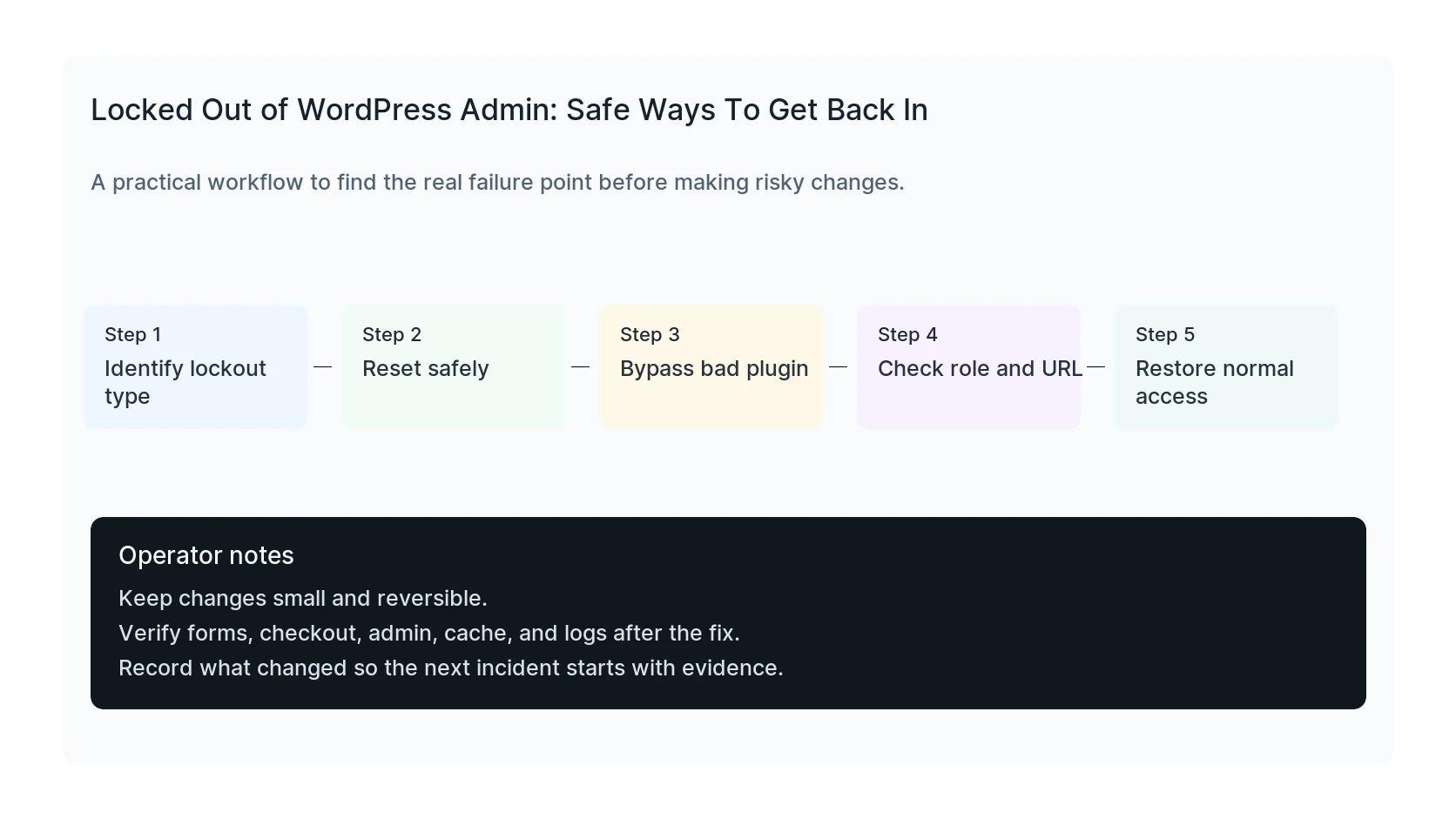
Identify the lockout type
Look at the exact behavior. A wrong password message, white screen, redirect loop, 403 block, two-factor prompt, and missing administrator role all point to different fixes.
Try from a private browser window and a different network before editing the site. That tells you whether the issue is local browser state, IP blocking, or the account itself.
- Wrong password message
- Password reset email never arrives
- 403 or security block
- Redirect loop after login
- Dashboard loads but admin menus are missing
Use the normal password reset first
If password reset email works, use it. It is safer than editing the database. If the reset email never arrives, check the admin email and mail delivery path.
Do not share admin passwords through email or chat. Reset the password directly and rotate it again after emergency access is restored.
Use WP-CLI when SSH is available
WP-CLI can list administrators and set a new password without loading wp-admin. This is often cleaner than editing the database by hand.
Only run these commands from the correct WordPress install path.
wp user list --role=administrator
wp user update USER_ID --user_pass='new-strong-password'
wp option get admin_email
Check security plugin blocks
Security plugins can block a valid admin after failed logins, country filtering, firewall rules, or two-factor changes. If you cannot access the dashboard, temporarily disable the security plugin folder through SFTP or WP-CLI.
Rename only the plugin causing the block when possible. Bring it back after access is restored and review the firewall settings.
Fix redirects and URL mismatches
A wrong siteurl or home option can trap login in a redirect loop. This often happens after migration, SSL changes, or domain changes.
Check the configured URLs before editing .htaccess or theme files.
wp option get siteurl
wp option get home
wp option update siteurl 'https://example.com'
wp option update home 'https://example.com'
After access is restored
Review administrators, remove stale users, rotate passwords, turn two-factor back on if it was disabled, and test login from a clean browser.
HandL WP can recover WordPress admin access safely and check whether the lockout was caused by a plugin, migration issue, or compromise.
If this is active on a production site, recover WordPress admin access.
Mistakes to avoid
Most WordPress emergencies get worse when too many changes happen at once. Keep the recovery path narrow so you can prove what fixed the problem.
- Do not update more plugins while troubleshooting the current failure.
- Do not delete folders before copying or backing them up.
- Do not judge the fix by the homepage only.
- Do not leave debug logging, disabled security rules, or temporary passwords in place.
- Do not skip the business workflow that originally made the issue urgent.
Production verification checklist
Before calling the issue fixed, verify the site from the visitor side and the admin side. A technical fix that breaks forms, checkout, or tracking is not finished.
- Retest the original symptom: wp-admin unavailable.
- Open the site in a private browser window.
- Check wp-admin or the affected admin screen.
- Test the lead, checkout, booking, or contact path if the site depends on it.
- Review the error log after the fix, not only before it.
- Clear only the cache layers that affect the fixed pages.
- Write down the files, plugins, settings, or credentials changed.
Helpful official references
Focused Diagnostic Guides
If the symptom is an HTTP 403, identify the layer refusing access before changing security controls: