If you searched for "backdoored WordPress plugin update", you probably need a practical decision path, not a generic WordPress article. The goal is to protect the site, preserve useful evidence, and keep the business workflow working.
This guide is written for site owners, agencies, and support teams responding to suspicious plugin updates. It focuses on the checks that prove whether the issue is contained, fixed, and safe to close.
Quick answer
| Check | What it tells you |
|---|
| First move | Preserve the installed plugin directory before replacing it. |
| File clue | Unexpected PHP files, encoded strings, remote callbacks, and new autoloaded code deserve review. |
| Site clue | New admins, strange cron events, and mu-plugins suggest the issue moved beyond the plugin folder. |
Do not delete the evidence before you understand it
When a plugin update may be backdoored, the installed files are evidence. If you delete them immediately, you may lose the fastest way to find what else changed.
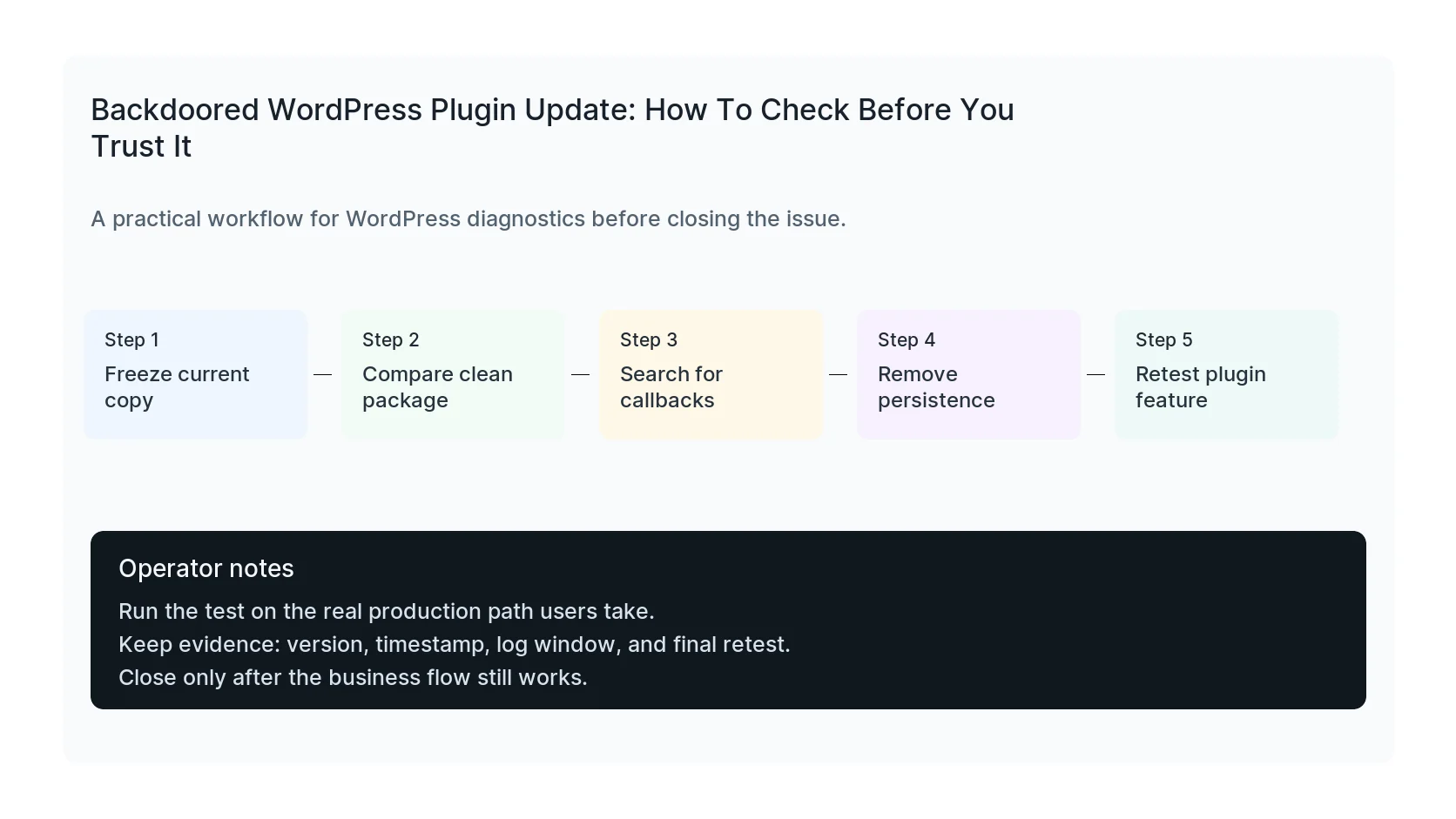
Archive the plugin directory, record the version, note the update time, and preserve relevant access logs. Then replace the plugin from a trusted clean source.
Compare against a clean package
A clean package comparison is often faster than reading every file by hand. Compare filenames, sizes, modification times, and code differences. Focus on new PHP files, changed bootstrap files, autoloaders, and files that include remote request logic.
Obfuscation is not always malicious, but unexpected obfuscation in a plugin update is enough reason to stop and investigate.
Search for persistence outside the plugin
Backdoors often add a second foothold. Check mu-plugins, cron events, uploads, theme functions files, wp-config.php, and administrator accounts created after the update.
If you find persistence, assume the site ran untrusted code and rotate credentials after cleanup. Rotating too early can expose the new credentials to the same backdoor.
Only close after the feature still works
After cleanup and replacement, test the plugin feature customers actually use. Also test forms, checkout, email, analytics, and cache behavior if the plugin touched public pages.
A good cleanup ends with a working site and a short evidence note: what was found, what was removed, what credentials changed, and what passed retest.
Checklist to run before you close the issue
- Archive the installed plugin directory.
- Compare against a trusted clean package.
- Search for obfuscated or unexpected remote code.
- Inspect mu-plugins, cron, users, and uploads.
- Replace the plugin cleanly.
- Retest the public feature and business flow.
Useful command or test
Use this as a starting point and adapt it to the host, stack, plugin names, and access level you actually have.
find wp-content/plugins -type f -mtime -10 -name '*.php' -print && wp cron event list
When to get help
If this affects production traffic, paid ads, checkout, membership access, healthcare privacy, lead routing, or search visibility, do not leave it half-tested. HandL WP can trace the issue across WordPress, server logs, plugins, forms, tracking, and Search Console. If you want a senior engineer to check it, start a malware investigation.
Sources and further reading