A backup plugin can read the database, package files, connect to cloud storage, and sometimes restore or migrate the site. That makes it useful, but also sensitive.
Use this when adding, updating, replacing, or auditing a backup plugin on a production WordPress site.
Quick answer
Start with evidence, not a plugin setting. The first useful checks are: Confirm where backups are stored and whether the public web server can reach them. Check whether the plugin has remote management, migration, or one-click restore enabled. Review cloud storage keys and rotate them after staff or vendor changes. Keep every change small enough to reverse.
Fast diagnosis map
Use this map before changing production. It helps separate a real platform issue from a cached page, stale setting, or missing handoff.
| Signal | What it means | Useful next check |
|---|
| Public backup ZIP | Check access, users, or ownership first | Move archives off web root |
| Old restore link | Look for a configuration, plugin, or data mismatch | Disable unused remote access |
| Cloud key in options | Inspect the layer most likely to be hidden from the normal UI | Rotate cloud keys |
| Remote dashboard connected | Prove whether the problem is still active | Remove stale installers |
What to check first
- Confirm where backups are stored and whether the public web server can reach them.
- Check whether the plugin has remote management, migration, or one-click restore enabled.
- Review cloud storage keys and rotate them after staff or vendor changes.
- Remove old installer files, migration ZIPs, SQL dumps, and temporary restore files.
- Test restore on staging so security changes do not create a false sense of safety.
Run a focused check
These commands or fields give you a useful starting point. Adapt paths, IDs, and privacy handling to the site before running anything on production.
wp plugin list | grep -Ei 'backup|updraft|duplicator|wpvivid|migration'
find . -maxdepth 4 -type f \( -name '*.zip' -o -name '*.sql' -o -name '*.wpress' -o -name 'installer.php' \) -print
wp user list --role=administrator --fields=ID,user_login,user_email,user_registered
Safe fix order
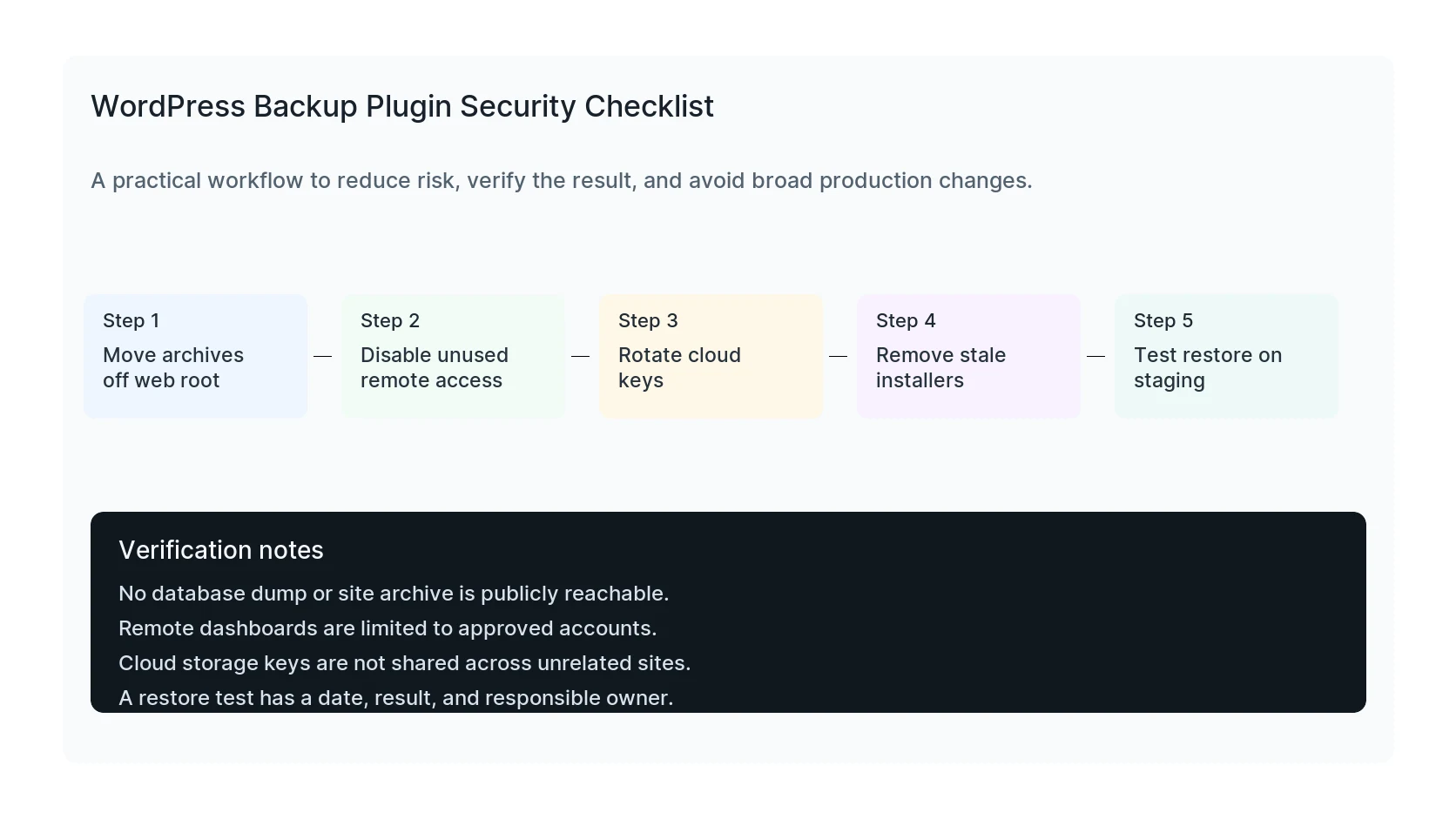
Do the work in this order so each result can be verified. If a step fails, stop and capture the evidence before making a broader change.
- Move archives off web root
- Disable unused remote access
- Rotate cloud keys
- Remove stale installers
- Test restore on staging
Verification checklist
The fix is not done when the warning disappears. Confirm the result from the visitor side, admin side, and reporting side.
- No database dump or site archive is publicly reachable.
- Remote dashboards are limited to approved accounts.
- Cloud storage keys are not shared across unrelated sites.
- A restore test has a date, result, and responsible owner.
Mistakes to avoid
- Do not judge the result by the homepage only.
- Do not clear every cache layer until you know which layer affects the symptom.
- Do not delete evidence before copying filenames, timestamps, versions, and affected URLs.
- Do not make privacy or crawler decisions without writing down the business reason.
- Do not leave temporary debug settings, test accounts, or broad permissions in place.
When HandL WP should help
Bring in help when the issue affects leads, checkout, ads, malware risk, search visibility, or a client production site. HandL WP can trace the problem through WordPress, hosting, tracking, cache, and Search Console, then verify the business workflow after the technical fix.
If this is active on a production site, set up safer WordPress backups.
Helpful references
Related Practical Guides
After checking backup access and exposure, define coverage and rehearse recovery: