A WordPress malware cleanup is not finished when the visible redirect disappears. Attackers often leave backdoors, new admin users, cron jobs, modified plugin files, or PHP files inside uploads so they can come back later.
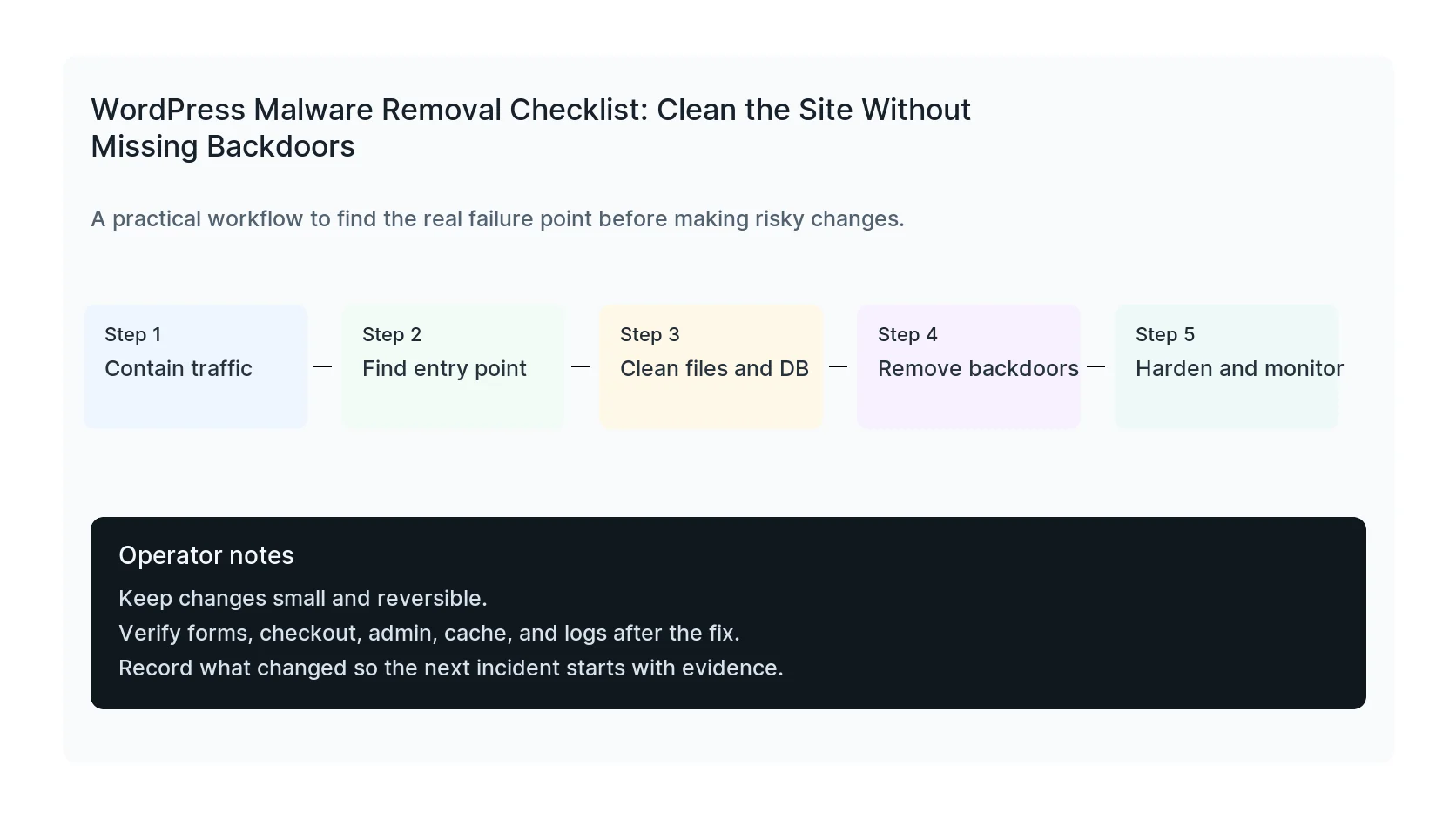
Use this checklist to clean the site in the right order: contain the incident, identify what changed, remove the active malware, close the entry point, rotate access, and monitor after launch.
Quick triage map
Use this table before changing the site. It keeps the first response focused on evidence instead of guesses.
| Signal | What it usually means | First useful check |
|---|
| Unexpected PHP in uploads | Recent change or active failure | Find entry point |
| Unknown admin user | Code, plugin, theme, or service layer | Clean files and DB |
| Modified plugin files | Business workflow at risk | Harden and monitor |
| Spam redirects | Evidence needed before cleanup | Record timestamp, logs, and exact symptom |
Contain the incident before editing files
If visitors are being redirected, search results show spam, or the site is serving malware warnings, reduce damage first. Put the site behind a maintenance page if needed, pause ads, and preserve enough evidence to understand what happened.
Do not delete suspicious files blindly before you know whether they are the only visible part of a larger compromise.
- Take a fresh file and database backup for evidence.
- Note the first known time of compromise.
- Pause paid traffic if visitors may be redirected.
- Check whether wp-admin still has trusted users only.
Check file integrity
Start with WordPress core. If core files are modified, replace them from a clean source. Then inspect plugins and themes. Premium plugins may not have public checksums, so compare against vendor packages or clean backups.
Unexpected PHP files in uploads deserve special attention. Uploads should usually contain media, not executable PHP.
wp core verify-checksums
wp plugin verify-checksums --all
find wp-content/uploads -type f -name '*.php' -print
Review users and access
Unknown admin users are a common persistence method. Review administrators, recently created users, FTP accounts, SSH keys, hosting control panel users, and database users.
Remove what should not exist, but also ask how it got there.
wp user list --role=administrator --fields=ID,user_login,user_email,user_registered,roles
Search the database carefully
Spam injections often live in posts, widgets, options, or page builder data. Search for obvious markers, but do not assume every script tag is malware. Analytics, tag managers, and security plugin signature tables can create false positives.
Validate suspicious rows before deleting content.
- Look for unfamiliar script tags.
- Check siteurl and home options.
- Review active widgets and custom HTML blocks.
- Inspect recently modified posts and pages.
- Check redirects and SEO plugin fields.
Rotate secrets after cleanup
Cleaning files without rotating access leaves the door open. Change WordPress admin passwords, hosting passwords, SFTP passwords, database passwords, API keys, and WordPress salts.
If the site used shared passwords across tools, assume those credentials are burned.
Close the entry point
The cleanup only holds if the original path is closed. Update vulnerable plugins, remove abandoned plugins, fix writable directories, disable file editing, and move backups or ZIP files out of public web roots.
HandL WP malware removal includes file cleanup, database review, access review, and post-clean monitoring so the same compromise does not return next week.
If this is active on a production site, request WordPress malware cleanup.
Mistakes to avoid
Most WordPress emergencies get worse when too many changes happen at once. Keep the recovery path narrow so you can prove what fixed the problem.
- Do not update more plugins while troubleshooting the current failure.
- Do not delete folders before copying or backing them up.
- Do not judge the fix by the homepage only.
- Do not leave debug logging, disabled security rules, or temporary passwords in place.
- Do not skip the business workflow that originally made the issue urgent.
Production verification checklist
Before calling the issue fixed, verify the site from the visitor side and the admin side. A technical fix that breaks forms, checkout, or tracking is not finished.
- Retest the original symptom: backdoor risk active.
- Open the site in a private browser window.
- Check wp-admin or the affected admin screen.
- Test the lead, checkout, booking, or contact path if the site depends on it.
- Review the error log after the fix, not only before it.
- Clear only the cache layers that affect the fixed pages.
- Write down the files, plugins, settings, or credentials changed.
Helpful official references