A WordPress malware cleanup can look complete after suspicious files are removed, then the infection returns from the database. `wp_options` is a common place to check because it can store scripts, redirects, plugin settings, cron-related values, and autoloaded payloads.
Use this when spam scripts, redirects, popups, or unknown JavaScript returns after a WordPress file cleanup, cache purge, or plugin reinstall.
Quick answer
WordPress Suspicious wp_options Malware Cleanup should be handled with a narrow evidence-first workflow: back up database, search suspicious rows, confirm owner, then verify the result before making broader changes.
What to check first
- Take a database backup before editing any option row.
- Search options for script tags, base64 patterns, unfamiliar domains, redirect URLs, and recently changed autoloaded rows.
- Check active plugins and theme code before deleting options that may be legitimate settings.
- Compare suspicious option values against a clean staging copy or known backup.
- Purge object cache, page cache, and CDN after database cleanup.
Diagnostic table
Use this table to keep the work practical. It connects the symptom to evidence and a verification step.
| Action | Evidence to collect | How to verify |
|---|
| Back up database | Take a database backup before editing any option row. | No suspicious script, redirect, or encoded payload remains in option rows. |
| Search suspicious rows | Search options for script tags, base64 patterns, unfamiliar domains, redirect URLs, and recently changed autoloaded rows. | The cleaned site does not break legitimate plugin settings. |
| Confirm owner | Check active plugins and theme code before deleting options that may be legitimate settings. | Object cache, page cache, and CDN no longer serve the old injected output. |
| Clean carefully | Compare suspicious option values against a clean staging copy or known backup. | Monitoring checks the same indicator after the next crawl and cron window. |
Useful command or data shape
Adapt paths, IDs, and privacy handling to the site before running commands or storing data on production.
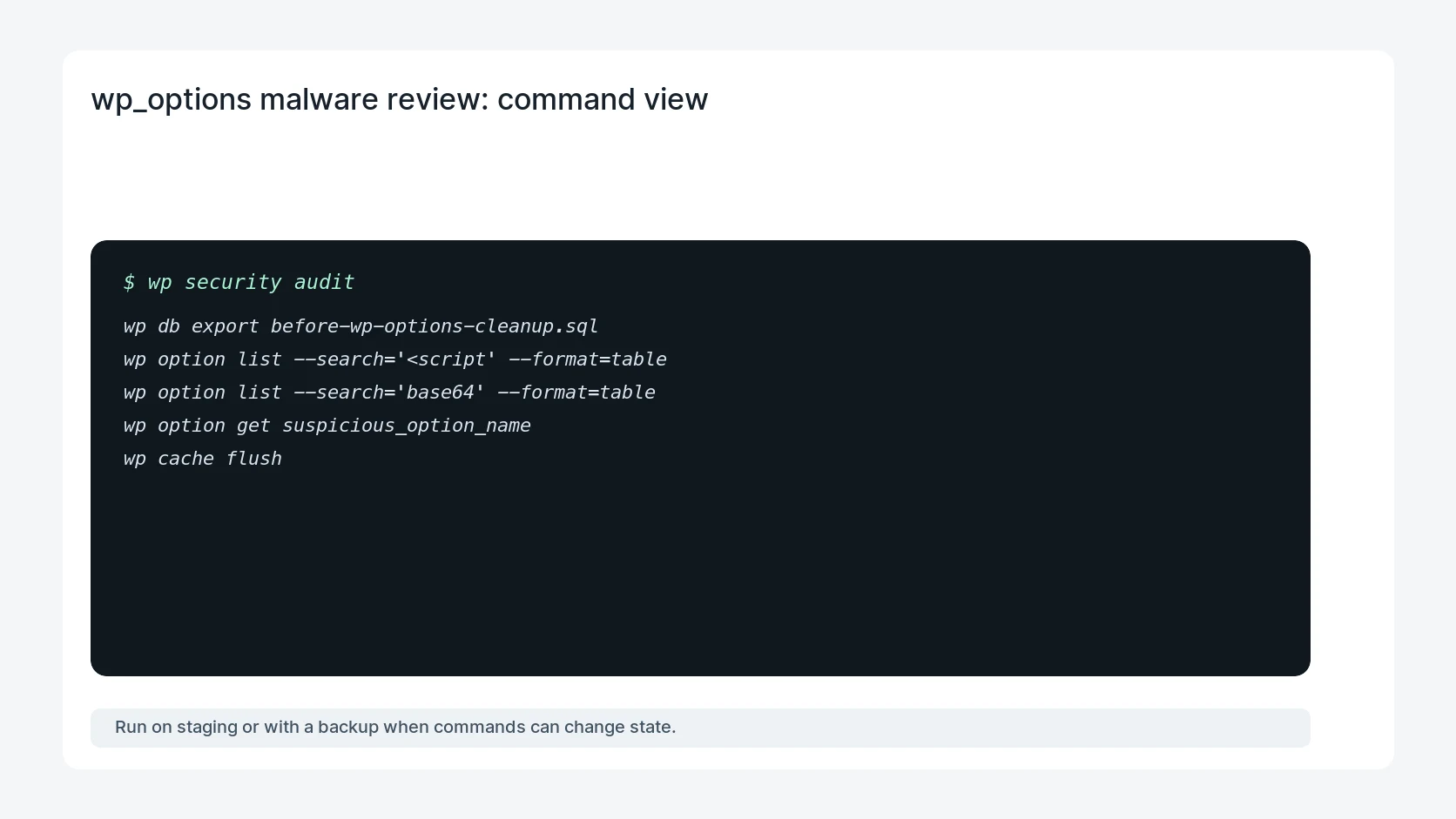
wp db export before-wp-options-cleanup.sql
wp option list --search='<script' --format=table
wp option list --search='base64' --format=table
wp option get suspicious_option_name
wp cache flush
Safe fix order
Do the work in a sequence that makes each result easy to prove. Stop if a step produces new evidence that changes the incident scope.
- Back up database
- Search suspicious rows
- Confirm owner
- Clean carefully
- Purge caches
Production verification checklist
- No suspicious script, redirect, or encoded payload remains in option rows.
- The cleaned site does not break legitimate plugin settings.
- Object cache, page cache, and CDN no longer serve the old injected output.
- Monitoring checks the same indicator after the next crawl and cron window.
Mistakes to avoid
- Do not judge the fix by one browser or the homepage only.
- Do not delete evidence before recording usernames, file paths, timestamps, and response headers.
- Do not add a cache, security, or tracking plugin while the original problem is still unclear.
- Do not leave test users, temporary debug logs, or broad API keys active after verification.
When HandL WP should help
Bring in help when this affects leads, checkout, search visibility, malware risk, paid media reporting, or a client production site. HandL WP can trace the issue through WordPress, hosting, cache, tracking, and Search Console, then verify the workflow after the technical fix.
If this is active on a production site, clean recurring WordPress malware.
Helpful references