File integrity monitoring catches the kind of change that a normal admin screen can miss: added PHP files, modified plugin code, hidden loaders, or renamed backdoors.
Use this for business sites where a plugin change can affect forms, checkout, ads, member access, or security.
Quick answer
Start with evidence, not a plugin setting. The first useful checks are: Verify WordPress core and public plugin checksums first. Create your own hash baseline for premium plugins and custom code. Watch wp-content/uploads for PHP files, ZIP files, and executable payloads. Keep every change small enough to reverse.
Fast diagnosis map
Use this map before changing production. It helps separate a real platform issue from a cached page, stale setting, or missing handoff.
| Signal | What it means | Useful next check |
|---|
| Unknown PHP file | Check access, users, or ownership first | Create baseline |
| Checksum mismatch | Look for a configuration, plugin, or data mismatch | Compare after updates |
| Premium plugin drift | Inspect the layer most likely to be hidden from the normal UI | Investigate mismatch |
| New executable in uploads | Prove whether the problem is still active | Replace from clean source |
What to check first
- Verify WordPress core and public plugin checksums first.
- Create your own hash baseline for premium plugins and custom code.
- Watch wp-content/uploads for PHP files, ZIP files, and executable payloads.
- Record approved plugin updates so a change has a business reason attached.
- Treat a changed file as a question, not automatically as malware.
Run a focused check
These commands or fields give you a useful starting point. Adapt paths, IDs, and privacy handling to the site before running anything on production.
wp core verify-checksums
wp plugin verify-checksums --all
find wp-content/plugins -type f -name '*.php' -exec shasum -a 256 {} \; > plugin-file-hashes-$(date +%F).txt
find wp-content/uploads -type f \( -name '*.php' -o -name '*.phtml' -o -name '*.zip' \) -print
Safe fix order
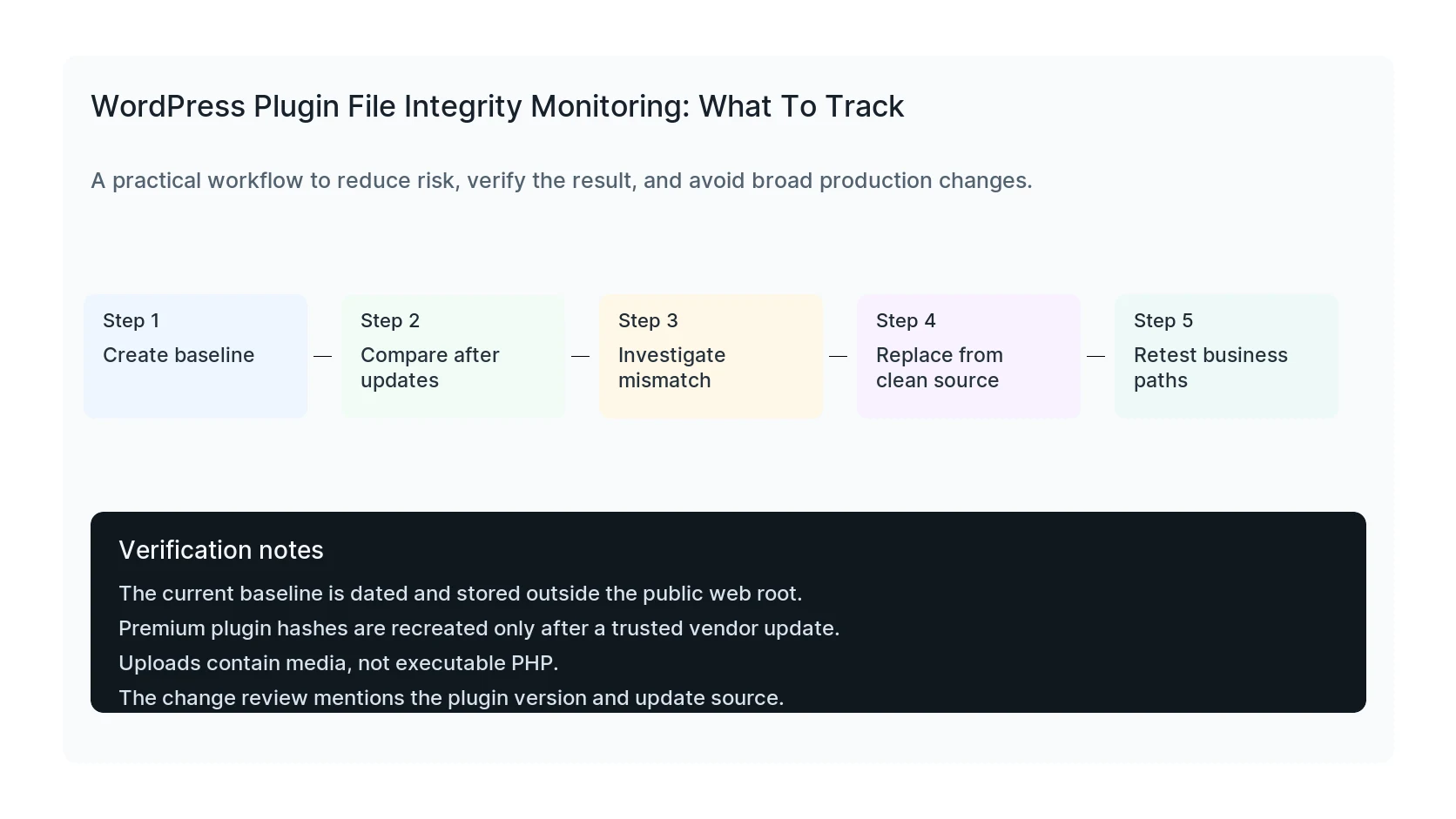
Do the work in this order so each result can be verified. If a step fails, stop and capture the evidence before making a broader change.
- Create baseline
- Compare after updates
- Investigate mismatch
- Replace from clean source
- Retest business paths
Verification checklist
The fix is not done when the warning disappears. Confirm the result from the visitor side, admin side, and reporting side.
- The current baseline is dated and stored outside the public web root.
- Premium plugin hashes are recreated only after a trusted vendor update.
- Uploads contain media, not executable PHP.
- The change review mentions the plugin version and update source.
Mistakes to avoid
- Do not judge the result by the homepage only.
- Do not clear every cache layer until you know which layer affects the symptom.
- Do not delete evidence before copying filenames, timestamps, versions, and affected URLs.
- Do not make privacy or crawler decisions without writing down the business reason.
- Do not leave temporary debug settings, test accounts, or broad permissions in place.
When HandL WP should help
Bring in help when the issue affects leads, checkout, ads, malware risk, search visibility, or a client production site. HandL WP can trace the problem through WordPress, hosting, tracking, cache, and Search Console, then verify the business workflow after the technical fix.
If this is active on a production site, add file integrity checks to a WordPress care plan.
Helpful references