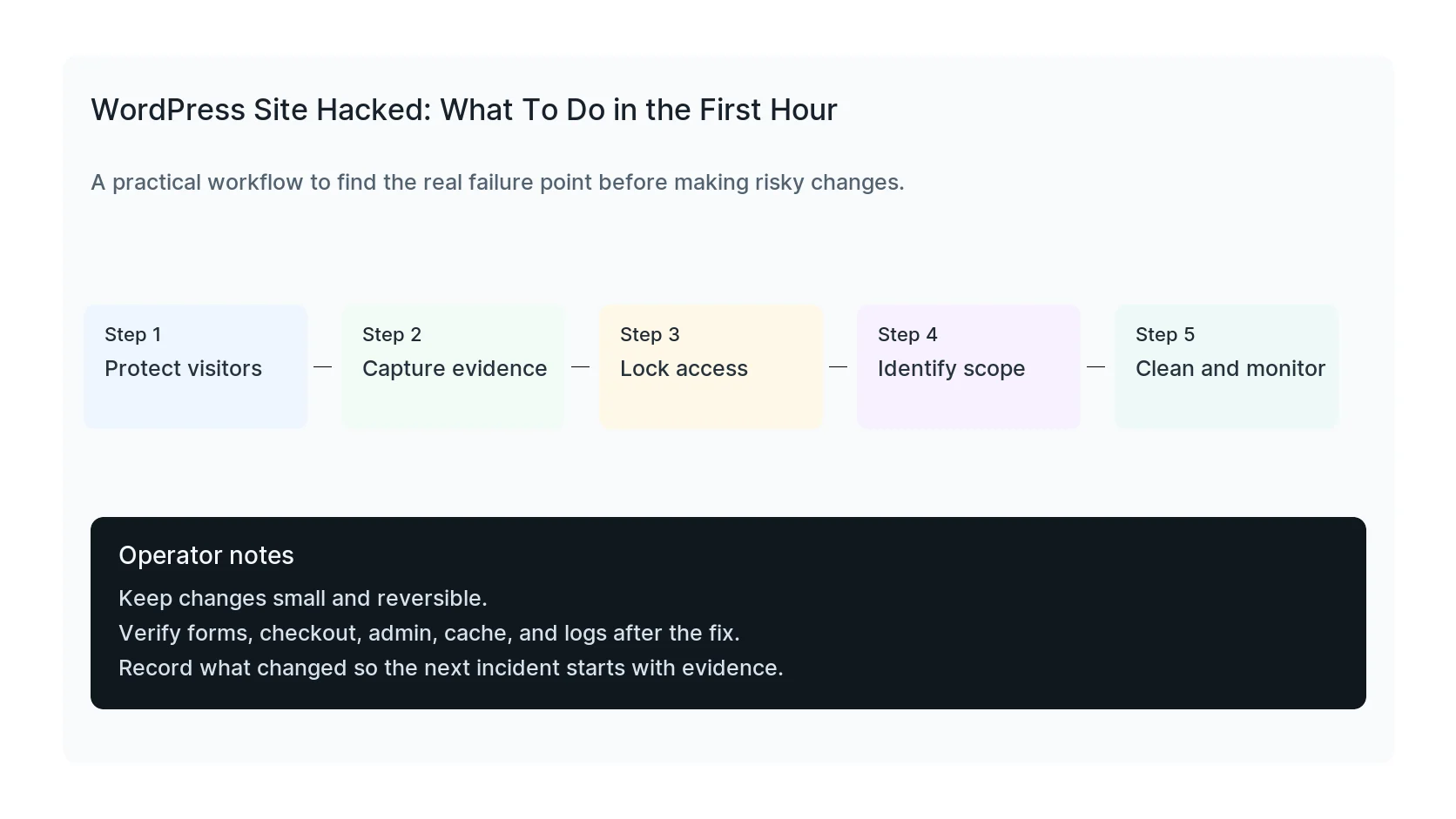
If your WordPress site was hacked, the first hour matters. The goal is not to click every security plugin button you can find. The goal is to protect visitors, preserve evidence, stop obvious access, and avoid destroying the clues needed for a proper cleanup.
A calm first response can save traffic, leads, customer trust, and cleanup time.
Quick triage map
Use this table before changing the site. It keeps the first response focused on evidence instead of guesses.
| Signal | What it usually means | First useful check |
|---|
| Spam redirects | Recent change or active failure | Capture evidence |
| Unknown admin | Code, plugin, theme, or service layer | Lock access |
| Browser warning | Business workflow at risk | Clean and monitor |
| Search result spam | Evidence needed before cleanup | Record timestamp, logs, and exact symptom |
Decide whether visitors are at risk
If the site redirects users, downloads suspicious files, shows pharmacy or casino spam, or triggers browser warnings, visitors may be at risk. Pause ads and consider putting the site behind a temporary maintenance page while cleanup starts.
If the hack is only visible in wp-admin or search snippets, you may not need to take the whole site offline, but you still need to move quickly.
- Check the homepage in a private browser.
- Check mobile and desktop.
- Click from Google if the spam appears in search results.
- Test with and without www.
- Check key landing pages, not only the homepage.
Preserve evidence before deleting
Take a fresh backup before cleaning. That sounds backward, but it gives you evidence of the compromised state. You may need it to find the entry point, compare file changes, or prove what happened.
Save screenshots of warnings, redirects, unknown users, and modified files.
Lock obvious access paths
Review administrator users first. Then check hosting control panel users, SFTP accounts, SSH keys, database users, and recent password reset emails. Attackers do not always stay inside WordPress.
Do not only change your own password. Remove unknown users and rotate shared credentials.
wp user list --role=administrator --fields=ID,user_login,user_email,user_registered
wp user update USER_ID --user_pass='new-strong-password'
Find the scope
A hacked WordPress site can have infected files, database injections, malicious redirects, SEO spam, new admin users, cron tasks, public backup files, or compromised hosting credentials.
The visible symptom is rarely the full scope. A redirect on the homepage may come from a plugin file, .htaccess rule, database option, mu-plugin, or injected JavaScript.
- Check recently modified PHP files.
- Look for PHP in uploads.
- Review mu-plugins.
- Check .htaccess and wp-config.php.
- Inspect SEO titles and descriptions for spam.
Avoid the fastest bad fix
A one-click cleanup can remove obvious malware while leaving the vulnerability behind. A full backup restore can restore the hacked files if the backup is already infected.
Use backups carefully. Restore only when you know the clean point and can patch the entry point afterward.
Start cleanup with a written log
Write down every file removed, user changed, plugin updated, and credential rotated. This makes it easier to spot reinfection and explain the incident to stakeholders.
HandL WP handles hacked WordPress cleanup with server-side checks, database review, credential rotation guidance, and monitoring after the fix.
If this is active on a production site, start hacked WordPress cleanup.
Mistakes to avoid
Most WordPress emergencies get worse when too many changes happen at once. Keep the recovery path narrow so you can prove what fixed the problem.
- Do not update more plugins while troubleshooting the current failure.
- Do not delete folders before copying or backing them up.
- Do not judge the fix by the homepage only.
- Do not leave debug logging, disabled security rules, or temporary passwords in place.
- Do not skip the business workflow that originally made the issue urgent.
Production verification checklist
Before calling the issue fixed, verify the site from the visitor side and the admin side. A technical fix that breaks forms, checkout, or tracking is not finished.
- Retest the original symptom: first hour triage.
- Open the site in a private browser window.
- Check wp-admin or the affected admin screen.
- Test the lead, checkout, booking, or contact path if the site depends on it.
- Review the error log after the fix, not only before it.
- Clear only the cache layers that affect the fixed pages.
- Write down the files, plugins, settings, or credentials changed.
Helpful official references
Audit WordPress 7.0.3 login-screen incident evidence
When suspicious unauthenticated login requests are present, follow the WordPress 7.0.3 login XSS and code execution audit to preserve request IDs, check files and identities, and separate probes from execution evidence.