A slow WordPress site does not need another random speed plugin. It needs a diagnosis. You need to know whether the bottleneck is hosting, PHP, database queries, plugins, images, cache misses, cron jobs, or third-party scripts.
The right fix depends on the slowest part of the request.
Quick triage map
Use this table before changing the site. It keeps the first response focused on evidence instead of guesses.
| Signal | What it usually means | First useful check |
|---|
| Slow TTFB | Recent change or active failure | Separate server and front end |
| Heavy plugins | Code, plugin, theme, or service layer | Find heavy plugins |
| Large images | Business workflow at risk | Monitor after deploy |
| Slow queries | Evidence needed before cleanup | Record timestamp, logs, and exact symptom |
Start with the baseline
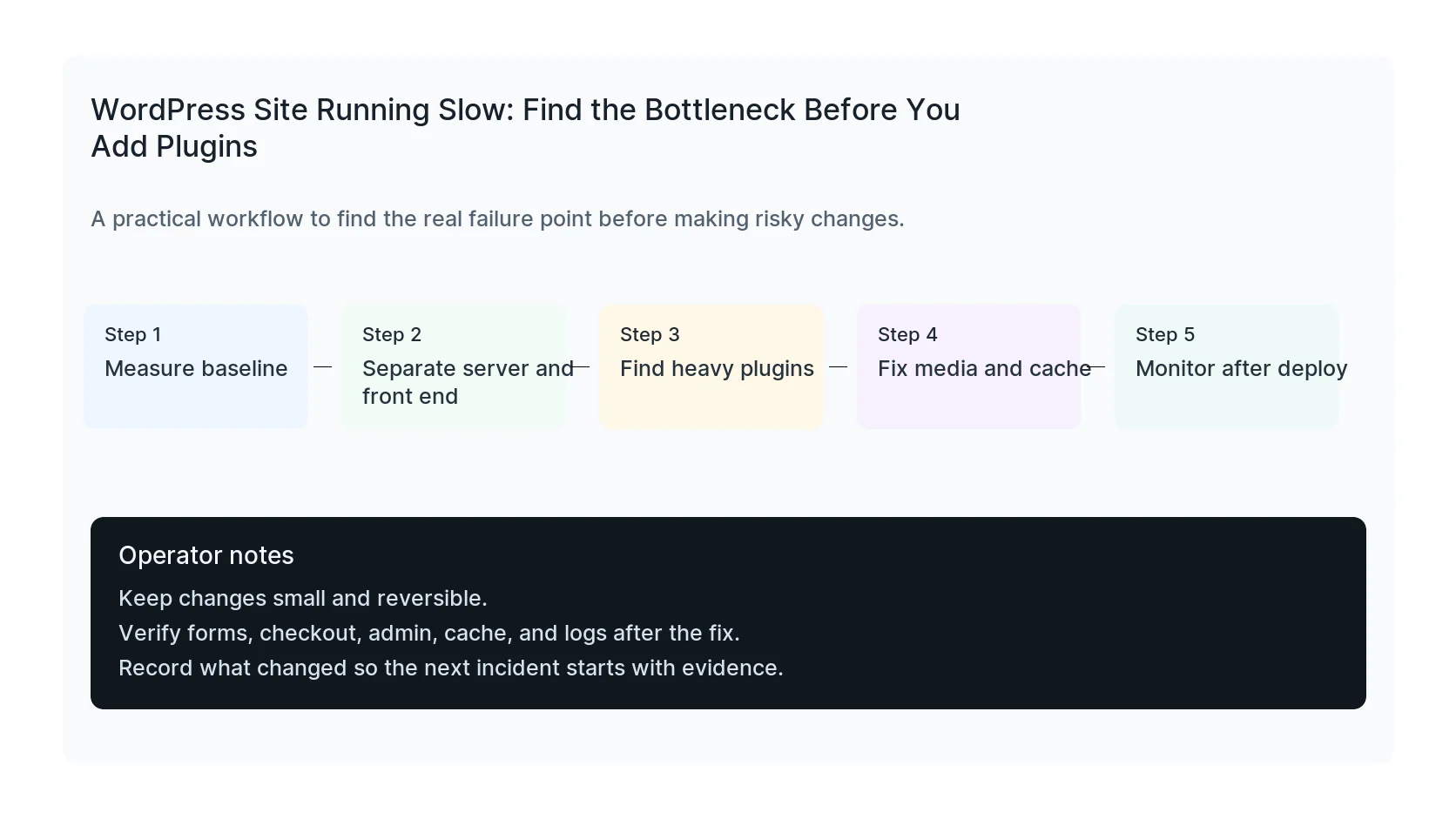
Measure a few important URLs before changing settings. Include the homepage, a landing page, a blog post, and any page that drives leads or revenue. Record TTFB, full load time, page size, and obvious console errors.
If only logged-in admin is slow, the issue may be different from public page speed.
- Homepage
- Top landing page
- Blog post
- Contact page
- Checkout or booking page if present
Separate server delay from front-end weight
High TTFB means the server took too long to start responding. Large images and scripts affect render time after the response begins. Both matter, but they require different fixes.
If TTFB is high on uncached pages, look at hosting resources, PHP workers, database queries, object cache, cron jobs, and plugin work during page generation.
Find expensive plugins
Some plugins add slow database queries, remote API calls, heavy admin hooks, or front-end scripts on every page. Deactivate plugins only in a controlled test or staging environment.
Look especially at page builders, sliders, security scanners, backup plugins, related post plugins, analytics tags, and abandoned plugins.
wp plugin list --fields=name,status,version,update
wp cron event list --fields=hook,next_run,recurrence
Fix media before obsessing over tiny scores
Oversized images are still one of the easiest wins. Serve appropriately sized images, compress them, use modern formats, and avoid loading below-the-fold media too early.
Do not make images blurry just to chase a number. The goal is a faster useful page, not a worse page with a nicer score.
Cache the right pages
Page cache can help public content, but it should not break forms, cart, checkout, account pages, or personalized content. Cache rules need to match the business workflow.
After changing cache settings, test form submissions, checkout, logged-in behavior, and tracking events.
Keep performance fixes boring
The best performance work usually removes work, caches stable pages, reduces heavy scripts, cleans obvious database issues, and monitors real pages after deployment.
HandL WP finds WordPress bottlenecks at the plugin, database, hosting, cache, and front-end layer, then tests the pages that matter to leads and revenue.
If this is active on a production site, diagnose a slow WordPress site.
Mistakes to avoid
Most WordPress emergencies get worse when too many changes happen at once. Keep the recovery path narrow so you can prove what fixed the problem.
- Do not update more plugins while troubleshooting the current failure.
- Do not delete folders before copying or backing them up.
- Do not judge the fix by the homepage only.
- Do not leave debug logging, disabled security rules, or temporary passwords in place.
- Do not skip the business workflow that originally made the issue urgent.
Production verification checklist
Before calling the issue fixed, verify the site from the visitor side and the admin side. A technical fix that breaks forms, checkout, or tracking is not finished.
- Retest the original symptom: slow pages and high ttfb.
- Open the site in a private browser window.
- Check wp-admin or the affected admin screen.
- Test the lead, checkout, booking, or contact path if the site depends on it.
- Review the error log after the fix, not only before it.
- Clear only the cache layers that affect the fixed pages.
- Write down the files, plugins, settings, or credentials changed.
Helpful official references
Related Practical Guides
Once you know the bottleneck, monitor whether the customer journey keeps working:
Focused Diagnostic Guides
Use the guide that matches the observed symptom: a slow largest element, moving controls, or unreadable image detail.
Related Troubleshooting Paths
These focused diagnostics separate structural, loading, and logged-in performance problems:
Practical Next Steps
Use the field metric and affected template to prioritize performance work: