A WordPress site can allow AI crawlers in robots.txt while a WAF or CDN still returns 429 rate-limit responses. That is a policy mismatch. The right fix is not broad whitelisting. It is to inspect user agents, IP behavior, public-page intent, sitemap fetches, and rate rules together.
Use this for WordPress sites that want public service pages, docs, or blog posts available to AI search crawlers while keeping private, login, admin, and abusive traffic protected.
Quick answer
AI Crawler 429 Rate Limit WordPress WAF Report should be handled with a narrow evidence-first workflow: group crawler logs, match policy, test public assets, then verify the result before making broader changes.
What to check first
- Review access logs for GPTBot, OAI-SearchBot, ChatGPT-User, PerplexityBot, Googlebot, and other relevant crawlers.
- Group responses by user agent, path, status code, IP, country, and request rate.
- Confirm robots.txt policy matches the business decision for each crawler type.
- Check whether sitemap, public pages, CSS, JavaScript, and images return 200 to allowed crawlers.
- Tune rate limits by path and behavior instead of using a blanket user-agent allow.
Diagnostic table
Use this table to keep the work practical. It connects the symptom to evidence and a verification step.
| Action | Evidence to collect | How to verify |
|---|
| Group crawler logs | Review access logs for GPTBot, OAI-SearchBot, ChatGPT-User, PerplexityBot, Googlebot, and other relevant crawlers. | Allowed crawlers receive 200 responses for public pages and sitemap files. |
| Match policy | Group responses by user agent, path, status code, IP, country, and request rate. | Private, admin, staging, and account paths remain blocked or authenticated. |
| Test public assets | Confirm robots.txt policy matches the business decision for each crawler type. | 429 responses are tied to real abuse patterns or protected paths. |
| Tune rate rules | Check whether sitemap, public pages, CSS, JavaScript, and images return 200 to allowed crawlers. | The WAF report explains crawler policy in business terms. |
Why this usually happens
- robots.txt is read only if the crawler can reach it through the security layers.
- Some WAF rules treat unfamiliar crawlers as bots to challenge or rate limit.
- A 429 on the sitemap can make public content discovery slower even when pages are allowed.
- A fake user agent can look like a known crawler, so behavior still matters.
Field notes
- Keep private and admin paths protected with authentication and WAF rules.
- Do not trust user agent alone. Review IP ranges and request behavior where available.
- Document allowed public paths and blocked private paths in the same report.
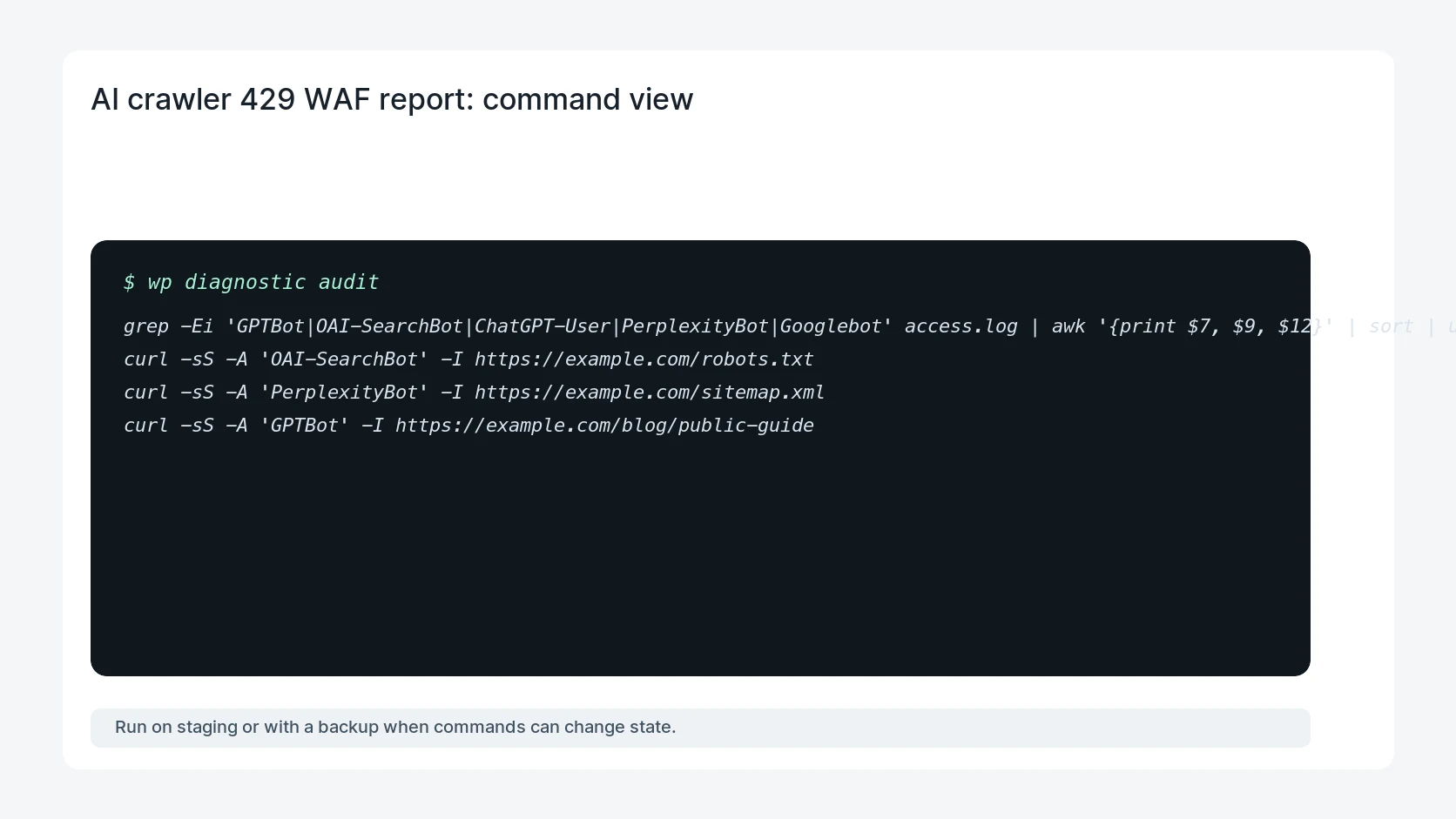
Useful command or data shape
Adapt paths, IDs, and privacy handling to the site before running commands or storing data on production.
grep -Ei 'GPTBot|OAI-SearchBot|ChatGPT-User|PerplexityBot|Googlebot' access.log | awk '{print $7, $9, $12}' | sort | uniq -c
curl -sS -A 'OAI-SearchBot' -I https://example.com/robots.txt
curl -sS -A 'PerplexityBot' -I https://example.com/sitemap.xml
curl -sS -A 'GPTBot' -I https://example.com/blog/public-guide
Safe fix order
Do the work in a sequence that makes each result easy to prove. Stop if a step produces new evidence that changes the incident scope.
- Group crawler logs
- Match policy
- Test public assets
- Tune rate rules
- Retest sitemap
What to tell the client or owner
Send a one-page report that separates allowed public crawling, blocked private paths, suspicious spoofing, and rate-limit rules.
Production verification checklist
- Allowed crawlers receive 200 responses for public pages and sitemap files.
- Private, admin, staging, and account paths remain blocked or authenticated.
- 429 responses are tied to real abuse patterns or protected paths.
- The WAF report explains crawler policy in business terms.
Mistakes to avoid
- Do not judge the fix by one browser or the homepage only.
- Do not delete evidence before recording usernames, file paths, timestamps, and response headers.
- Do not add a cache, security, or tracking plugin while the original problem is still unclear.
- Do not leave test users, temporary debug logs, or broad API keys active after verification.
When HandL WP should help
Bring in help when this affects leads, checkout, search visibility, malware risk, paid media reporting, or a client production site. HandL WP can trace the issue through WordPress, hosting, cache, tracking, and Search Console, then verify the workflow after the technical fix.
If this is active on a production site, review AI crawler access.
Related HandL WP guides
Use these related guides when the same issue touches tracking, security, checkout, or crawler visibility.
Helpful references