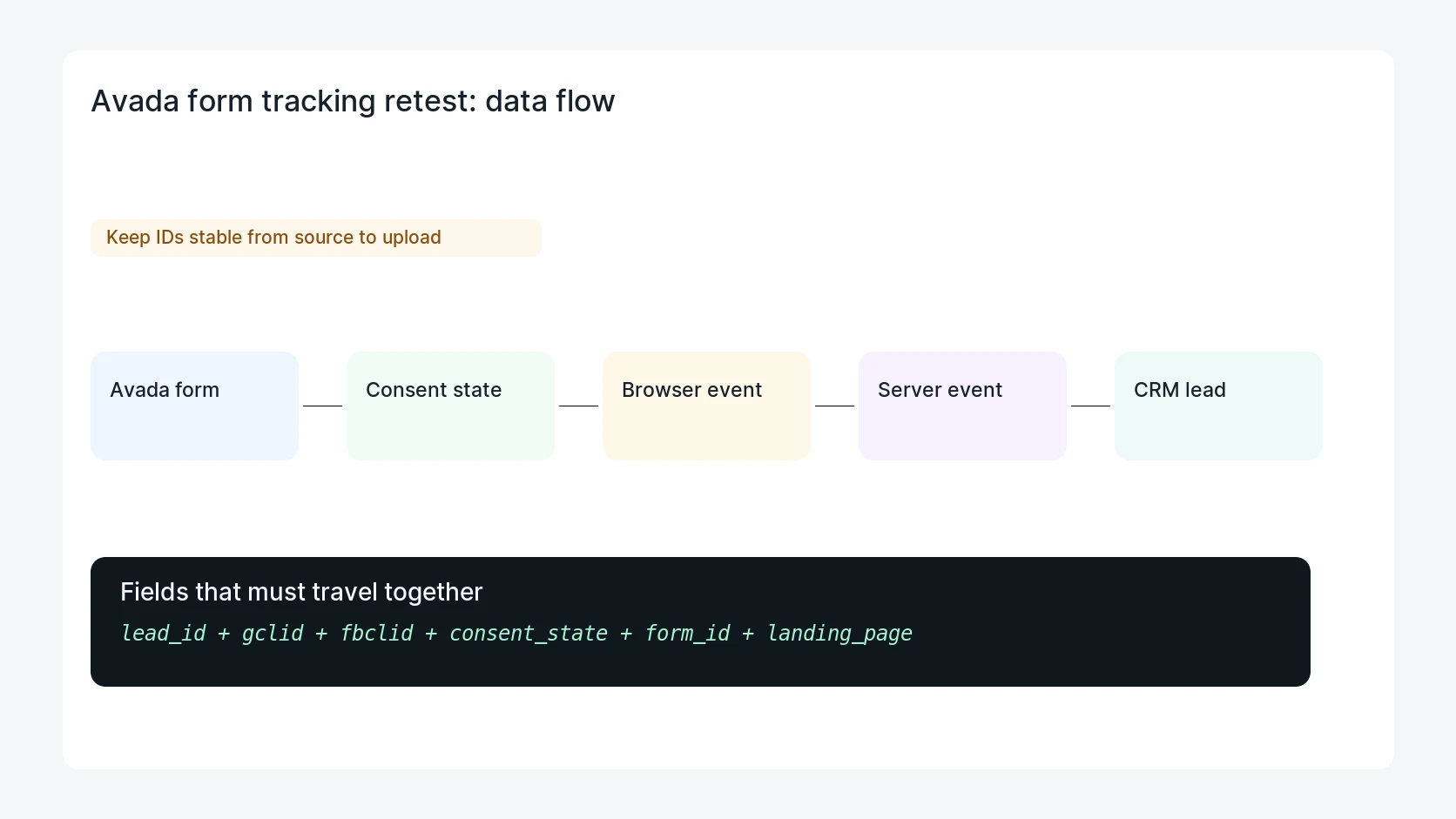
After an Avada update, a form can keep submitting while Google Ads, GA4, Meta Pixel, or CRM attribution quietly stops. The right test follows the submit action, thank-you behavior, consent state, event payload, and lead record.
Use this for Avada sites that run paid campaigns, landing pages, quote forms, consultation forms, or lead magnets where attribution matters.
Quick answer
Avada Form Tracking After a Security Update should be handled with a narrow evidence-first workflow: snapshot versions, submit test lead, inspect event payloads, then verify the result before making broader changes.
What to check first
- Record the Avada, Avada Builder, WordPress, and tracking plugin versions before and after the update.
- Submit each paid-traffic form with test UTMs, gclid or wbraid, and the expected consent state.
- Check whether the form uses AJAX, redirect, confirmation message, popup, or multi-step behavior.
- Verify GA4, Google Ads, Meta Pixel, and server-side events with the same test lead.
- Confirm the CRM lead stores source, medium, campaign, landing page, and consent values.
Diagnostic table
Use this table to keep the work practical. It connects the symptom to evidence and a verification step.
| Action | Evidence to collect | How to verify |
|---|
| Snapshot versions | Record the Avada, Avada Builder, WordPress, and tracking plugin versions before and after the update. | The Avada form submits from desktop and mobile without console errors. |
| Submit test lead | Submit each paid-traffic form with test UTMs, gclid or wbraid, and the expected consent state. | GA4, Google Ads, and Meta receive the expected event once. |
| Inspect event payloads | Check whether the form uses AJAX, redirect, confirmation message, popup, or multi-step behavior. | The CRM lead stores campaign and consent fields correctly. |
| Check CRM fields | Verify GA4, Google Ads, Meta Pixel, and server-side events with the same test lead. | The final client note includes the tested URL and test lead ID. |
Why this usually happens
- Theme updates can change DOM selectors used by tag triggers.
- AJAX form behavior can prevent thank-you-page triggers from firing.
- Consent mode can suppress tags even when the form submission itself succeeds.
- A rollback can restore layout files while leaving cached scripts or tracking snippets stale.
Field notes
- Keep one controlled test URL with known UTM values so the CRM row is easy to inspect.
- Do not judge tracking from browser extensions alone. Confirm the server, ad platform, or CRM output too.
- When layout cache is involved, purge Avada, page cache, CDN, and browser cache before retesting.
Useful command or data shape
Adapt paths, IDs, and privacy handling to the site before running commands or storing data on production.
test_url: https://example.com/quote/?utm_source=google&utm_medium=cpc&utm_campaign=avada_update_test&gclid=test-gclid
expected_events:
  ga4: generate_lead
  google_ads: lead_conversion
  meta: Lead
  crm_fields: source, medium, campaign, landing_page, consent_state
Safe fix order
Do the work in a sequence that makes each result easy to prove. Stop if a step produces new evidence that changes the incident scope.
- Snapshot versions
- Submit test lead
- Inspect event payloads
- Check CRM fields
- Purge caches
What to tell the client or owner
Tell the owner that security and tracking were verified separately. A patched theme is not enough when paid campaigns depend on the form event chain.
Production verification checklist
- The Avada form submits from desktop and mobile without console errors.
- GA4, Google Ads, and Meta receive the expected event once.
- The CRM lead stores campaign and consent fields correctly.
- The final client note includes the tested URL and test lead ID.
Mistakes to avoid
- Do not judge the fix by one browser or the homepage only.
- Do not delete evidence before recording usernames, file paths, timestamps, and response headers.
- Do not add a cache, security, or tracking plugin while the original problem is still unclear.
- Do not leave test users, temporary debug logs, or broad API keys active after verification.
When HandL WP should help
Bring in help when this affects leads, checkout, search visibility, malware risk, paid media reporting, or a client production site. HandL WP can trace the issue through WordPress, hosting, cache, tracking, and Search Console, then verify the workflow after the technical fix.
If this is active on a production site, retest WordPress conversion tracking.
Related HandL WP guides
Use these related guides when the same issue touches tracking, security, checkout, or crawler visibility.
Helpful references