A site can have the right object at the origin and still show the wrong status, body, canonical, or title to crawlers because CloudFront custom errors, functions, Lambda@Edge, cache policies, or viewer response logic changed the final response. SEO debugging has to follow the request through each stage.
Use this for React, S3, CloudFront, headless WordPress, app shell, prerendered blog pages, and static sites where some routes look like 200 app shells or soft 404s.
Quick answer
CloudFront Origin Response vs Viewer Response SEO Debug should be handled with a narrow evidence-first workflow: check origin, review custom errors, separate edge stages, then verify the result before making broader changes.
What to check first
- Fetch the origin object or backend response before testing CloudFront behavior.
- Check CloudFront custom error responses and whether they remap 403 or 404 to 200.
- Review viewer request, origin request, origin response, and viewer response functions separately.
- Compare status code, title, canonical, robots tags, and schema at the final public URL.
- Invalidate page, listing, and sitemap paths after changing response behavior.
Diagnostic table
Use this table to keep the work practical. It connects the symptom to evidence and a verification step.
| Action | Evidence to collect | How to verify |
|---|
| Check origin | Fetch the origin object or backend response before testing CloudFront behavior. | Valid content URLs return page-specific metadata and schema. |
| Review custom errors | Check CloudFront custom error responses and whether they remap 403 or 404 to 200. | Missing content URLs return the intended 404 status. |
| Separate edge stages | Review viewer request, origin request, origin response, and viewer response functions separately. | Missing assets do not return a 200 app shell. |
| Compare final SEO signals | Compare status code, title, canonical, robots tags, and schema at the final public URL. | Sitemap URLs match the clean canonical response. |
Why this usually happens
- SPA fallback rules are useful for browser routing but risky for missing content URLs.
- CloudFront can generate or modify responses without the origin changing.
- A valid sitemap URL can still return default app-shell metadata if prerendering failed.
- Custom error responses can make missing assets and missing pages look indexable.
Field notes
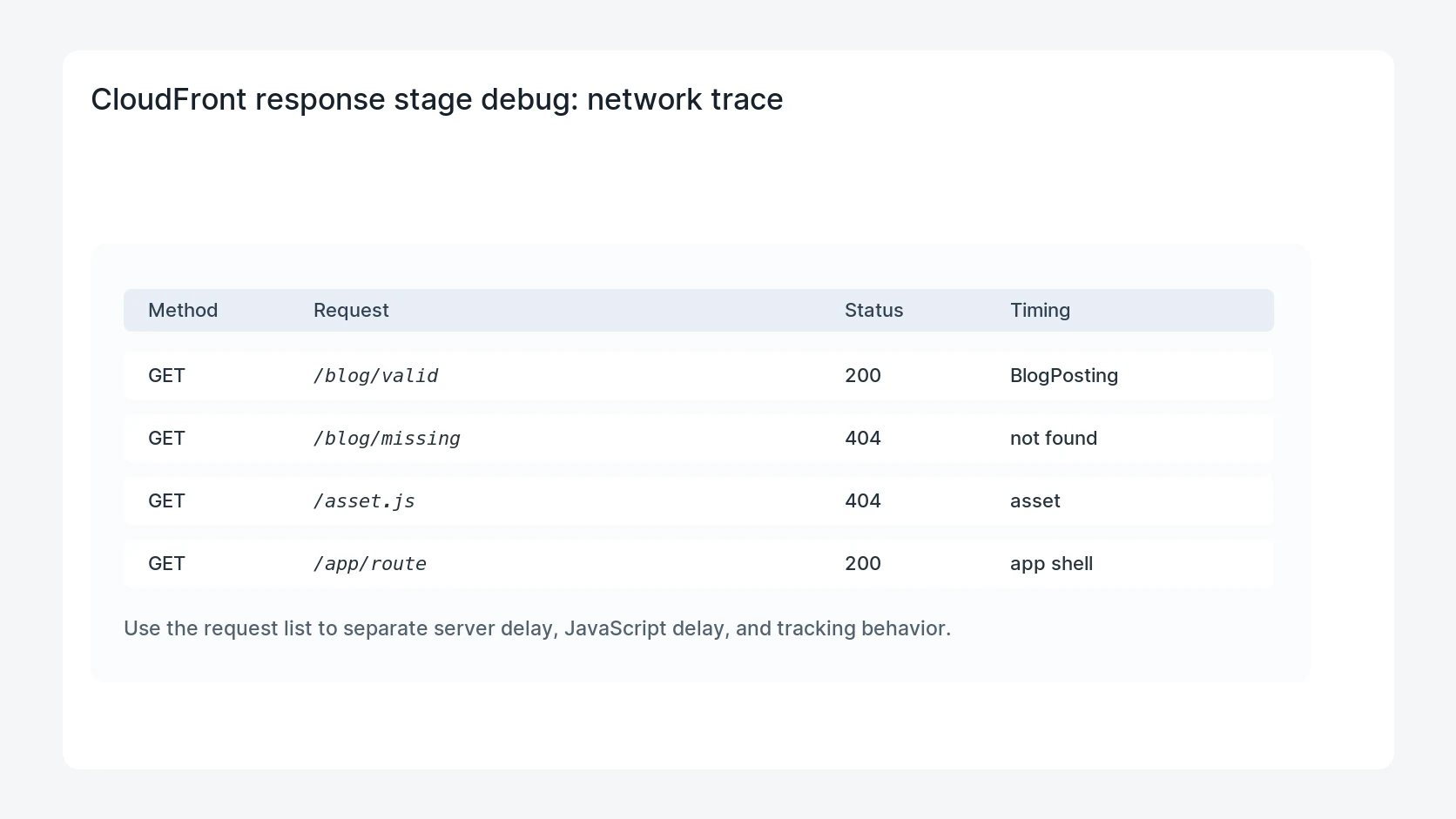
- Test one valid content URL, one valid app route, one missing content URL, and one missing asset.
- Use clean canonical URLs only and keep duplicate .html variants out of the sitemap.
- When in doubt, log the final response headers and a small body fingerprint.
Useful command or data shape
Adapt paths, IDs, and privacy handling to the site before running commands or storing data on production.
curl -sS -I https://example.com/blog/valid-post
curl -sS https://example.com/blog/valid-post | grep -Ei '<title>|canonical|BlogPosting'
curl -sS -I https://example.com/blog/not-real-post
curl -sS -I https://example.com/assets/not-real.js
# Compare origin, CloudFront, and final crawler-visible response.
Safe fix order
Do the work in a sequence that makes each result easy to prove. Stop if a step produces new evidence that changes the incident scope.
- Check origin
- Review custom errors
- Separate edge stages
- Compare final SEO signals
- Invalidate paths
What to tell the client or owner
Explain which stage changed the response, which paths were invalidated, and which curl checks prove the final crawler-visible behavior.
Production verification checklist
- Valid content URLs return page-specific metadata and schema.
- Missing content URLs return the intended 404 status.
- Missing assets do not return a 200 app shell.
- Sitemap URLs match the clean canonical response.
Mistakes to avoid
- Do not judge the fix by one browser or the homepage only.
- Do not delete evidence before recording usernames, file paths, timestamps, and response headers.
- Do not add a cache, security, or tracking plugin while the original problem is still unclear.
- Do not leave test users, temporary debug logs, or broad API keys active after verification.
When HandL WP should help
Bring in help when this affects leads, checkout, search visibility, malware risk, paid media reporting, or a client production site. HandL WP can trace the issue through WordPress, hosting, cache, tracking, and Search Console, then verify the workflow after the technical fix.
If this is active on a production site, debug CloudFront SEO responses.
Related HandL WP guides
Use these related guides when the same issue touches tracking, security, checkout, or crawler visibility.
Helpful references