A WordPress form submit timestamp is often not the same as the qualified lead timestamp. Data Manager API uploads need the right event time, stable lead ID, consent context, and CRM stage evidence.
Use this for WordPress sites that upload qualified leads, booked calls, opportunities, or sales stages from Gravity Forms, Elementor Forms, Contact Form 7, HubSpot, Salesforce, or a custom CRM.
Quick answer
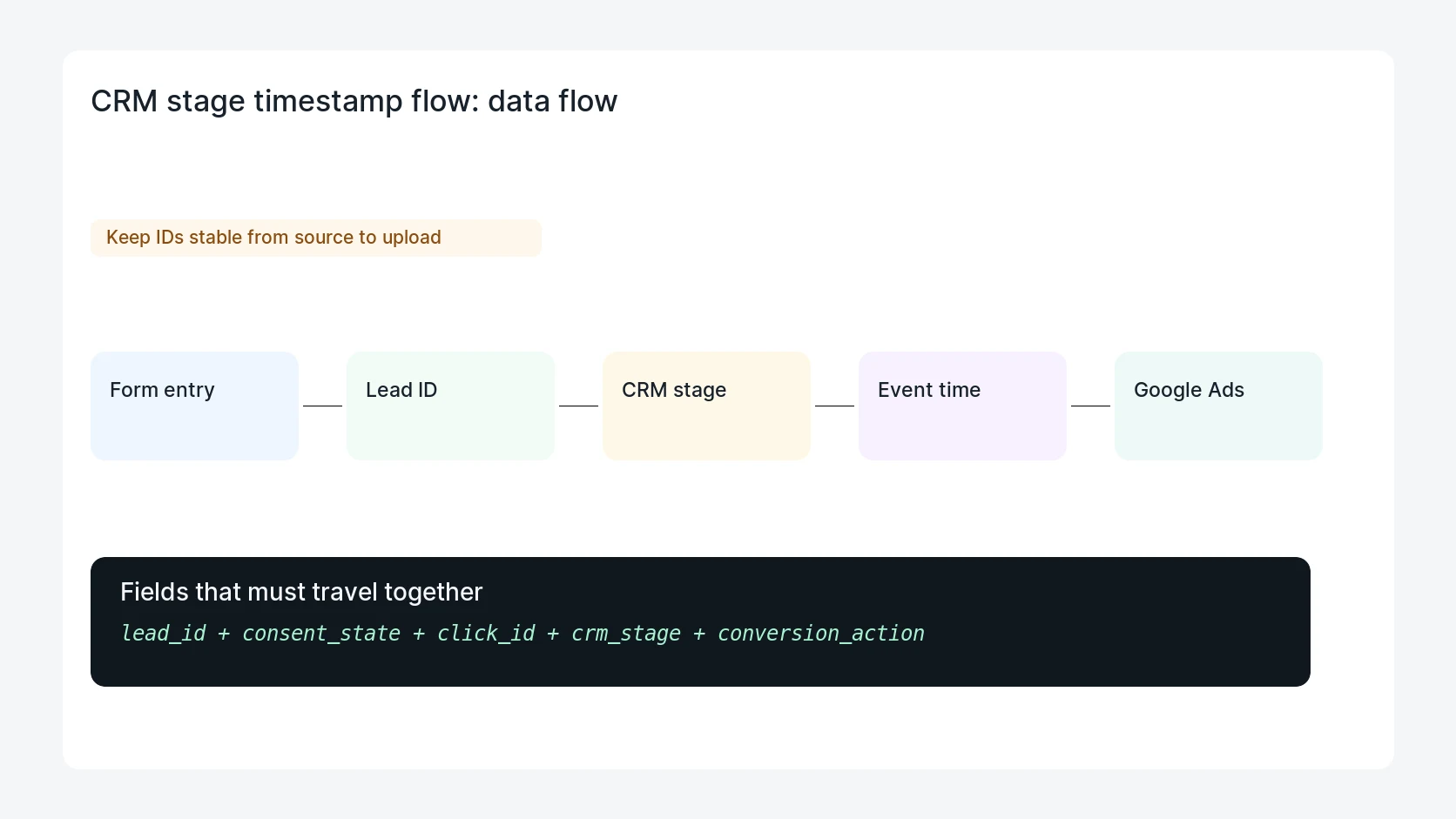
Data Manager API CRM Stage Timestamp for WordPress Leads should be handled with a narrow evidence-first workflow: create stable lead id, separate timestamps, map crm stage, then verify the result before making broader changes.
What to check first
- Create a stable lead ID at form submission and keep it through CRM sync.
- Record original submission time, CRM stage time, and upload time separately.
- Choose the conversion action that matches the CRM stage, not every raw form lead.
- Keep consent state and click identifiers with the same lead record.
- Log accepted, rejected, and delayed upload rows so marketing can diagnose gaps.
Diagnostic table
Use this table to keep the work practical. It connects the symptom to evidence and a verification step.
| Action | Evidence to collect | How to verify |
|---|
| Create stable lead ID | Create a stable lead ID at form submission and keep it through CRM sync. | The uploaded event time matches the CRM stage being reported. |
| Separate timestamps | Record original submission time, CRM stage time, and upload time separately. | Raw form leads and qualified leads use different conversion actions. |
| Map CRM stage | Choose the conversion action that matches the CRM stage, not every raw form lead. | Rejected rows expose lead ID, reason, and retry status. |
| Attach consent state | Keep consent state and click identifiers with the same lead record. | Marketing can reconcile uploads against the CRM stage report. |
Useful command or data shape
Adapt paths, IDs, and privacy handling to the site before running commands or storing data on production.
lead_stage_event:
  lead_id: wp-lead-94412
  form_submit_time: 2026-06-29T09:12:08Z
  crm_stage: sales_qualified_lead
  crm_stage_time: 2026-06-29T14:31:55Z
  upload_time: 2026-06-29T14:37:00Z
  conversion_action: qualified_lead
Safe fix order
Do the work in a sequence that makes each result easy to prove. Stop if a step produces new evidence that changes the incident scope.
- Create stable lead ID
- Separate timestamps
- Map CRM stage
- Attach consent state
- Log upload diagnostics
Production verification checklist
- The uploaded event time matches the CRM stage being reported.
- Raw form leads and qualified leads use different conversion actions.
- Rejected rows expose lead ID, reason, and retry status.
- Marketing can reconcile uploads against the CRM stage report.
Mistakes to avoid
- Do not judge the fix by one browser or the homepage only.
- Do not delete evidence before recording usernames, file paths, timestamps, and response headers.
- Do not add a cache, security, or tracking plugin while the original problem is still unclear.
- Do not leave test users, temporary debug logs, or broad API keys active after verification.
When HandL WP should help
Bring in help when this affects leads, checkout, search visibility, malware risk, paid media reporting, or a client production site. HandL WP can trace the issue through WordPress, hosting, cache, tracking, and Search Console, then verify the workflow after the technical fix.
If this is active on a production site, set up WordPress offline conversion uploads.
Related HandL WP guides
Use these related guides when the same issue touches tracking, security, checkout, or crawler visibility.
Helpful references