Elementor form submit conversions can overvalue bad-fit, spam, duplicate, or unqualified leads. A disqualified lead adjustment workflow connects the Elementor entry, CRM reason, click ID, consent state, and Google Ads adjustment rule.
Use this for service businesses and B2B teams that receive Elementor leads, qualify them in a CRM, and want Google Ads to optimize for lead quality rather than raw form volume.
Quick answer
Elementor Form CRM Disqualified Lead Adjustment should be handled with a narrow evidence-first workflow: capture form ids, standardize reasons, choose adjustment rule, then verify the result before making broader changes.
What to check first
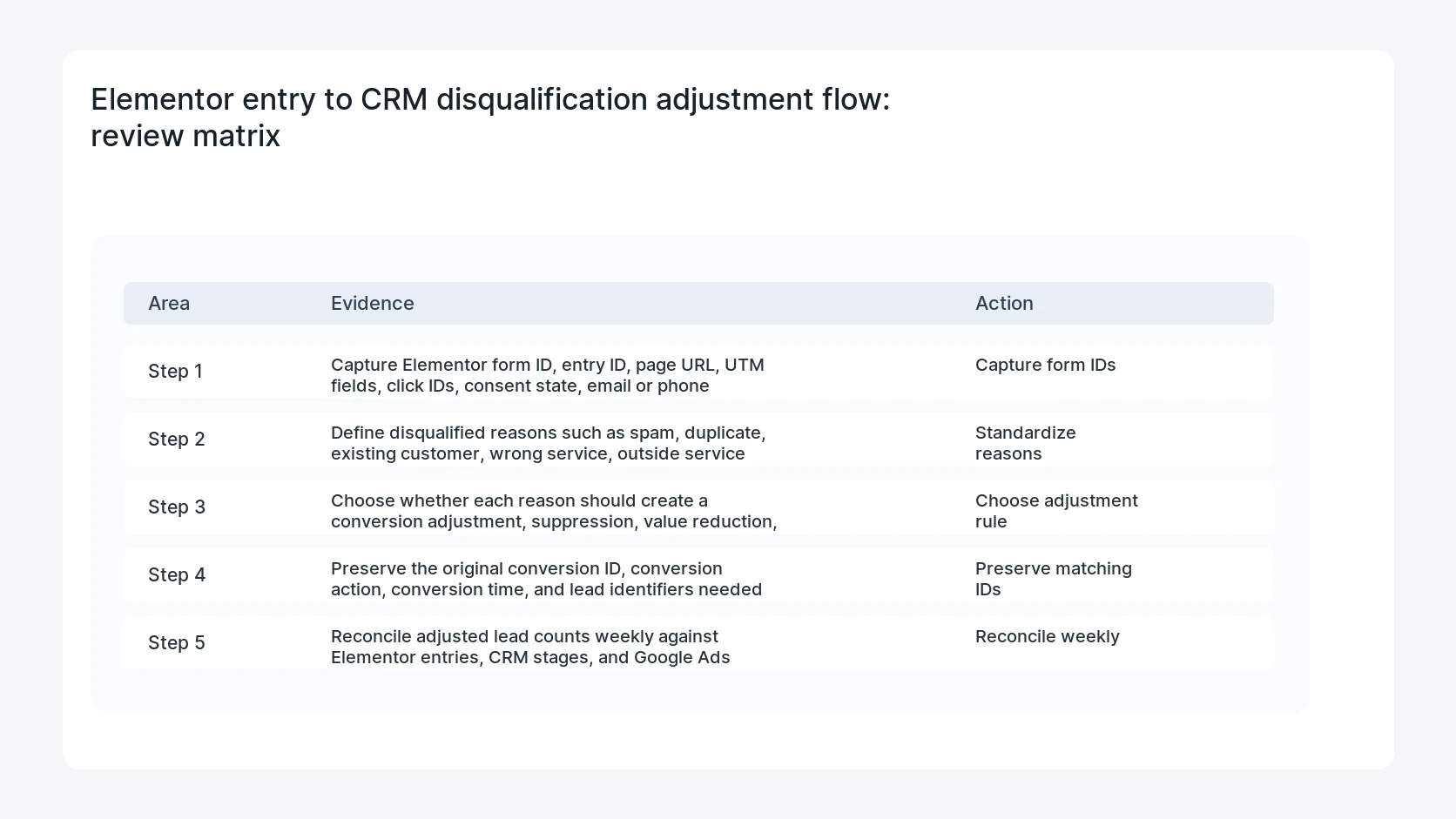
- Capture Elementor form ID, entry ID, page URL, UTM fields, click IDs, consent state, email or phone eligibility, and CRM lead ID.
- Define disqualified reasons such as spam, duplicate, existing customer, wrong service, outside service area, no budget, or unreachable.
- Choose whether each reason should create a conversion adjustment, suppression, value reduction, or no advertising feedback.
- Preserve the original conversion ID, conversion action, conversion time, and lead identifiers needed for adjustment matching.
- Reconcile adjusted lead counts weekly against Elementor entries, CRM stages, and Google Ads reports.
Diagnostic table
Use this table to keep the work practical. It connects the symptom to evidence and a verification step.
| Action | Evidence to collect | How to verify |
|---|
| Capture form IDs | Capture Elementor form ID, entry ID, page URL, UTM fields, click IDs, consent state, email or phone eligibility, and CRM lead ID. | Each adjusted lead maps back to one Elementor entry and one CRM lead. |
| Standardize reasons | Define disqualified reasons such as spam, duplicate, existing customer, wrong service, outside service area, no budget, or unreachable. | Disqualification reasons are standardized and approved by sales and marketing. |
| Choose adjustment rule | Choose whether each reason should create a conversion adjustment, suppression, value reduction, or no advertising feedback. | Google Ads adjustments or suppressions match the intended conversion action. |
| Preserve matching IDs | Preserve the original conversion ID, conversion action, conversion time, and lead identifiers needed for adjustment matching. | Weekly reports compare raw submits, qualified leads, disqualified leads, and adjusted conversions. |
Why this usually happens
- The ad tag fires on every Elementor submit before sales reviews the lead.
- CRM disqualification reasons are not standardized enough for upload rules.
- Click IDs and entry IDs are not preserved through the CRM handoff.
- The team sends adjustments without checking consent or identifier eligibility.
- Marketing reports optimize for total leads while sales rejects most of them.
Field notes
- Start with a narrow set of disqualification reasons. Too many categories make weekly reconciliation messy.
- Some bad leads should be suppressed from quality feedback, while others should remain as low-value learning signals. Decide deliberately.
Useful command or data shape
Adapt paths, IDs, and privacy handling to the site before running commands or storing data on production.
disqualified_lead_adjustment:
  elementor_entry_id: EL-22144
  crm_lead_id: CRM-88501
  original_conversion_action: form_submit_lead
  disqualified_reason: outside_service_area
  adjustment_type: RETRACTION
  consent_ad_user_data: granted
  upload_status: queued_for_review
Safe fix order
Do the work in a sequence that makes each result easy to prove. Stop if a step produces new evidence that changes the incident scope.
- Capture form IDs
- Standardize reasons
- Choose adjustment rule
- Preserve matching IDs
- Reconcile weekly
What to tell the client or owner
Tell the marketing owner which disqualified reasons are being sent back, which are held, and how this should influence bidding decisions.
Production verification checklist
- Each adjusted lead maps back to one Elementor entry and one CRM lead.
- Disqualification reasons are standardized and approved by sales and marketing.
- Google Ads adjustments or suppressions match the intended conversion action.
- Weekly reports compare raw submits, qualified leads, disqualified leads, and adjusted conversions.
Mistakes to avoid
- Do not judge the fix by one browser or the homepage only.
- Do not delete evidence before recording usernames, file paths, timestamps, and response headers.
- Do not add a cache, security, or tracking plugin while the original problem is still unclear.
- Do not leave test users, temporary debug logs, or broad API keys active after verification.
When HandL WP should help
Bring in help when this affects leads, checkout, search visibility, malware risk, paid media reporting, or a client production site. HandL WP can trace the issue through WordPress, hosting, cache, tracking, and Search Console, then verify the workflow after the technical fix.
If this is active on a production site, build a Google Ads lead quality feedback loop.
Related HandL WP guides
Use these related guides when the same issue touches tracking, security, checkout, or crawler visibility.
Helpful references