Gutenberg 23.3 notes that the editor moved to React 19. Most site owners will experience this through custom blocks, editor plugins, metabox extensions, and JavaScript console errors rather than as a visible React update.
Use this for WordPress sites with custom blocks, editor-side SEO fields, page builder bridges, workflow plugins, product editors, or agency-maintained block libraries.
Quick answer
Gutenberg React 19 Plugin Compatibility Test for WordPress should be handled with a narrow evidence-first workflow: match staging versions, test custom blocks, read console, then verify the result before making broader changes.
What to check first
- Open staging with the same Gutenberg, WordPress, theme, and editor plugin versions planned for production.
- Create and edit posts that use every custom block, reusable pattern, metabox, sidebar panel, and editor plugin.
- Watch the browser console for deprecated API warnings, React errors, hydration errors, and failed chunk loads.
- Test autosave, manual save, preview, publish, revisions, and copy-paste from real editor workflows.
- Keep a rollback plan for the Gutenberg plugin, theme build, and editor extension bundle.
Diagnostic table
Use this table to keep the work practical. It connects the symptom to evidence and a verification step.
| Action | Evidence to collect | How to verify |
|---|
| Match staging versions | Open staging with the same Gutenberg, WordPress, theme, and editor plugin versions planned for production. | Custom blocks can be inserted, edited, saved, previewed, and reloaded. |
| Test custom blocks | Create and edit posts that use every custom block, reusable pattern, metabox, sidebar panel, and editor plugin. | No editor-side JavaScript error blocks the save path. |
| Read console | Watch the browser console for deprecated API warnings, React errors, hydration errors, and failed chunk loads. | Metabox and sidebar plugin fields still persist after save. |
| Test save paths | Test autosave, manual save, preview, publish, revisions, and copy-paste from real editor workflows. | Rollback notes include plugin versions and built asset versions. |
Useful command or data shape
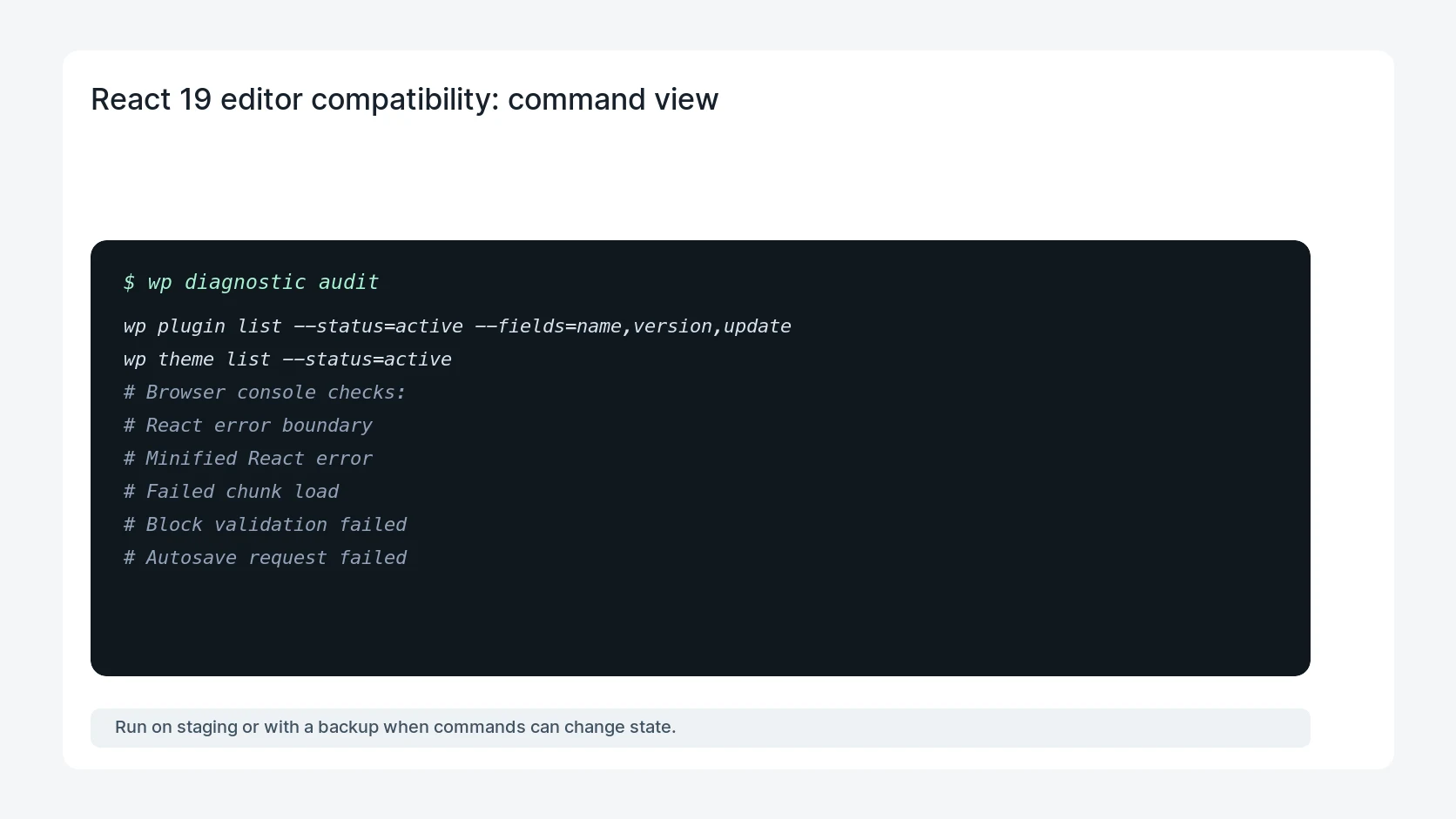
Adapt paths, IDs, and privacy handling to the site before running commands or storing data on production.
wp plugin list --status=active --fields=name,version,update
wp theme list --status=active
# Browser console checks:
# React error boundary
# Minified React error
# Failed chunk load
# Block validation failed
# Autosave request failed
Safe fix order
Do the work in a sequence that makes each result easy to prove. Stop if a step produces new evidence that changes the incident scope.
- Match staging versions
- Test custom blocks
- Read console
- Test save paths
- Prepare rollback
Production verification checklist
- Custom blocks can be inserted, edited, saved, previewed, and reloaded.
- No editor-side JavaScript error blocks the save path.
- Metabox and sidebar plugin fields still persist after save.
- Rollback notes include plugin versions and built asset versions.
Mistakes to avoid
- Do not judge the fix by one browser or the homepage only.
- Do not delete evidence before recording usernames, file paths, timestamps, and response headers.
- Do not add a cache, security, or tracking plugin while the original problem is still unclear.
- Do not leave test users, temporary debug logs, or broad API keys active after verification.
When HandL WP should help
Bring in help when this affects leads, checkout, search visibility, malware risk, paid media reporting, or a client production site. HandL WP can trace the issue through WordPress, hosting, cache, tracking, and Search Console, then verify the workflow after the technical fix.
If this is active on a production site, test WordPress plugin updates safely.
Related HandL WP guides
Use these related guides when the same issue touches tracking, security, checkout, or crawler visibility.
Helpful references