If a plugin update broke your WordPress site, do not start by updating more plugins. Treat the update like an incident. Freeze changes, find the exact error, roll back the smallest possible piece, and test the parts of the site that create revenue.
The risky move is a blind full backup restore. It may bring the site back, but it can also erase new orders, form entries, or content edits. A safer recovery starts with the plugin that changed and the PHP error it caused.
Quick triage map
Use this table before changing the site. It keeps the first response focused on evidence instead of guesses.
| Signal | What it usually means | First useful check |
|---|
| 2:14 PM plugin updated | Recent change or active failure | Read fatal log |
| 2:15 PM fatal error begins | Code, plugin, theme, or service layer | Disable named plugin |
| 2:17 PM leads stop | Business workflow at risk | Test revenue paths |
| 2:20 PM rollback window | Evidence needed before cleanup | Record timestamp, logs, and exact symptom |
Start with the timeline
Write down when the update happened and when the error started. This gives you a clean line between coincidence and cause. If the site broke within minutes of a plugin update, the update is the first suspect, but the log still decides the fix.
Check whether the front end, wp-admin, checkout, forms, or only one template is broken. A plugin can break only admin screens, only AJAX requests, or only pages that load a certain shortcode.
- Pause all scheduled updates.
- Take a fresh backup if hosting still allows it.
- Capture the plugin name, old version, and new version.
- Check uptime, form, checkout, and error log timestamps.
Find the actual fatal error
The visible WordPress error screen is not enough. You need the PHP fatal error behind it. Look in the hosting error log, wp-content/debug.log, or the recovery mode email.
If you can edit wp-config.php, enable logging without showing errors to visitors.
define( 'WP_DEBUG', true );
define( 'WP_DEBUG_LOG', true );
define( 'WP_DEBUG_DISPLAY', false );
Disable only the plugin that failed
If the fatal error names a plugin folder, disable that plugin first. Do not rename the entire plugins directory unless the log is unclear. Smaller changes are easier to reverse.
With SFTP, rename the plugin folder. With WP-CLI, deactivate the plugin directly.
wp plugin list
wp plugin deactivate problem-plugin
wp plugin status problem-plugin
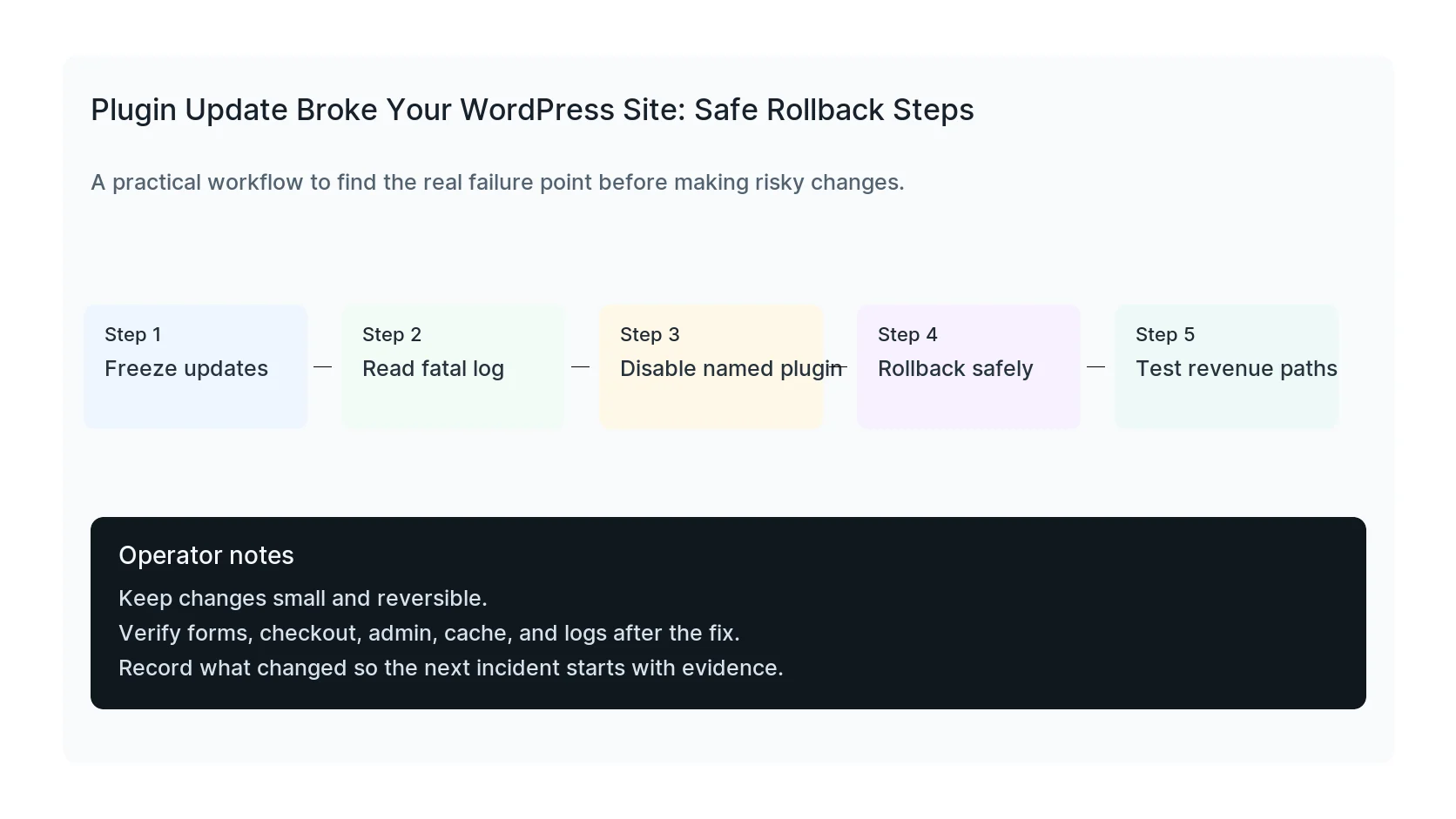
Roll back with a copy, not a guess
If the site loads after deactivation, restore the previous known-good plugin version. Keep a copy of the broken version if a developer needs to compare the change. For WordPress.org plugins, WP-CLI can install a specific version.
Premium plugins need their vendor package or a clean backup copy. Do not download premium plugin ZIP files from random sites.
wp plugin install plugin-slug --version=1.2.3 --force
wp plugin activate plugin-slug
Test more than the homepage
A rollback is not finished when the homepage loads. Plugin updates often touch forms, payment gateways, tracking scripts, caching, custom post types, or page builder widgets.
Open a private browser window and test the paths that matter to the business.
- Submit the main contact form.
- Test checkout or booking.
- Open wp-admin plugin and settings screens.
- Check tracking events and thank-you pages.
- Review the error log after testing.
When to get help
Get a developer involved if the plugin controls revenue, legal forms, medical inquiries, membership access, payment, tracking, or security. Also get help if the error points to custom code or a database migration.
HandL WP handles emergency plugin conflicts at the file, database, WP-CLI, and hosting layer, then verifies the business workflow before closing the incident.
If this is active on a production site, request an emergency plugin rollback.
Mistakes to avoid
Most WordPress emergencies get worse when too many changes happen at once. Keep the recovery path narrow so you can prove what fixed the problem.
- Do not update more plugins while troubleshooting the current failure.
- Do not delete folders before copying or backing them up.
- Do not judge the fix by the homepage only.
- Do not leave debug logging, disabled security rules, or temporary passwords in place.
- Do not skip the business workflow that originally made the issue urgent.
Production verification checklist
Before calling the issue fixed, verify the site from the visitor side and the admin side. A technical fix that breaks forms, checkout, or tracking is not finished.
- Retest the original symptom: site down after update.
- Open the site in a private browser window.
- Check wp-admin or the affected admin screen.
- Test the lead, checkout, booking, or contact path if the site depends on it.
- Review the error log after the fix, not only before it.
- Clear only the cache layers that affect the fixed pages.
- Write down the files, plugins, settings, or credentials changed.
Helpful official references
Related Practical Guides
For update-state problems or ongoing ownership decisions, continue with:
Practical Next Steps
For planned releases or an active outage, use the workflow that matches the current situation:
Related Diagnostic Guides
If the failure is limited to a shortcode or background request, or persists after normal plugins are off, investigate the relevant layer: