If you searched for "WooCommerce order received Google Ads not firing", you probably need a practical decision path, not a generic WordPress article. The goal is to protect the site, preserve useful evidence, and keep the business workflow working.
This guide is written for WooCommerce stores spending on Google Ads. It focuses on the checks that prove whether the issue is contained, fixed, and safe to close.
Quick answer
| Check | What it tells you |
|---|
| Common cause | The trigger matches the wrong URL pattern or fires before order data is available. |
| Must-have fields | Conversion ID, conversion label, transaction ID, value, currency, and consent state. |
| Debug tool path | Use GTM Preview, Tag Assistant, browser network requests, and the WooCommerce order record together. |
Start with a real order path
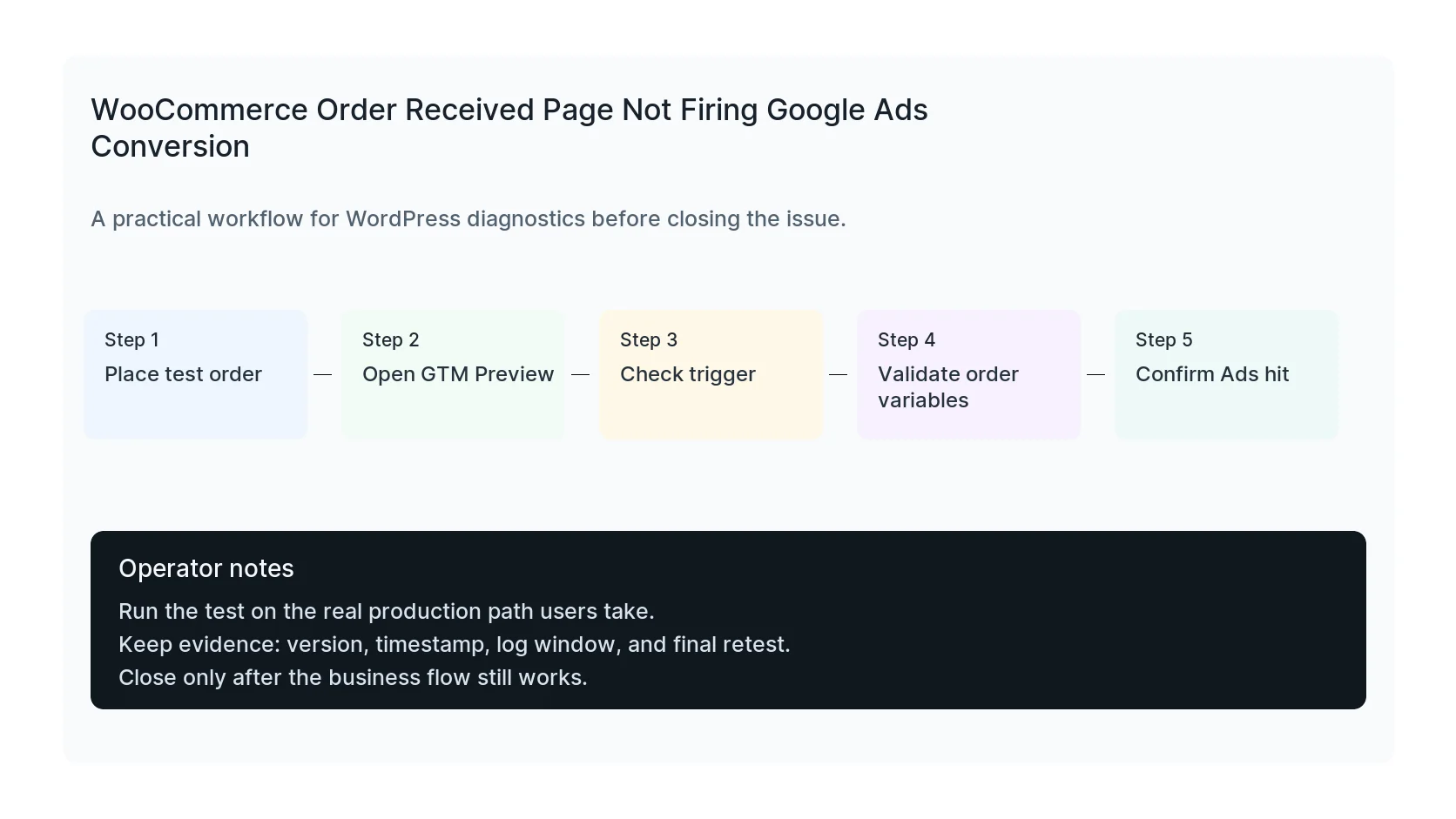
Google Ads conversion debugging on WooCommerce should start with a real test order or a staging payment flow. A normal page preview does not prove the order received template has order data.
Record the order ID, payment method, thank-you URL, and whether the visitor arrived from a campaign URL with GCLID, GBRAID, or WBRAID.
Check the trigger before editing the tag
Many broken Google Ads conversions have a good tag and a bad trigger. The order received URL may include an endpoint, query parameters, custom checkout funnel paths, or block checkout behavior that does not match the trigger rule.
In GTM Preview, confirm the conversion tag fires on the order received page and only after the order data is available. If it fires on every refresh without a transaction ID, you may create duplicates.
Validate order variables and consent
Google Ads needs a clean conversion event. Check value, currency, transaction ID, conversion label, and consent state. If consent mode is active, test accept, reject, and no-choice scenarios.
For stores using both browser and server-side conversions, make sure deduplication and transaction IDs are stable across both paths.
Compare reports against WooCommerce orders
After the test, compare the WooCommerce order, GA4 purchase event, Google Ads conversion diagnostics, and payment record. They will not always match instantly, but the event should be observable.
If the event fires in the browser but never reaches Ads, inspect network blocking, consent state, conversion linker, and account-level conversion settings.
Checklist to run before you close the issue
- Place a real test order.
- Verify the order received URL pattern.
- Check GTM trigger timing.
- Validate value, currency, and transaction ID.
- Test consent scenarios.
- Compare WooCommerce, GA4, and Google Ads records.
Useful command or test
Use this as a starting point and adapt it to the host, stack, plugin names, and access level you actually have.
dataLayer.filter(e => e.event && /purchase|conversion|order/i.test(e.event))
When to get help
If this affects production traffic, paid ads, checkout, membership access, healthcare privacy, lead routing, or search visibility, do not leave it half-tested. HandL WP can trace the issue across WordPress, server logs, plugins, forms, tracking, and Search Console. If you want a senior engineer to check it, fix WooCommerce Google Ads tracking.
Sources and further reading