A Wordfence scan result should not be dismissed as a false positive until the file path, plugin source, hash, severity, recent changes, exploitability, and runtime behavior are reviewed. The client note should show that work clearly.
Use this for agencies, care-plan teams, and business owners who need to explain security scan findings without causing panic or ignoring real risk.
Quick answer
Wordfence Scan Result False Positive Client Note should be handled with a narrow evidence-first workflow: record finding, compare clean source, review context, then verify the result before making broader changes.
What to check first
- Record the Wordfence finding, file path, severity, scan time, plugin or theme owner, and current version.
- Compare the file against a clean plugin or theme package from the official source.
- Check whether the file is modified intentionally by the site, host, or deployment process.
- Review access logs, admin users, recent file changes, and malware indicators before closing the item.
- Write a client note that separates finding, evidence, decision, action taken, and monitoring.
Diagnostic table
Use this table to keep the work practical. It connects the symptom to evidence and a verification step.
| Action | Evidence to collect | How to verify |
|---|
| Record finding | Record the Wordfence finding, file path, severity, scan time, plugin or theme owner, and current version. | The finding has evidence attached, not only a status label. |
| Compare clean source | Compare the file against a clean plugin or theme package from the official source. | A clean source or owner explains why the file differs. |
| Review context | Check whether the file is modified intentionally by the site, host, or deployment process. | No related indicators point to compromise. |
| Decide action | Review access logs, admin users, recent file changes, and malware indicators before closing the item. | The client note states what will be monitored next. |
Why this usually happens
- Premium plugins, patched vendor files, and custom child theme files can differ from public checksums.
- Security scans can flag suspicious patterns that are legitimate in context.
- A low-severity finding can still matter if it appears beside unknown admins or recent file writes.
- Clients need a plain explanation, not only a screenshot of a scan result.
Field notes
- Do not mark a finding as false positive only because the site appears normal.
- If the file comes from a vendor package, record the package version and source URL.
- If the file is custom, ask who owns it and whether it should remain in the codebase.
Useful command or data shape
Adapt paths, IDs, and privacy handling to the site before running commands or storing data on production.
client_note:
  finding: Suspicious code pattern in custom-helper.php
  severity: medium
  evidence_checked: file hash, vendor package, git history, access logs, admin users
  decision: false positive
  action_taken: documented and added to monitor list
  next_review: next scheduled security scan
Safe fix order
Do the work in a sequence that makes each result easy to prove. Stop if a step produces new evidence that changes the incident scope.
- Record finding
- Compare clean source
- Review context
- Decide action
- Write client note
What to tell the client or owner
Use plain language: what Wordfence found, why it looked risky, what evidence was checked, why it is or is not urgent, and what HandL WP will monitor next.
Production verification checklist
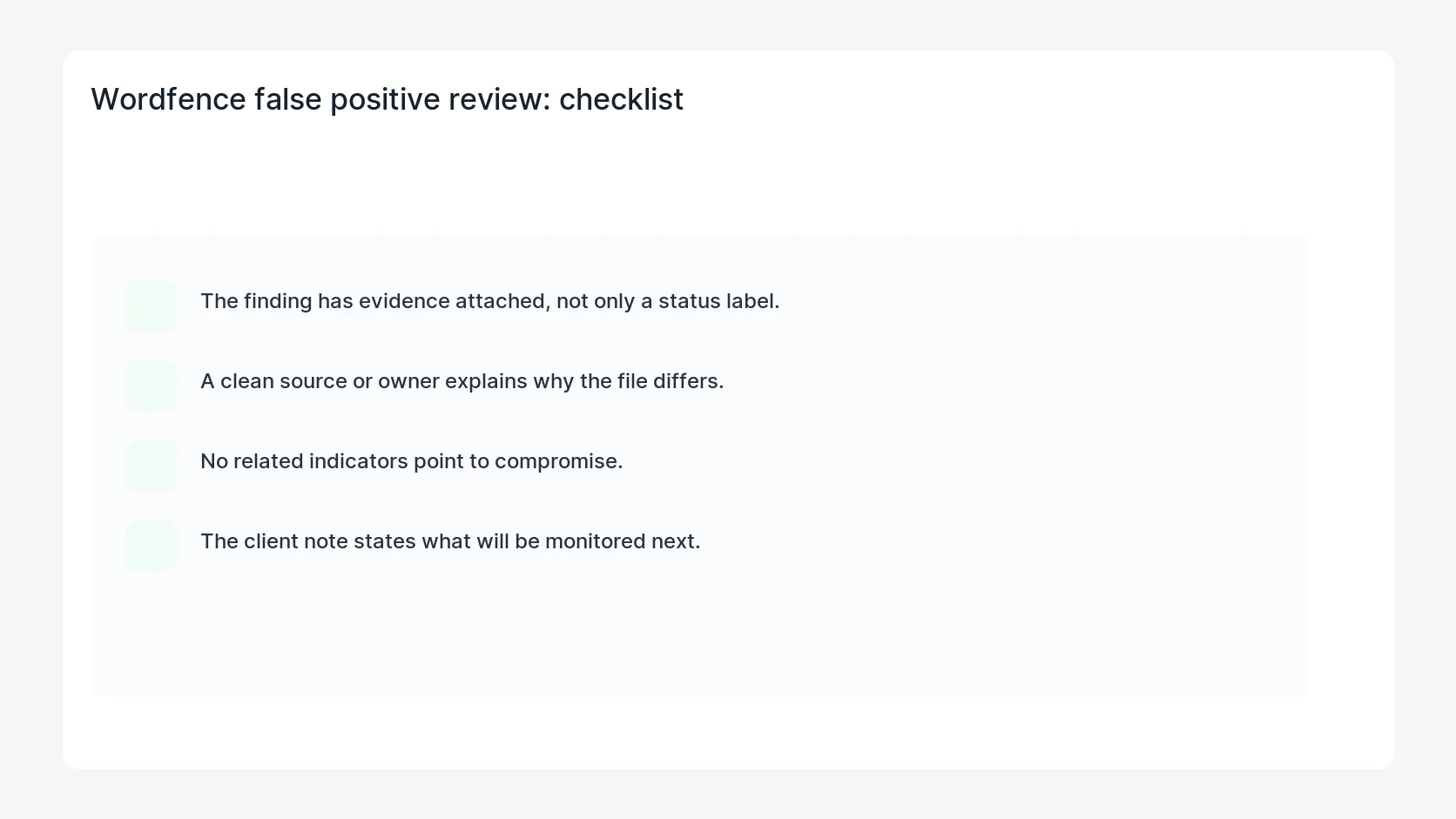
- The finding has evidence attached, not only a status label.
- A clean source or owner explains why the file differs.
- No related indicators point to compromise.
- The client note states what will be monitored next.
Mistakes to avoid
- Do not judge the fix by one browser or the homepage only.
- Do not delete evidence before recording usernames, file paths, timestamps, and response headers.
- Do not add a cache, security, or tracking plugin while the original problem is still unclear.
- Do not leave test users, temporary debug logs, or broad API keys active after verification.
When HandL WP should help
Bring in help when this affects leads, checkout, search visibility, malware risk, paid media reporting, or a client production site. HandL WP can trace the issue through WordPress, hosting, cache, tracking, and Search Console, then verify the workflow after the technical fix.
If this is active on a production site, review a WordPress security scan.
Related HandL WP guides
Use these related guides when the same issue touches tracking, security, checkout, or crawler visibility.
Compare modified files by hash before repair
When the scan identifies a changed core, plugin, or theme file, use the Wordfence modified file hash triage to preserve evidence, compare the exact trusted package, distinguish custom code from malware, and verify the repair safely.
Fix a Wordfence scan that cannot finish
When the scanner stops before it can produce a trustworthy result, use the Wordfence timeout, memory, and loopback diagnostic to identify the failed stage, host limit, self-request path, unnecessary scan scope, and safe retest.
Helpful references