A WordPress 500 internal server error means the server failed, but it does not tell you why. The cause can be .htaccess, a PHP fatal error, memory exhaustion, file permissions, plugin conflicts, theme code, or hosting limits.
Restoring a backup before reading the logs can hide the cause and risk losing recent data. Start with evidence.
Quick triage map
Use this table before changing the site. It keeps the first response focused on evidence instead of guesses.
| Signal | What it usually means | First useful check |
|---|
| .htaccess rule | Recent change or active failure | Test .htaccess |
| PHP fatal error | Code, plugin, theme, or service layer | Find PHP fatal |
| Memory exhausted | Business workflow at risk | Verify status codes |
| Bad permissions | Evidence needed before cleanup | Record timestamp, logs, and exact symptom |
Check whether every URL returns 500
Test the homepage, wp-admin, a static asset, and a direct PHP file if safe. If every request fails, the issue may be server configuration or .htaccess. If only WordPress pages fail, look harder at PHP, plugins, themes, and rewrite rules.
Use headers, not just the browser screen.
curl -sS -I --max-time 10 https://example.com/
curl -sS -I --max-time 10 https://example.com/wp-admin/
Read the server error log
The server error log usually contains the actual reason. Look for PHP fatal errors, permission denied messages, rewrite loops, memory errors, or ModSecurity blocks.
If you only see the generic browser error, you are looking at the wrong layer.
Test .htaccess safely
A broken .htaccess file can take down the whole site. Rename it temporarily, then flush permalinks or regenerate rules after WordPress loads.
Keep the original file so you can compare custom redirects, security rules, and cache rules.
mv .htaccess .htaccess.disabled
wp rewrite flush --hard
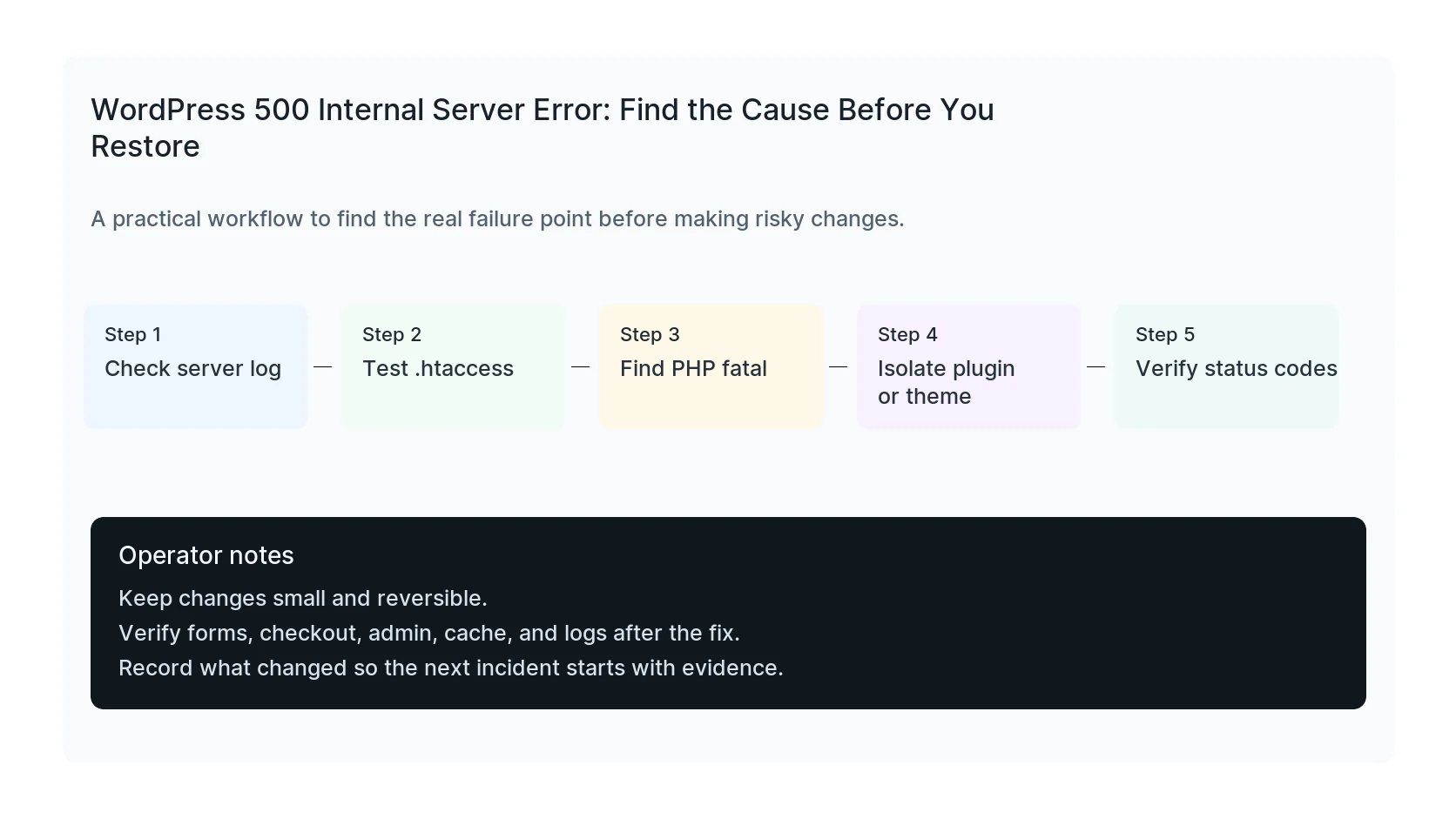
Check PHP fatal errors and memory
If the log shows a fatal error, follow the file path. Plugin paths, theme paths, mu-plugins, and core files point to different fixes.
If memory is exhausted, raising memory may bring the site back, but it does not explain what started consuming memory.
Review permissions and recent changes
Wrong file permissions can create 500 errors, especially after migrations or manual file uploads. Recent PHP version changes, plugin updates, security rule changes, and failed deployments can do the same.
Use the timestamp of the first 500 response to narrow the suspect list.
Verify with real status codes
After the fix, confirm that important URLs return 200 or the expected redirect, not hidden 500s behind a cached page. Test wp-admin, forms, checkout, XML-RPC if used, REST API, and cron if the site depends on scheduled tasks.
HandL WP fixes WordPress 500 errors by reading server logs first and making the smallest safe change that restores the site.
If this is active on a production site, get emergency WordPress error help.
Mistakes to avoid
Most WordPress emergencies get worse when too many changes happen at once. Keep the recovery path narrow so you can prove what fixed the problem.
- Do not update more plugins while troubleshooting the current failure.
- Do not delete folders before copying or backing them up.
- Do not judge the fix by the homepage only.
- Do not leave debug logging, disabled security rules, or temporary passwords in place.
- Do not skip the business workflow that originally made the issue urgent.
Production verification checklist
Before calling the issue fixed, verify the site from the visitor side and the admin side. A technical fix that breaks forms, checkout, or tracking is not finished.
- Retest the original symptom: server error.
- Open the site in a private browser window.
- Check wp-admin or the affected admin screen.
- Test the lead, checkout, booking, or contact path if the site depends on it.
- Review the error log after the fix, not only before it.
- Clear only the cache layers that affect the fixed pages.
- Write down the files, plugins, settings, or credentials changed.
Helpful official references