The WordPress white screen of death is a blank page, but it is rarely a blank problem. It usually means PHP crashed before WordPress could render a useful message.
The fastest fix is to stop staring at the white page and find the fatal error in the logs.
Quick triage map
Use this table before changing the site. It keeps the first response focused on evidence instead of guesses.
| Signal | What it usually means | First useful check |
|---|
| PHP fatal error | Recent change or active failure | Enable logging |
| Memory exhausted | Code, plugin, theme, or service layer | Read fatal error |
| Plugin conflict | Business workflow at risk | Clear cache and verify |
| Theme function failed | Evidence needed before cleanup | Record timestamp, logs, and exact symptom |
Check what is blank
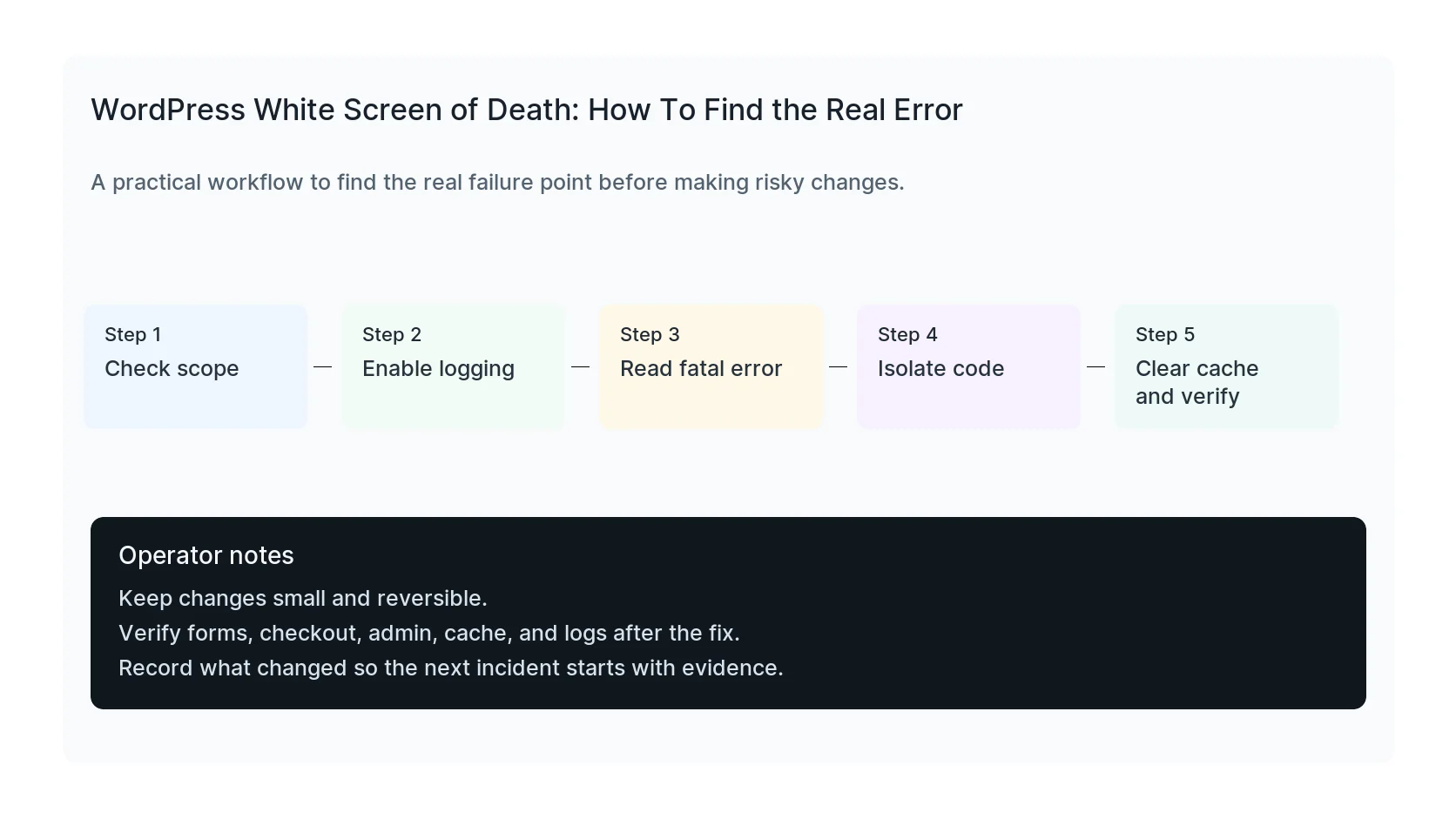
First, learn the scope. Is the entire site blank, only wp-admin, only one page, or only mobile? Scope tells you whether to start with a global plugin, theme template, page builder widget, or cache layer.
Also test with a private browser window and bypass any CDN cache if you can.
- Homepage
- wp-admin
- One landing page
- Checkout or form page
- Mobile and desktop
Turn on logging without showing errors
A production site should not display PHP errors to visitors. Log them instead, reload the failing page once, then inspect wp-content/debug.log or the hosting error log.
Turn debug settings back off after the issue is fixed.
define( 'WP_DEBUG', true );
define( 'WP_DEBUG_LOG', true );
define( 'WP_DEBUG_DISPLAY', false );
Read the first fatal error
Focus on the first fatal error line, not every file in the stack trace. The first line usually names the plugin, theme, function, or memory problem that actually stopped execution.
Paths under wp-content/plugins point to plugins. Paths under wp-content/themes point to theme code. Memory errors need a different path than syntax errors.
Isolate plugins and themes
If the log names a plugin, deactivate that plugin. If it names the theme, switch to a default theme. If there is no clear name, rename the plugins folder temporarily and bring plugins back one at a time.
Keep the changes small and reversible.
wp plugin deactivate plugin-slug
wp theme activate twentytwentyfour
wp plugin list --status=active
Do not ignore memory and cache
Allowed memory size exhausted means something consumed too much memory. Raising the limit may restore the page, but you still need to find the plugin, import, backup job, or query that caused the spike.
After fixing the cause, clear page cache, object cache, and CDN cache so visitors do not keep seeing a stale blank response.
Verify the site after recovery
Test the pages that went blank, wp-admin, forms, checkout, and tracking. Then review the error log again after testing.
HandL WP fixes white screen issues by reading the server signal first, then isolating the plugin, theme, PHP, or hosting layer that failed.
If this is active on a production site, get white screen recovery help.
Mistakes to avoid
Most WordPress emergencies get worse when too many changes happen at once. Keep the recovery path narrow so you can prove what fixed the problem.
- Do not update more plugins while troubleshooting the current failure.
- Do not delete folders before copying or backing them up.
- Do not judge the fix by the homepage only.
- Do not leave debug logging, disabled security rules, or temporary passwords in place.
- Do not skip the business workflow that originally made the issue urgent.
Production verification checklist
Before calling the issue fixed, verify the site from the visitor side and the admin side. A technical fix that breaks forms, checkout, or tracking is not finished.
- Retest the original symptom: blank page, no visible error.
- Open the site in a private browser window.
- Check wp-admin or the affected admin screen.
- Test the lead, checkout, booking, or contact path if the site depends on it.
- Review the error log after the fix, not only before it.
- Clear only the cache layers that affect the fixed pages.
- Write down the files, plugins, settings, or credentials changed.
Helpful official references