A Gravity Forms file upload audit should confirm which forms accept files, which extensions are allowed, where files land, whether uploaded files are public, and how suspicious files are quarantined before they are deleted.
Use this for WordPress sites that collect resumes, documents, support screenshots, contracts, medical intake files, or quote attachments through Gravity Forms.
Quick answer
Gravity Forms File Upload Security Quarantine Checklist should be handled with a narrow evidence-first workflow: inventory upload fields, tighten extensions, scan upload folders, then verify the result before making broader changes.
What to check first
- List every Gravity Forms upload field and the pages where those forms appear.
- Compare allowed extensions against the business need and remove broad or stale types.
- Check upload folders for PHP, SVG, HTML, ZIP, executable, and double-extension files.
- Confirm suspicious files are quarantined outside public web paths before deletion.
- Retest form submission, notification emails, and entry downloads after tightening rules.
Diagnostic table
Use this table to keep the work practical. It connects the symptom to evidence and a verification step.
| Action | Evidence to collect | How to verify |
|---|
| Inventory upload fields | List every Gravity Forms upload field and the pages where those forms appear. | Every active upload field has an owner and a documented business purpose. |
| Tighten extensions | Compare allowed extensions against the business need and remove broad or stale types. | Allowed extensions match the actual files the form needs to collect. |
| Scan upload folders | Check upload folders for PHP, SVG, HTML, ZIP, executable, and double-extension files. | No executable or unexpected files remain in public upload folders. |
| Quarantine evidence | Confirm suspicious files are quarantined outside public web paths before deletion. | The client can still download legitimate files from tested entries. |
Why this usually happens
- Upload fields often get added for one campaign and stay active after the campaign ends.
- Allowed file extensions can be copied from an old form without reviewing the current risk.
- Security plugins may alert on a file, but the form owner still needs to know which field accepted it.
- Deleting an uploaded file too quickly can remove evidence needed for incident response.
Field notes
- Use a staging copy or read-only scan first when a client depends on uploaded files for active leads.
- If SVG uploads are allowed, treat them as code-bearing files unless there is a strict sanitizer in place.
- Keep a short quarantine note with filename, form ID, entry ID, uploader IP, timestamp, and action taken.
Useful command or data shape
Adapt paths, IDs, and privacy handling to the site before running commands or storing data on production.
wp eval 'foreach (GFAPI::get_forms() as $form) { foreach ($form["fields"] as $field) { if ($field->type === "fileupload") { echo $form["id"] . "\t" . $field->id . "\t" . $field->label . "\n"; } } }'
find wp-content/uploads/gravity_forms -type f \( -name '*.php' -o -name '*.phtml' -o -name '*.svg' -o -name '*.html' -o -name '*.zip' \) -print
mkdir -p ../private-quarantine/gravity-forms
# Move suspicious files only after recording path, form ID, entry ID, timestamp, and hash.
Safe fix order
Do the work in a sequence that makes each result easy to prove. Stop if a step produces new evidence that changes the incident scope.
- Inventory upload fields
- Tighten extensions
- Scan upload folders
- Quarantine evidence
- Retest submissions
What to tell the client or owner
Tell the owner exactly which forms accept uploads, which file types were removed, whether suspicious files were found, and which test entry proves normal uploads still work.
Production verification checklist
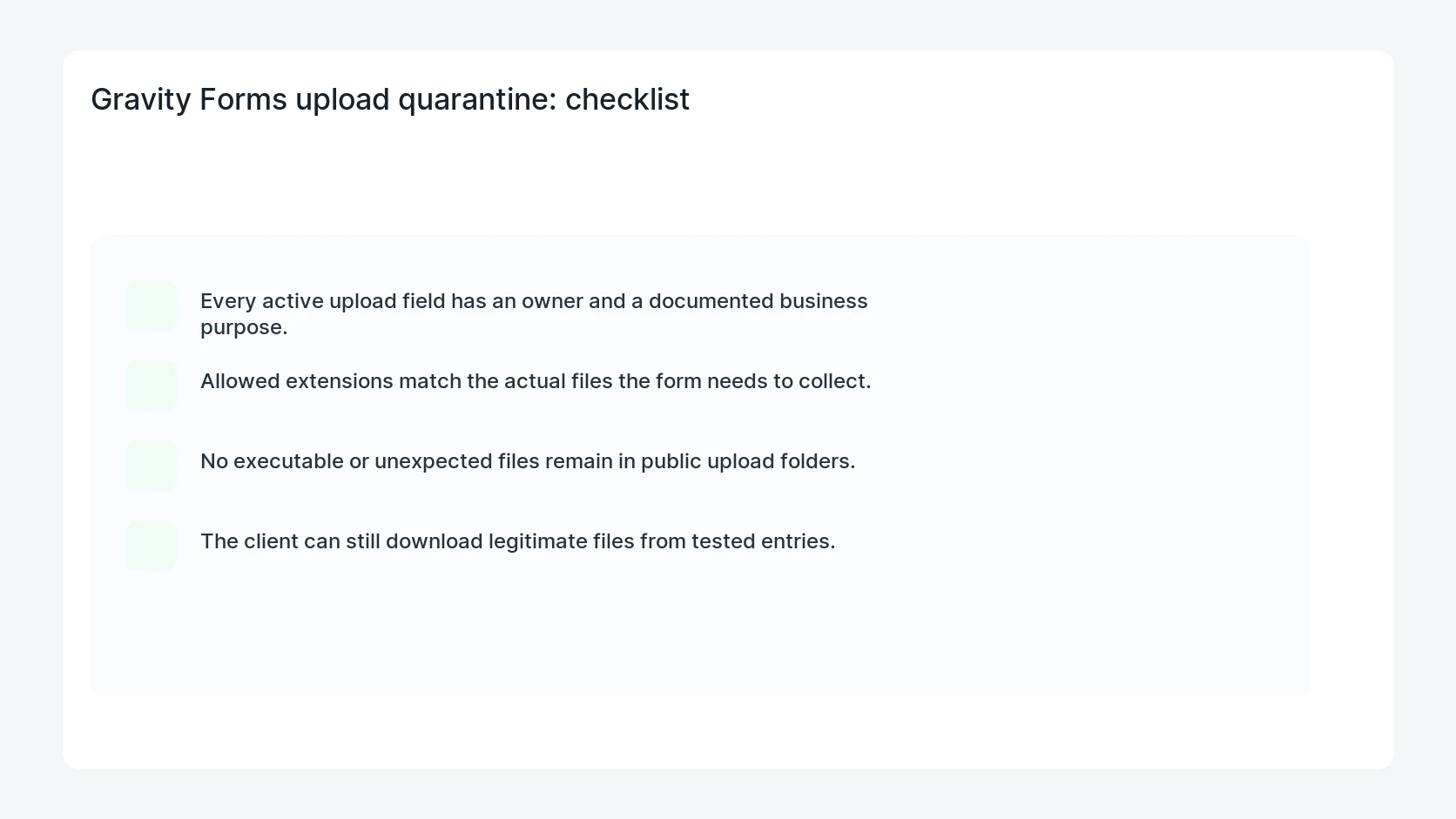
- Every active upload field has an owner and a documented business purpose.
- Allowed extensions match the actual files the form needs to collect.
- No executable or unexpected files remain in public upload folders.
- The client can still download legitimate files from tested entries.
Mistakes to avoid
- Do not judge the fix by one browser or the homepage only.
- Do not delete evidence before recording usernames, file paths, timestamps, and response headers.
- Do not add a cache, security, or tracking plugin while the original problem is still unclear.
- Do not leave test users, temporary debug logs, or broad API keys active after verification.
When HandL WP should help
Bring in help when this affects leads, checkout, search visibility, malware risk, paid media reporting, or a client production site. HandL WP can trace the issue through WordPress, hosting, cache, tracking, and Search Console, then verify the workflow after the technical fix.
If this is active on a production site, review WordPress upload security.
Related HandL WP guides
Use these related guides when the same issue touches tracking, security, checkout, or crawler visibility.
Helpful references
If legitimate uploads are rejected before they enter storage, diagnose the validation failure separately: Gravity Forms Says File Type Not Allowed: Check the File, Not Just Its Name.