WooCommerce product object caching and page cache can improve response time, but stale mini-cart fragments, coupon totals, sale prices, stock states, or variation prices can cost orders. The fix is to test cache correctness across product, cart, mini-cart, and checkout states.
Use this for WooCommerce stores using object cache, page cache, CDN cache, performance plugins, custom mini-carts, sale schedules, or variation-heavy catalogs.
Quick answer
WooCommerce Object Cache Cart Fragment Stale Price Check should be handled with a narrow evidence-first workflow: create test product, compare cart views, change product data, then verify the result before making broader changes.
What to check first
- Create a cache test product with regular price, sale price, variation price, stock, and coupon behavior.
- Compare product page, archive, mini-cart, cart, checkout, and order review totals.
- Change price, coupon, stock, and sale schedule while cache is warm.
- Test guest, logged-in, mobile, and private-browser sessions.
- Separate object cache, page cache, CDN cache, and browser cache before changing rules.
Diagnostic table
Use this table to keep the work practical. It connects the symptom to evidence and a verification step.
| Action | Evidence to collect | How to verify |
|---|
| Create test product | Create a cache test product with regular price, sale price, variation price, stock, and coupon behavior. | Mini-cart, cart, checkout, and order review show the same current total. |
| Compare cart views | Compare product page, archive, mini-cart, cart, checkout, and order review totals. | Sale price, coupon, stock, and variation changes appear after the intended purge. |
| Change product data | Change price, coupon, stock, and sale schedule while cache is warm. | Guest and logged-in sessions do not receive each other's cart state. |
| Test shopper states | Test guest, logged-in, mobile, and private-browser sessions. | Cache rules are documented for product and coupon edits. |
Why this usually happens
- WooCommerce product data can appear in several templates and JavaScript fragments.
- Mini-cart fragments can stay warm after product data changes.
- Object cache and page cache solve different problems and can hide different mistakes.
- Guest cache and logged-in cache often behave differently at checkout.
Field notes
- Use one product SKU created only for cache QA and leave it unpublished after testing.
- Do not test only the product page. Checkout totals are the final truth.
- Keep a screenshot of the stale state before purging so the cause is easier to explain.
Useful command or data shape
Adapt paths, IDs, and privacy handling to the site before running commands or storing data on production.
cache_test:
  sku: CACHE-CART-001
  product_states: regular_price, sale_price, variation_price, out_of_stock
  views: product, archive, mini_cart, cart, checkout
  cache_layers: object_cache, page_cache, cdn, browser
  result: stale_mini_cart_price_after_sale_change
Safe fix order
Do the work in a sequence that makes each result easy to prove. Stop if a step produces new evidence that changes the incident scope.
- Create test product
- Compare cart views
- Change product data
- Test shopper states
- Separate cache layers
What to tell the client or owner
Tell the owner which cache layer caused the stale value, which customer states were tested, and what purge or exclusion rule now protects cart totals.
Production verification checklist
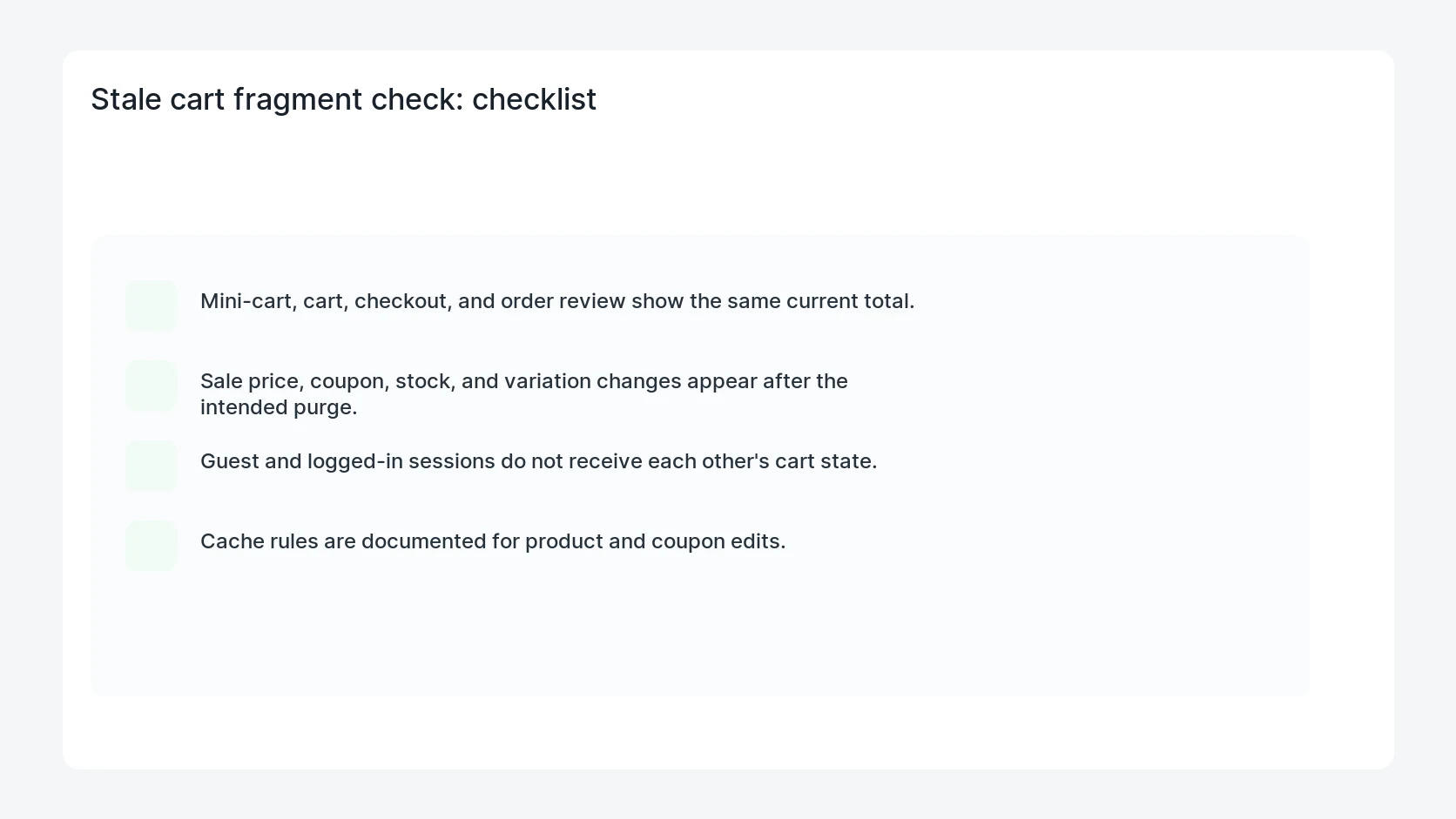
- Mini-cart, cart, checkout, and order review show the same current total.
- Sale price, coupon, stock, and variation changes appear after the intended purge.
- Guest and logged-in sessions do not receive each other's cart state.
- Cache rules are documented for product and coupon edits.
Mistakes to avoid
- Do not judge the fix by one browser or the homepage only.
- Do not delete evidence before recording usernames, file paths, timestamps, and response headers.
- Do not add a cache, security, or tracking plugin while the original problem is still unclear.
- Do not leave test users, temporary debug logs, or broad API keys active after verification.
When HandL WP should help
Bring in help when this affects leads, checkout, search visibility, malware risk, paid media reporting, or a client production site. HandL WP can trace the issue through WordPress, hosting, cache, tracking, and Search Console, then verify the workflow after the technical fix.
If this is active on a production site, fix WooCommerce cache correctness.
Related HandL WP guides
Use these related guides when the same issue touches tracking, security, checkout, or crawler visibility.
Helpful references
If stale totals appear specifically after Back navigation, check browser restoration separately: WooCommerce Cart Looks Stale After the Browser Back Button.