When an Avada layout breaks after a security update rollback, the issue may be the theme version, child theme override, builder cache, merged CSS, template library, or CDN cache. A blind rollback can hide the real compatibility problem.
Use this when a production Avada site has broken headers, missing sections, shifted columns, blank builder content, or mobile layout issues after an update or rollback.
Quick answer
Separate a visual regression from a security update decision. Identify the broken header, template or generated asset, reproduce it on staging, and repair the compatible customization. Returning to a release covered by a security advisory is not a durable fix. Avada One migration is a separate project, not a prerequisite for repairing Classic.
What to check first
- Record the current Avada, Avada Builder, child theme, WordPress, PHP, and cache plugin versions.
- Compare the broken page against a staging copy and one unaffected page using the same template.
- Check child theme overrides, custom CSS, Global Options, page options, and Avada dynamic CSS generation.
- Record the generated CSS request and its response before clearing anything. Rebuild the affected Avada assets, then refresh the page/CDN entries that serve them. Investigate object cache only when the saved-data evidence points there.
- Only roll forward or roll back after confirming which layer changed the visible layout.
Find the first layer that disagrees
Compare the same page while logged out and in the editor. In browser developer tools, record the generated CSS URL, HTTP status, content type and the declaration that should style the broken element. A successful HTML response at a CSS URL is not a usable stylesheet.
| Evidence | Next check |
|---|
| CSS request is missing, blocked or returns an error | Check the generated asset path, HTTPS and the exact browser refusal before changing templates. |
| CSS loads but lacks the expected selector | Compare Avada generation and optimization output with the saved page and template settings. |
| The declaration exists but is crossed out | Trace the winning child-theme or custom rule. A cache purge cannot fix intentional CSS precedence. |
| Logged-in view works, logged-out view fails | Compare served HTML and asset URLs across the two views. Check page-cache and CDN variants. |
| Only one template or breakpoint fails | Inspect that layout assignment and its responsive rules rather than rebuilding every page. |
Rebuild only after capturing the failure
Avada documents Avada > Options > Performance > Reset Avada Caches in its official post-update troubleshooting advice. Confirm the controls available in your installed version. Record the old asset URL first, trigger the supported rebuild, then inspect the new request and the affected public page.
Refresh relevant third-party page caches and CDN entries after the origin has the correct output. Do not repeatedly flush a shared object cache as a universal visual fix: it can increase database load and may have no connection to the broken CSS. If the rebuilt file is absent or still wrong, inspect write errors and generation logs instead of repeating the purge.
Use a fixed comparison set: the broken page, a sibling using the same layout, and a page using a different layout. Test the mobile menu and one lead form as well as the screenshot. Keep the supported patched theme and required plugin combination consistent during this comparison.
Why this usually happens
- Theme rollback changes PHP and template files, but generated CSS and cached HTML can remain from the newer version.
- Child theme overrides can depend on markup that changed in a security release.
- A page template can be fixed while a global header, footer, or mobile breakpoint remains broken.
- CDN cache can keep serving a broken CSS file after WordPress shows the correct file locally.
Field notes
- Keep screenshots from before cleanup, after cache purge, and after each version change.
- Test one template, one high-traffic page, and one mobile viewport before calling the rollback complete.
- Avoid editing page content until you know whether the layout is file, cache, or builder data.
Useful command or data shape
Adapt paths, IDs, and privacy handling to the site before running commands or storing data on production.
rollback_record:
  avada_before: 7.x
  builder_before: 3.x
  wordpress: current
  php: 8.2
  broken_pages: homepage, quote-page
  cache_layers: avada_css, page_cache, object_cache, cdn
  decision: purge_assets_then_test_staging
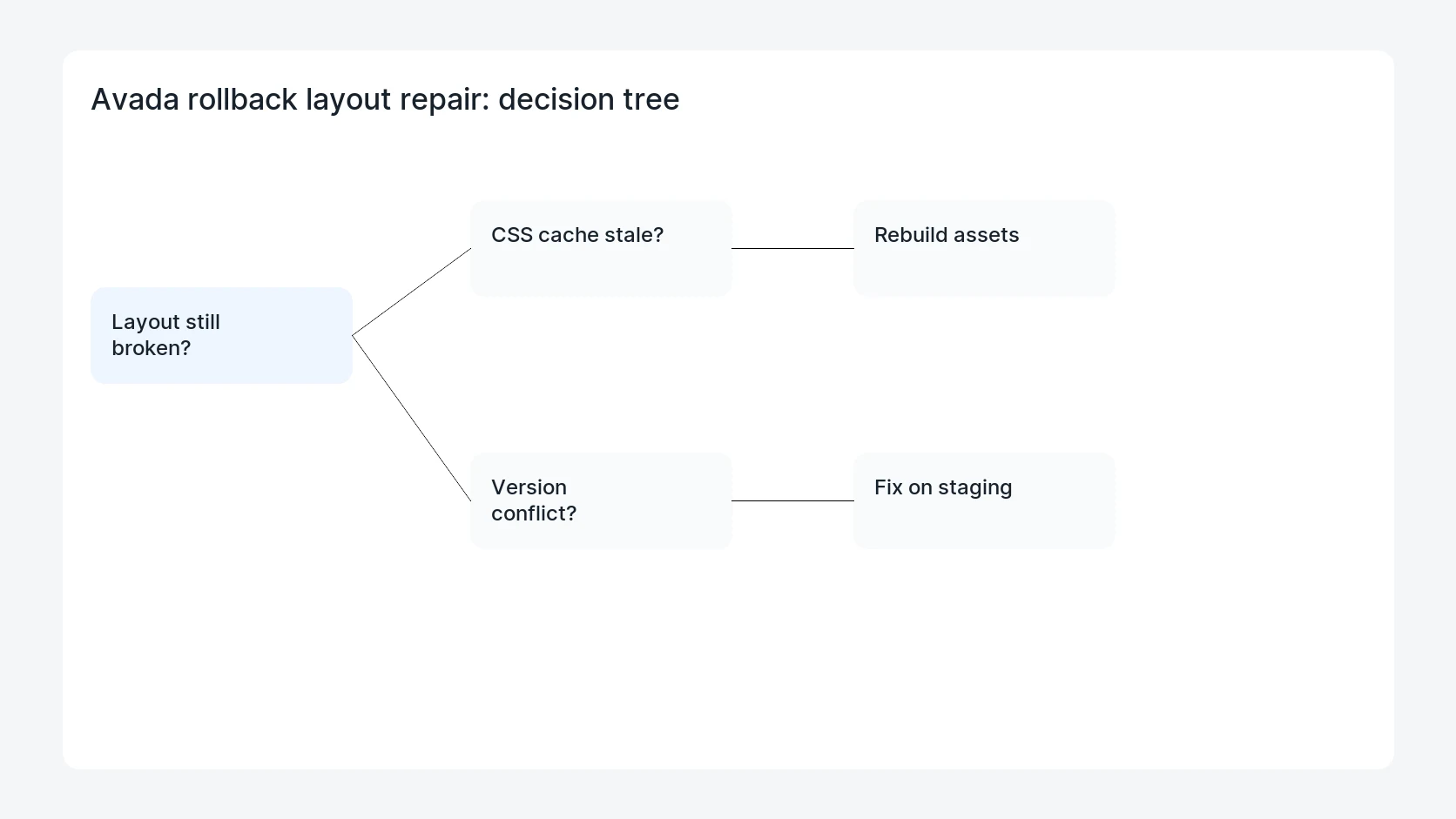
Safe fix order
Do the work in a sequence that makes each result easy to prove. Stop if a step produces new evidence that changes the incident scope.
- Record versions
- Compare staging
- Check overrides
- Purge assets
- Retest breakpoints
What to tell the client or owner
Explain whether the rollback is temporary, what exact version combination is safe, and what still needs to be patched on staging before production is updated again.
Production verification checklist
- The broken page, a sibling template, and a mobile viewport render correctly.
- Generated Avada CSS and page cache were rebuilt after the version decision.
- No child theme override masks a patched template file.
- The site owner has a clear update path instead of staying on a risky rollback.
Mistakes to avoid
- Do not judge the fix by one browser or the homepage only.
- Do not delete evidence before recording usernames, file paths, timestamps, and response headers.
- Do not add a cache, security, or tracking plugin while the original problem is still unclear.
- Do not leave test users, temporary debug logs, or broad API keys active after verification.
When HandL WP should help
Bring in help when this affects leads, checkout, search visibility, malware risk, paid media reporting, or a client production site. HandL WP can trace the issue through WordPress, hosting, cache, tracking, and Search Console, then verify the workflow after the technical fix.
If this is active on a production site, plan safe WordPress updates.
Related HandL WP guides
Use these related guides when the same issue touches tracking, security, checkout, or crawler visibility.
Rule out regenerated Used CSS before changing the theme
If the layout breaks only after cache regeneration, use the WP Rocket Remove Unused CSS safelist and rebuild guide. It compares the optimized page with nowprocket, finds missing dynamic selectors, and verifies the final generated CSS instead of relying on a temporary cache clear.
Patch Avada without leaving mixed component versions
Before treating a post-update layout problem as a reason to remain vulnerable, compare the parent theme and required plugin versions with the Avada 7.16.1 version parity audit. Then use the Fusion Patcher security update checklist to retest caches, layouts, forms, checkout, and scheduled tasks after the supported release state is restored.
Helpful references
If the layout is intact but navigation icons become empty squares, isolate the font delivery problem: Avada Icons Showing Squares? Trace the Font Before Rolling Back.
A security repair is different from choosing a new builder. Before planning a platform change, read Avada One Beta Ended: Should Your Classic Site Move?.