A Wordfence vulnerability alert is only half the work. The client needs a short proof-of-fix note that names the affected component, action taken, version evidence, scan result, and remaining risk without overwhelming them.
Use this for agencies, white-label teams, care-plan providers, and internal site owners who patch plugins and need a client-ready security update.
Quick answer
Wordfence Vulnerability Client Email With Proof of Fix should be handled with a narrow evidence-first workflow: record advisory, apply fix, capture evidence, then verify the result before making broader changes.
What to check first
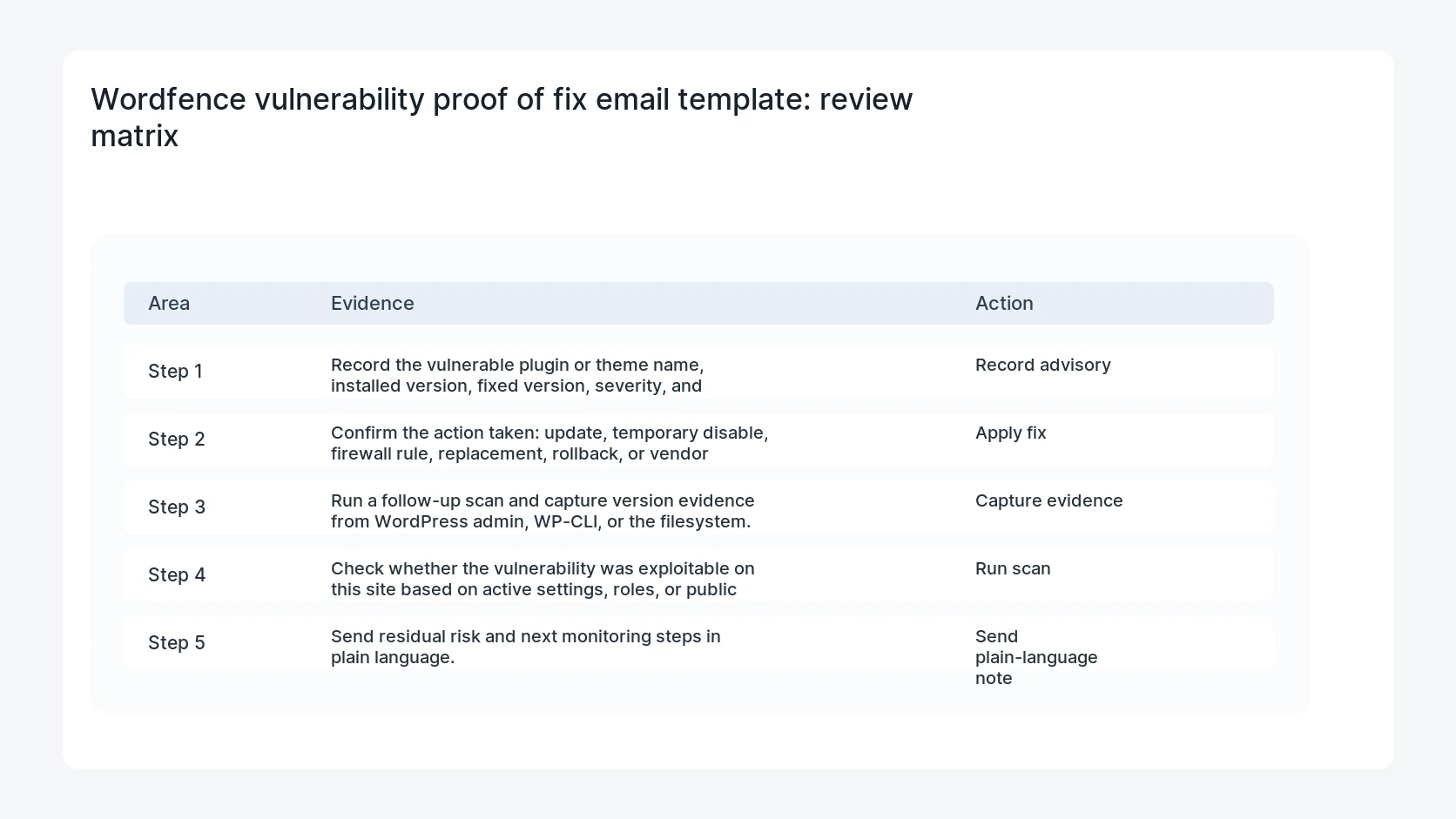
- Record the vulnerable plugin or theme name, installed version, fixed version, severity, and advisory link.
- Confirm the action taken: update, temporary disable, firewall rule, replacement, rollback, or vendor escalation.
- Run a follow-up scan and capture version evidence from WordPress admin, WP-CLI, or the filesystem.
- Check whether the vulnerability was exploitable on this site based on active settings, roles, or public endpoints.
- Send residual risk and next monitoring steps in plain language.
Diagnostic table
Use this table to keep the work practical. It connects the symptom to evidence and a verification step.
| Action | Evidence to collect | How to verify |
|---|
| Record advisory | Record the vulnerable plugin or theme name, installed version, fixed version, severity, and advisory link. | The fixed version appears in WordPress admin or WP-CLI output. |
| Apply fix | Confirm the action taken: update, temporary disable, firewall rule, replacement, rollback, or vendor escalation. | The vulnerability alert is resolved or explained with a known false-positive note. |
| Capture evidence | Run a follow-up scan and capture version evidence from WordPress admin, WP-CLI, or the filesystem. | Logs show no obvious exploit attempt during the reviewed period. |
| Run scan | Check whether the vulnerability was exploitable on this site based on active settings, roles, or public endpoints. | The client email includes the action, proof, and next monitoring step. |
Why this usually happens
- Security reports skip the evidence because the technical team already knows what happened.
- A plugin update fixes the version number but cache, readme files, or inactive copies still create confusion.
- The client needs to know whether customer data, forms, checkout, or admin access was involved.
- The team closes the alert before explaining what will be watched next.
Field notes
- Keep the email short enough to read on a phone. Put raw scan output in the internal ticket, not the client body.
- If there is any sign of exploitation, do not call it a normal patch. Switch to incident response language.
Useful command or data shape
Adapt paths, IDs, and privacy handling to the site before running commands or storing data on production.
client_email_fields:
  subject: Security update completed for Example Site
  component: Example Plugin
  vulnerable_version: 2.4.1
  fixed_version: 2.4.2
  action_taken: updated plugin and cleared opcode cache
  proof: Wordfence scan clean at 2026-07-04 13:55 UTC
  residual_risk: no exploitation evidence in reviewed logs
Safe fix order
Do the work in a sequence that makes each result easy to prove. Stop if a step produces new evidence that changes the incident scope.
- Record advisory
- Apply fix
- Capture evidence
- Run scan
- Send plain-language note
What to tell the client or owner
The best client note is calm, specific, and evidence based. It should say what was fixed, why it mattered, and what remains under watch.
Production verification checklist
- The fixed version appears in WordPress admin or WP-CLI output.
- The vulnerability alert is resolved or explained with a known false-positive note.
- Logs show no obvious exploit attempt during the reviewed period.
- The client email includes the action, proof, and next monitoring step.
Mistakes to avoid
- Do not judge the fix by one browser or the homepage only.
- Do not delete evidence before recording usernames, file paths, timestamps, and response headers.
- Do not add a cache, security, or tracking plugin while the original problem is still unclear.
- Do not leave test users, temporary debug logs, or broad API keys active after verification.
When HandL WP should help
Bring in help when this affects leads, checkout, search visibility, malware risk, paid media reporting, or a client production site. HandL WP can trace the issue through WordPress, hosting, cache, tracking, and Search Console, then verify the workflow after the technical fix.
If this is active on a production site, put vulnerability patch reporting on a care plan.
Related HandL WP guides
Use these related guides when the same issue touches tracking, security, checkout, or crawler visibility.
Helpful references