Weekly vulnerability reports can overwhelm site owners when they list CVEs, plugins, severity, affected versions, and proof-of-concept status without a clear site-specific decision. The triage work is to map the alert to installed versions, exposure, backup status, staging test, and client communication.
Use this for agencies, care plan teams, and site owners who receive Wordfence alerts and need a repeatable way to decide patch now, test first, remove, monitor, or ignore because the site is not affected.
Quick answer
Wordfence Weekly Vulnerability Report Client Triage Template should be handled with a narrow evidence-first workflow: match components, classify exposure, check backup, then verify the result before making broader changes.
What to check first
- Match each vulnerability to installed plugin or theme slug, active status, and version.
- Record severity, exploitability, authentication requirement, and whether the feature is exposed.
- Check backup freshness, staging availability, and known compatibility risks before patching.
- Assign a decision: patch now, test first, remove, monitor, or not affected.
- Send the client a short note with affected sites, action taken, and remaining risk.
Diagnostic table
Use this table to keep the work practical. It connects the symptom to evidence and a verification step.
| Action | Evidence to collect | How to verify |
|---|
| Match components | Match each vulnerability to installed plugin or theme slug, active status, and version. | Every alert maps to a site-specific affected or not-affected decision. |
| Classify exposure | Record severity, exploitability, authentication requirement, and whether the feature is exposed. | Critical and high-risk items have an owner and due date. |
| Check backup | Check backup freshness, staging availability, and known compatibility risks before patching. | Patched items include live version evidence. |
| Assign decision | Assign a decision: patch now, test first, remove, monitor, or not affected. | The client update is short, factual, and tied to business risk. |
Why this usually happens
- A vulnerability feed is global, but the client needs a site-specific action.
- High severity does not always mean the vulnerable feature is active on the site.
- Low severity can still matter when the plugin is public, unauthenticated, or business-critical.
- Clients lose trust when reports create fear without a clear owner and due date.
Field notes
- Keep the triage table short enough that a client can understand it in one minute.
- Do not say patched until the live version, backup, and tested page are recorded.
- Use the same severity language every week so trends are visible.
Useful command or data shape
Adapt paths, IDs, and privacy handling to the site before running commands or storing data on production.
triage_row:
  site: client-store.example
  component: example-plugin
  installed_version: 2.4.1
  affected: yes
  severity: high
  exposure: public_form
  decision: patch_now
  evidence: backup_ok, staging_passed, live_version_2.4.2
Safe fix order
Do the work in a sequence that makes each result easy to prove. Stop if a step produces new evidence that changes the incident scope.
- Match components
- Classify exposure
- Check backup
- Assign decision
- Send client note
What to tell the client or owner
Send the client a table with component, affected status, action, evidence, and next review date. Avoid dumping the raw vulnerability feed unless they ask for it.
Production verification checklist
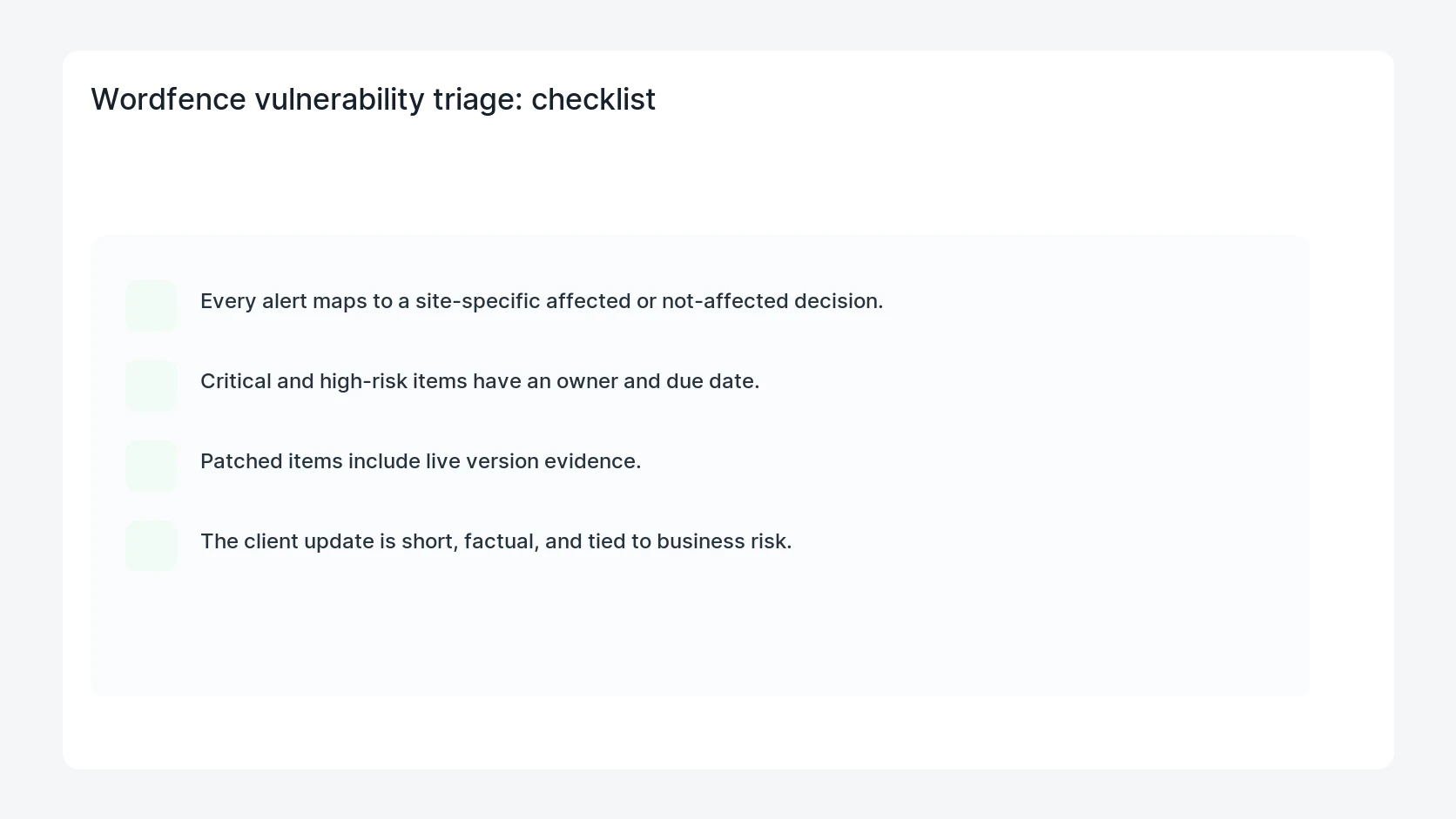
- Every alert maps to a site-specific affected or not-affected decision.
- Critical and high-risk items have an owner and due date.
- Patched items include live version evidence.
- The client update is short, factual, and tied to business risk.
Mistakes to avoid
- Do not judge the fix by one browser or the homepage only.
- Do not delete evidence before recording usernames, file paths, timestamps, and response headers.
- Do not add a cache, security, or tracking plugin while the original problem is still unclear.
- Do not leave test users, temporary debug logs, or broad API keys active after verification.
When HandL WP should help
Bring in help when this affects leads, checkout, search visibility, malware risk, paid media reporting, or a client production site. HandL WP can trace the issue through WordPress, hosting, cache, tracking, and Search Console, then verify the workflow after the technical fix.
If this is active on a production site, turn Wordfence alerts into patch decisions.
Related HandL WP guides
Use these related guides when the same issue touches tracking, security, checkout, or crawler visibility.
Helpful references