If your site says There has been a critical error on this website, treat it like a PHP crash, not a mystery message. WordPress is telling you that something fatal happened before the page could finish loading. The usual causes are a plugin update, theme conflict, PHP version mismatch, custom code, memory limit, or a broken dependency.
The fastest safe fix is not to click around randomly. Start by finding the exact file and line that crashed, then isolate the plugin, theme, or code path that caused it.
This guide walks through the order we use when a client cannot access wp-admin and the site is blocking leads, checkouts, or paid traffic.
First, do not make the damage worse
Before you change files, pause long enough to protect the site. A critical error often happens right after an update, but the broken update is not always the only problem. If you overwrite files, delete plugins, or restore an old backup too quickly, you can lose orders, form entries, or content that arrived after the last backup.
Do these first:
- Take a fresh backup of files and database if your host still allows it.
- Check whether the front end,
wp-admin, or both are broken.
- Do not update more plugins while the site is in this state.
- Do not delete the plugin folder unless you already have a copy.
- Keep a note of the exact time the error started.
That last timestamp matters. It lets you compare the crash against plugin updates, PHP version changes, deployments, cron jobs, and hosting logs.
Check the Recovery Mode email
Since WordPress 5.2, fatal error recovery can send the site admin an email with a special Recovery Mode link. If that email arrives, use it. It often names the plugin, theme, or file that triggered the fatal error.
Look for an email with a subject similar to Your Site is Experiencing a Technical Issue. It normally goes to the admin email stored in WordPress, which may be an old address, an agency address, or a mailbox nobody checks anymore.
If Recovery Mode works, log in, deactivate the named plugin or theme, and test the public site in a private browser window. If Recovery Mode does not work or the email never arrives, move to the logs.
Find the actual PHP error
The critical error screen is only the symptom. The useful part is the PHP fatal error behind it. You can usually find that in one of three places:
- Your hosting error log.
wp-content/debug.log, if WordPress debug logging is enabled.- The error details inside the Recovery Mode email.
If you can edit wp-config.php, add this above the line that says /* That's all, stop editing! */:
define( 'WP_DEBUG', true );
define( 'WP_DEBUG_LOG', true );
define( 'WP_DEBUG_DISPLAY', false );
Then reload the broken page once and check wp-content/debug.log. Do not leave debug mode on after the fix. Debug output can expose paths, plugin names, and other sensitive details if it is misconfigured.
You are looking for lines that include words like Fatal error, Uncaught Error, Call to undefined function, Allowed memory size exhausted, or Parse error.
Read the file path before you touch anything
The file path usually tells you where to start.
/wp-content/plugins/plugin-name/ points to a plugin./wp-content/themes/theme-name/ points to the active theme or child theme./wp-content/mu-plugins/ points to a must-use plugin, often added by a host or developer./wp-includes/ can still be triggered by a plugin, but core files may also be incomplete after a failed update.functions.php often points to custom theme code or copied snippets.
Do not assume the first plugin in the stack trace is guilty. The important line is usually the first fatal error line, not every file listed below it.
If a plugin caused it, isolate the plugin safely
If the fatal error names a plugin and you cannot access wp-admin, use SFTP, SSH, or your host file manager. Rename only that plugin folder first.
wp-content/plugins/problem-plugin
wp-content/plugins/problem-plugin.disabled
Reload the site. If the critical error disappears, you found the immediate trigger. Now decide whether to roll the plugin back, update its dependency, replace it, or keep it disabled until a developer can test it on staging.
If the log does not name a clear plugin, rename the whole plugins folder temporarily:
wp-content/plugins
wp-content/plugins.disabled
Then create a fresh empty plugins folder. If the site loads, one of the plugins is the problem. Move plugins back one at a time until the site fails again. It is slow, but it is safer than guessing.
If the theme caused it, switch to a default theme
If the error points to the active theme, especially a child theme or functions.php, switch to a default theme. If you can use WP-CLI, this is clean:
wp theme list
wp theme activate twentytwentyfour
If you do not have WP-CLI, you can rename the active theme folder. WordPress will try to fall back to another installed theme. This is not as clean as WP-CLI, but it can restore access long enough to fix the code.
Theme-related critical errors often come from copied PHP snippets, missing functions after plugin deactivation, old page builder hooks, or a child theme that was never tested against the latest PHP version.
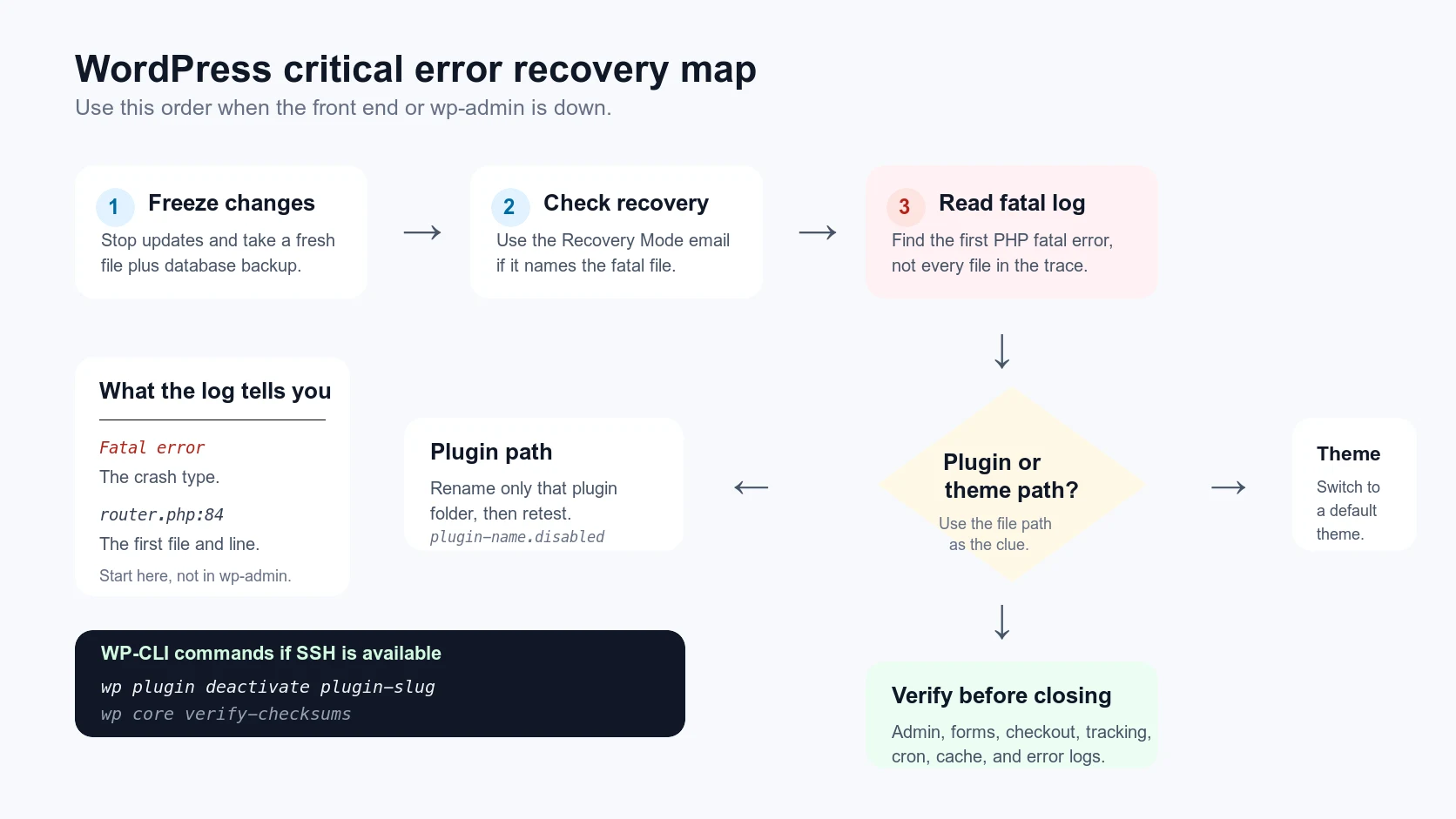
Use WP-CLI if SSH is available
WP-CLI is usually faster and cleaner than clicking through a broken dashboard. These commands help you inspect the site without loading the full admin UI:
wp plugin list
wp plugin deactivate plugin-slug
wp theme list
wp theme activate twentytwentyfour
wp core verify-checksums
wp option get admin_email
If a plugin update caused the error, WP-CLI can deactivate it quickly. If WordPress core files are incomplete, wp core verify-checksums helps confirm whether core files were modified or damaged.
Be careful with database-changing commands on production. If you are not sure what the command does, stop and take a backup first.
Common causes and the right fix
A plugin update introduced a fatal error
Deactivate the plugin, restore the previous known-good version, and test the new version on staging. If the plugin handles forms, checkout, memberships, or tracking, also verify the business workflow after the site loads.
The PHP version changed
A host-side PHP upgrade can break older themes and plugins. Check the fatal error for deprecated functions, type errors, or missing extensions. The fix may be to update the code, install a missing PHP extension, or temporarily roll PHP back while you patch the site.
Custom code in functions.php failed
Comment out the recent snippet or restore the previous child theme file. Avoid editing PHP in the WordPress theme editor on production. One missing bracket can take the site down again.
The site ran out of memory
If the log says Allowed memory size exhausted, raising memory may get the site back, but it does not explain why memory spiked. Check recent plugins, imports, backup jobs, image processing, and WooCommerce tasks.
Malware or injected code caused the crash
If the fatal error points to strange files in uploads, random PHP files, unknown admin users, or obfuscated code, treat it as a security incident. Do not only remove the visible file. You need to find the entry point and backdoors too. Our WordPress malware cleanup service covers that deeper path.
When a backup restore is the right move
Restoring a backup is useful when the site is down and the cause is unclear, but it has tradeoffs. You may lose new orders, form entries, comments, or content edits. You can also restore the same vulnerable plugin that caused the problem.
A backup restore is reasonable when:
- You know the exact restore point before the break.
- The site does not collect new orders or leads during the restore window.
- You can export recent form entries or WooCommerce orders first.
- You will still investigate the cause after the restore.
If the site handles revenue, a surgical rollback is usually better than a blind full restore.
What to test after the site loads again
Getting the homepage back is not enough. A critical error can leave hidden damage in the places that make money.
Test these before you call it done:
- Homepage, top landing pages, and a blog post.
wp-admin login and key admin screens.- Contact forms and notification emails.
- Checkout, payment, or booking flow if the site has one.
- Tracking events for Google Ads, GA4, Meta Pixel, or server-side CAPI.
- Cron jobs, cache plugin, and CDN cache.
- Error logs after the fix, not just before it.
If forms stopped sending after the recovery, use our guide to WordPress contact forms not sending emails. If a plugin update caused the outage, we also handle emergency plugin conflict fixes.
How to prevent the next critical error
You cannot prevent every crash, but you can make the next one less expensive.
- Run plugin updates on staging before production.
- Keep daily backups with offsite storage.
- Use uptime monitoring and error log monitoring.
- Document which plugins control forms, checkout, tracking, and security.
- Keep PHP versions current, but test major jumps first.
- Avoid adding random PHP snippets without version control.
- Have SFTP or SSH access ready before an emergency.
The best recovery plan is boring. Someone can access the server, read the logs, roll back the right thing, test the money path, and leave notes for the next update.
When to call a WordPress developer
Call for help if the site is tied to ads, bookings, ecommerce, membership access, patient inquiries, or lead generation. Also call if the error points to custom code, malware, payment plugins, or database issues.
HandL WP fixes these at the file, database, and server layer. We use logs, WP-CLI, backups, staging checks, and production verification instead of guessing inside the dashboard.
If the critical error is active right now, start here: request an emergency WordPress fix.
Helpful official references