An Avada global header can break after a child theme override continues serving old template markup or custom hooks. The visible problem may be a missing logo, broken mobile menu, shifted navigation, or blank header, but the fix starts by comparing child files, Avada layouts, generated CSS, and cache layers.
Use this when an Avada site has a broken global header after an update, rollback, security patch, child theme edit, or cache rebuild.
Quick answer
Identify the active global header layout and its assigned conditions before editing a child-theme override. Compare the override with the updated parent implementation, then test logged-out desktop, mobile and sticky states. If only the image changes or blurs, inspect the visible logo element and its source separately from the header structure.
What to check first
- Identify whether the header comes from Avada Layouts, Global Options, a child template, a hook, or custom CSS.
- List child theme overrides and compare them against the current parent Avada files.
- Regenerate Avada assets and purge page cache, object cache, CDN cache, and browser cache.
- Test desktop, tablet, mobile, logged-in, and logged-out header states.
- Check forms, tracking scripts, menus, and WooCommerce mini-cart elements inside the header.
Diagnostic table
Use this table to keep the work practical. It connects the symptom to evidence and a verification step.
| Action | Evidence to collect | How to verify |
|---|
| Map header source | Identify whether the header comes from Avada Layouts, Global Options, a child template, a hook, or custom CSS. | The header renders correctly across desktop, tablet, and mobile. |
| Compare overrides | List child theme overrides and compare them against the current parent Avada files. | No stale child template bypasses the current Avada parent behavior. |
| Regenerate assets | Regenerate Avada assets and purge page cache, object cache, CDN cache, and browser cache. | Generated CSS and CDN cache were rebuilt after the file decision. |
| Test breakpoints | Test desktop, tablet, mobile, logged-in, and logged-out header states. | Header forms, menus, tracking, and mini-cart elements still work. |
Why this usually happens
- A child theme can override patched or updated parent templates.
- Header layouts often depend on generated CSS that remains stale after PHP changes.
- Mobile navigation can break even when the desktop header looks fine.
- Rollback decisions can restore layout while reintroducing security or compatibility risk.
Field notes
- Do not edit live header content until you know whether the problem is template, CSS, or cache.
- Screenshot all breakpoints before and after each change.
- Keep one staging page that uses the same header layout for safe testing.
Useful command or data shape
Adapt paths, IDs, and privacy handling to the site before running commands or storing data on production.
find wp-content/themes/avada-child -type f | sort
diff -u wp-content/themes/Avada/templates/header.php wp-content/themes/avada-child/templates/header.php
header_test:
  views: desktop, tablet, mobile
  states: logged_out, logged_in
  cache_layers: avada_assets, page_cache, cdn
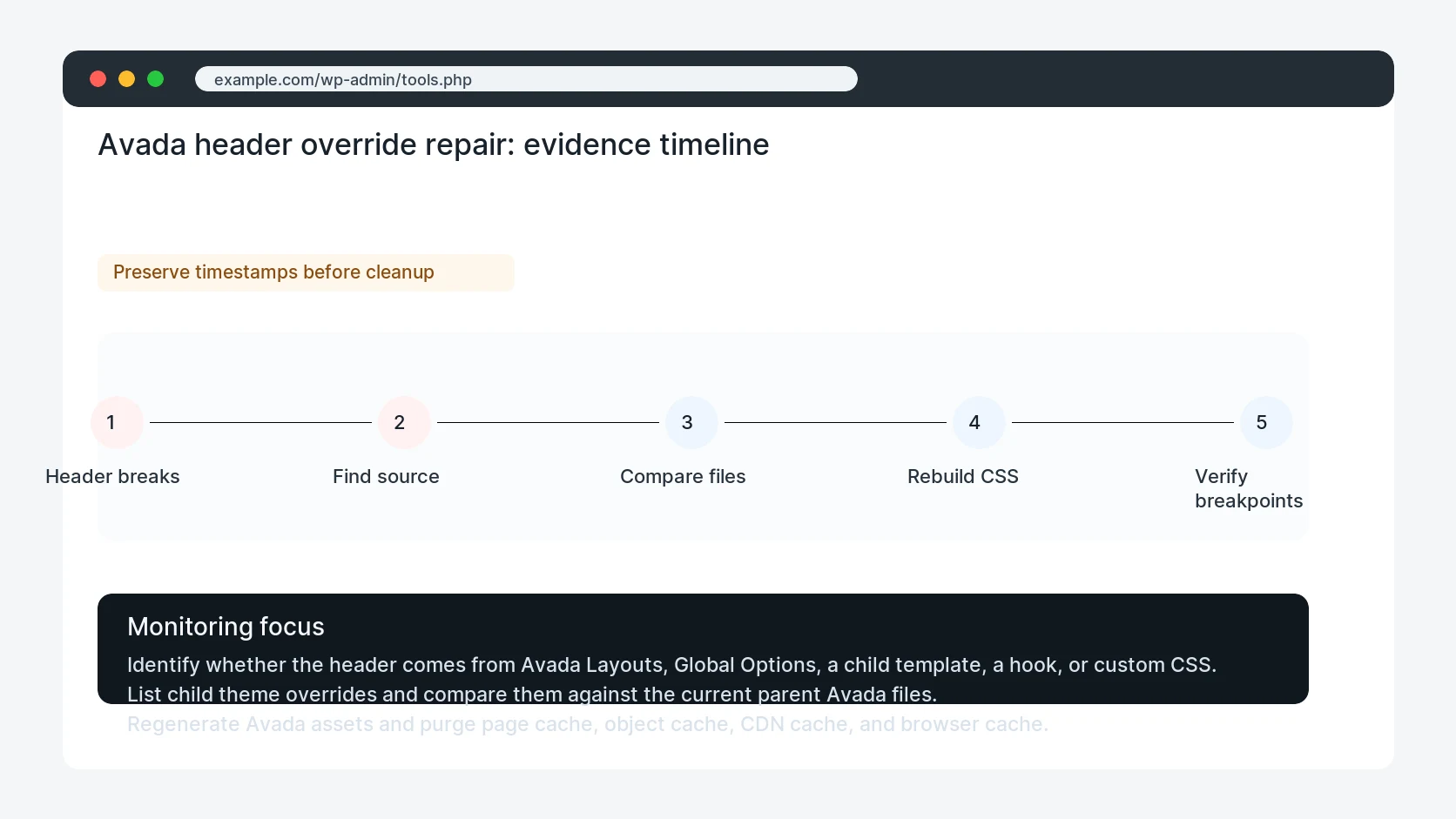
Safe fix order
Do the work in a sequence that makes each result easy to prove. Stop if a step produces new evidence that changes the incident scope.
- Map header source
- Compare overrides
- Regenerate assets
- Test breakpoints
- Retest header integrations
What to tell the client or owner
Tell the client whether the break came from Avada Layouts, child files, CSS, or cache, and which screenshots prove the header is fixed across breakpoints.
Production verification checklist
- The header renders correctly across desktop, tablet, and mobile.
- No stale child template bypasses the current Avada parent behavior.
- Generated CSS and CDN cache were rebuilt after the file decision.
- Header forms, menus, tracking, and mini-cart elements still work.
Mistakes to avoid
- Do not judge the fix by one browser or the homepage only.
- Do not delete evidence before recording usernames, file paths, timestamps, and response headers.
- Do not add a cache, security, or tracking plugin while the original problem is still unclear.
- Do not leave test users, temporary debug logs, or broad API keys active after verification.
When HandL WP should help
Bring in help when this affects leads, checkout, search visibility, malware risk, paid media reporting, or a client production site. HandL WP can trace the issue through WordPress, hosting, cache, tracking, and Search Console, then verify the workflow after the technical fix.
If this is active on a production site, repair Avada updates safely.
Related HandL WP guides
Use these related guides when the same issue touches tracking, security, checkout, or crawler visibility.
Connect the repair to its Avada query-owner cluster
Use the Search Console Avada click-owner repair cluster to route header, child-theme, security update, dynamic CSS, mobile menu, rollback, and verification intent without publishing competing broad pages.
Compare child-theme hook order before copying templates
When the header still fails after the initial override review, run the Avada global-header hook-priority conflict test. It compares callbacks, priorities, layout conditions, duplicate owners, copied templates, generated assets, and cache states on working and failing URLs.
Helpful references
When the header renders but its links are wrong, identify the active menu and template with WordPress Menu Shows the Wrong Pages or Will Not Update.
When the repaired header stays visible but covers the section reached by a menu link, use this separate scrolling diagnosis: WordPress Anchor Links Hidden Under a Sticky Header.
If the header structure works but its logo changes or becomes blurry by state, follow Avada Logo Wrong or Blurry on Mobile and Sticky Headers.